AgentLabs
AI-Powered Bulk Calling Solution
Automate your voice calling campaigns with AI-powered conversations
📋 What is AgentLabs?
AgentLabs is an advanced AI-powered bulk calling solution that combines cutting-edge technologies to automate voice communications at scale. Using Twilio for reliable call delivery, ChatGPT-4 for intelligent conversation handling, and ElevenLabs for natural-sounding voice synthesis, AgentLabs enables businesses to conduct thousands of automated voice calls with human-like interactions.[web:60][web:62][web:65]
🎯 Perfect For
- • Sales teams conducting outbound campaigns
- • Customer service teams handling support calls
- • Marketing teams running promotional campaigns
- • Survey and feedback collection
- • Appointment reminders and confirmations
- • Lead generation and qualification
⚡ Key Technologies
- • Twilio: Enterprise-grade call infrastructure[web:65]
- • ChatGPT-4: Advanced conversational AI[web:65]
- • ElevenLabs: Human-like voice synthesis[web:64][web:65]
- • Real-time Processing: Instant response generation
- • Cloud-based: Scalable and reliable
🔐 Two-Panel System
👑 Super Admin Panel
- • Create and manage subscription plans
- • Monitor system-wide performance
- • Configure global settings
- • Manage admin accounts
- • View comprehensive analytics
👨💼 Admin Panel
- • Launch bulk calling campaigns
- • Manage contact lists and CSV uploads
- • Configure AI voice agents
- • Track campaign performance
- • Access call recordings and transcripts
🚀 Step by Step Setup Guide
📋 Step 1: System Requirements
💻 Server Requirements
- • OS: Ubuntu 20.04+ / Windows Server 2019+ / macOS 10.15+
- • Node.js: Version 18 or higher
- • PostgreSQL: Version 14 or higher
- • RAM: 2GB minimum (4GB recommended)
- • Storage: 10GB minimum available space
- • CPU: 2 cores minimum
- • SSL Certificate: Required for webhooks
⚡ Step 2: Install Dependencies
For Ubuntu/Debian:
# Update system packages
sudo apt update && sudo apt upgrade -y

# Install Node.js 18
curl -fsSL https://deb.nodesource.com/setup_20.x | sudo -E bash -
sudo apt install -y nodejs

# Verify Node.js installation
node --version
npm --version

# Install PostgreSQL
sudo apt install -y postgresql postgresql-contrib

# Install PM2 (Process Manager)
sudo npm install -g pm2

# Install Nginx (for reverse proxy)
sudo apt install -y nginx

# Install certbot for SSL
sudo apt install -y certbot python3-certbot-nginx
🗃️ Step 3: Database Setup
# Switch to postgres user
sudo -u postgres psql

# Create database and user
CREATE DATABASE agentlabs;
CREATE USER agentlabs_user WITH PASSWORD 'your_secure_password';
GRANT ALL PRIVILEGES ON DATABASE agentlabs TO agentlabs_user;

# Exit PostgreSQL
\q

# Test database connection
psql -h localhost -U agentlabs_user -d agentlabs
⚠️ Important: Replace 'your_secure_password' with a strong password and save it safely !
📦 Step 4: Application Installation
# Navigate to your web directory
cd /var/www/

# Extract agentlabs package (replace with your actual package)
sudo unzip agentlabs.zip
sudo mv agentlabs-main agentlabs
sudo chown -R $USER:$USER agentlabs
cd agentlabs

# Install dependencies
npm install

# Set proper permissions
sudo chown -R $USER:$USER node_modules
chmod -R 755 .
⚙️ Step 5: Environment Configuration
# Copy environment template
cp .env.example .env

# Edit environment file
nano .env
Configure .env file:
# Server Configuration
# =========================================
# AgentLabs - Environment Variables Template
# =========================================
# Copy this file to .env and fill in your actual values
# NEVER commit .env to version control!

# =========================================
# Database Configuration
# =========================================
PGHOST=postgres
PGPORT=5432
PGUSER=agentlabs
PGPASSWORD=your_secure_database_password_here
PGDATABASE=agentlabs
DATABASE_URL=postgresql://postgres:admin@localhost:5432/agentlabs_new


# =========================================
# Application Configuration
# =========================================
NODE_ENV=production
PORT=5000
APP_PORT=5000
APP_URL=https://yourdomain.com

# Session secret (generate with: openssl rand -base64 32)
SESSION_SECRET=your_session_secret_here_minimum_32_characters

# =========================================
# Twilio Configuration
# =========================================
# Get these from: https://console.twilio.com
TWILIO_ACCOUNT_SID=AC86dfe6f7f06d80fa095f748c0602f295
TWILIO_AUTH_TOKEN=325680266beffe69bc0f15135c32dd34

# =========================================
# ElevenLabs Configuration
# =========================================
# Get from: https://elevenlabs.io/app/settings/api-keys
# Note: You can add multiple keys via the admin panel after installation
ELEVENLABS_API_KEY=8744a05349c6a45dc4a9df8bae38efe79cad10a1d65d28b4be97468c1d4ce359

# =========================================
# Stripe Configuration (Production)
# =========================================
# Get from: https://dashboard.stripe.com/apikeys
STRIPE_SECRET_KEY=sk_test_tR3PYbcVNZZ796tH88S4VQ2u
VITE_STRIPE_PUBLIC_KEY=pk_test_51BTUDGJAJfZb9HEBwDg86TN1KNprHjkfipXmEDMb0gSCassK5T3ZfxsAbcgKVmAIXF7oZ6ItlZZbXO6idTHE67IM007EwQ4uN3

# =========================================
# Stripe Configuration (Testing - Optional)
# =========================================
# For testing in production environment
TESTING_STRIPE_SECRET_KEY=sk_test_xxxxxxxxxxxxxxxxxxxxxxxxxxxxx
TESTING_VITE_STRIPE_PUBLIC_KEY=pk_test_xxxxxxxxxxxxxxxxxxxxxxxxxxxxx

# =========================================
# Installation Configuration
# =========================================
# These are automatically managed by the installer
# Do not modify manually unless you know what you're doing
INSTALLER_COMPLETED=false
INSTALLER_VERSION=1.0.0


JWT_SECRET=dev-secret-key-change-in-production-123456789
🔒 Step 6: SSL Certificate Setup
# Generate SSL certificate using Certbot
sudo certbot --nginx -d your-domain.com

# Configure Nginx for agentlabs
sudo nano /etc/nginx/sites-available/agentlabs
Nginx Configuration:
server {
    listen 80;
    server_name your-domain.com;
    return 301 https://$server_name$request_uri;
}

server {
    listen 443 ssl;
    server_name your-domain.com;

    ssl_certificate /etc/letsencrypt/live/your-domain.com/fullchain.pem;
    ssl_certificate_key /etc/letsencrypt/live/your-domain.com/privkey.pem;

    location / {
        proxy_pass http://localhost:5000;
        proxy_http_version 1.1;
        proxy_set_header Upgrade $http_upgrade;
        proxy_set_header Connection 'upgrade';
        proxy_set_header Host $host;
        proxy_set_header X-Real-IP $remote_addr;
        proxy_set_header X-Forwarded-For $proxy_add_x_forwarded_for;
        proxy_set_header X-Forwarded-Proto $scheme;
        proxy_cache_bypass $http_upgrade;
    }
}
# Enable site and restart Nginx
sudo ln -s /etc/nginx/sites-available/agentlabs /etc/nginx/sites-enabled/
sudo nginx -t
sudo systemctl restart nginx
🔄 Step 7: Database Migration
# Navigate to agentlabs directory
cd /var/www/agentlabs

# Run database generate
npm run db:generate

# Run database migrations
npm run db:push

# Verify database tables created
psql -h localhost -U agentlabs_user -d agentlabs -c "\dt"
✅ Success: You should see all agentlabs tables created successfully !
🚀 Step 8: Build and Start Application
# Build the application
npm run build

# Start with PM2 (Production)
pm2 start ecosystem.config.js

# Or start directly (Development)
npm run dev

# Check PM2 status
pm2 status
pm2 logs agentlabs

# Setup PM2 to start on boot
pm2 startup
pm2 save
🎉 Step 9: First Login & Testing
🔐 Default Login Credentials
⚠️ Important: Change password immediately after first login!
✅ Quick Test Checklist
- • Successfully logged into admin panel
- • Dashboard loads without errors
- • Added WhatsApp channel successfully
- • Webhook receiving test messages
- • Can send test message
🛠️ Common Issues & Solutions
❌ Application won't start
- • Check if PostgreSQL is running:
sudo systemctl status postgresql - • Verify database connection in .env file
- • Check if port 5000 is available:
lsof -i :5000 - • View application logs:
pm2 logs agentlabs
✨ Core Features
AI Voice Agents
Intelligent conversational AI powered by ChatGPT-4 that understands context, answers questions naturally, and adapts to customer responses in real-time.[web:60][web:62]
Bulk Call Management
Make thousands of simultaneous calls with CSV upload support, contact list management, call scheduling, and automated retry logic for failed calls.[web:66][web:69]
Natural Voice Synthesis
ElevenLabs integration delivers ultra-realistic, human-like voice quality with multiple voice options, accent support, and emotion recognition capabilities.[web:64][web:65]
Multilingual Support
Conduct calls in multiple languages with automatic language detection, translation capabilities, and region-specific voice accents for global reach.[web:64][web:62]
Real-time Analytics
Comprehensive dashboard showing call success rates, conversation duration, sentiment analysis, response accuracy, and ROI tracking in real-time.[web:61][web:62]
Automated Workflows
Design custom conversation flows with conditional logic, dynamic responses, automated call-backs, appointment scheduling, and CRM integration.[web:62][web:63]
Call Recording & Transcripts
Automatic recording of all calls with AI-powered transcription, keyword extraction, sentiment analysis, and searchable conversation history.[web:62]
Smart Call Routing
Intelligent call distribution based on time zones, agent availability, customer preferences, and automated escalation to human agents when needed.[web:62]
CRM Integration
Seamless integration with popular CRM platforms for automatic data sync, lead scoring, follow-up scheduling, and customer journey tracking.[web:62]
🔄 How AgentLabs Works
Upload Contacts
Import your contact list via CSV or connect your CRM[web:66][web:69]
Configure AI Agent
Set conversation goals, voice preferences, and response logic[web:63]
Launch Campaign
Twilio initiates calls while ChatGPT-4 & ElevenLabs handle conversations[web:65]
Track Results
Monitor performance with real-time analytics and insights[web:61][web:62]
👑 Super Admin Dashboard Features
Complete platform management and monitoring tools for Super Administrators
Platform Analytics
Monitor platform performance and system health
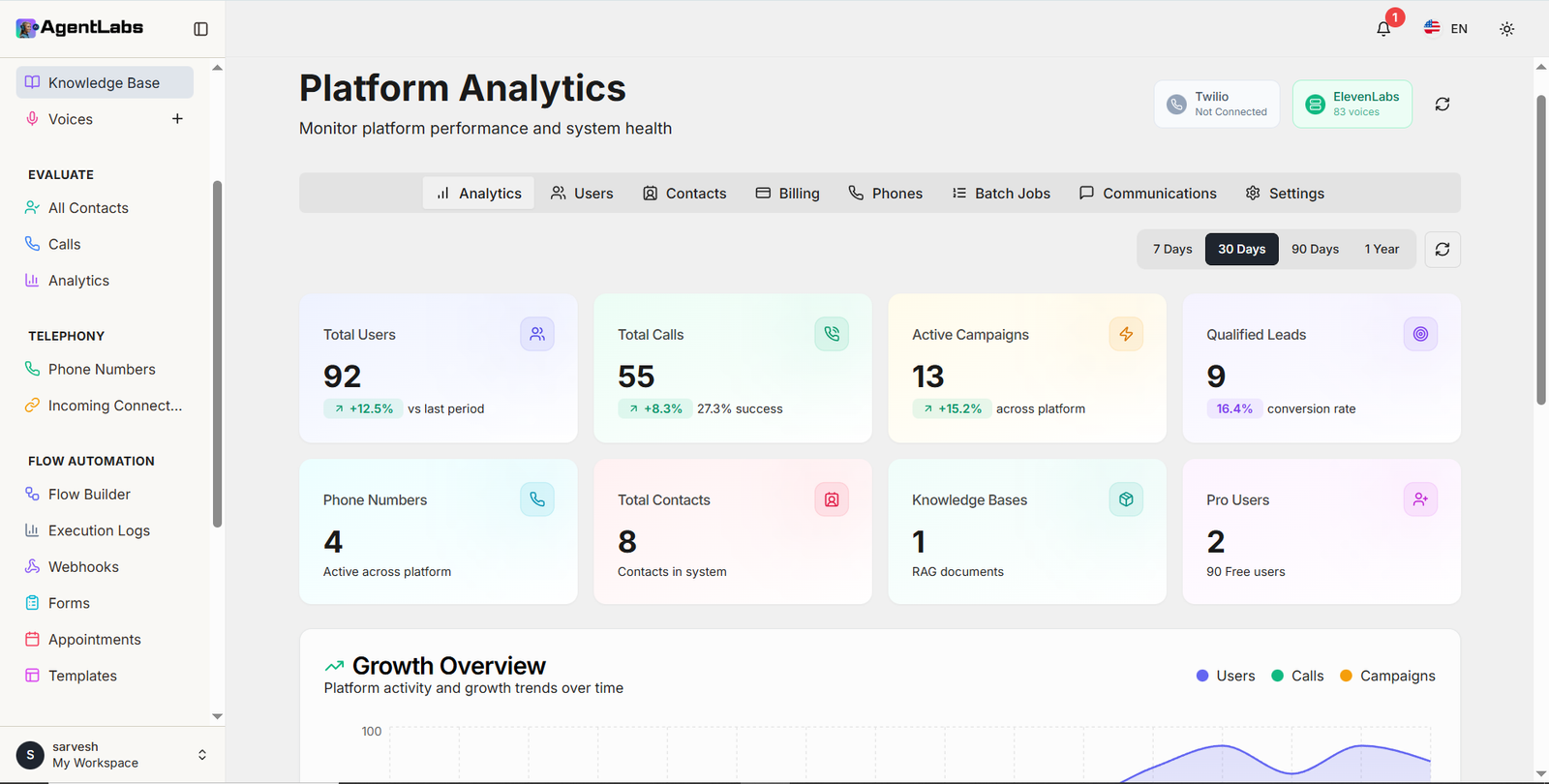
📈 What Platform Analytics Shows
Key Performance Metrics
- • Total Users: Displays the complete count of registered users on the platform with percentage growth compared to the previous period
- • Total Calls: Shows platform-wide call volume with growth rate indicator and overall success percentage rate
- • Active Campaigns: Tracks currently running campaigns with cross-platform growth metrics
- • Qualified Leads: Monitors high-value leads generated with conversion rate percentage tracking
System Resources
- • Phone Numbers: Count of active phone numbers deployed and available across the platform
- • Total Contacts: Total number of contact records currently stored in the system database
- • Knowledge Bases: Number of RAG document collections available for AI agent training and responses
- • Pro Users: Count of premium subscription users with breakdown of free tier users on platform
🔌 Integration Status
Twilio
Real-time connection status indicator
Telephony service API health and availability monitoring
ElevenLabs
Connection status with available voice library count
AI voice synthesis service integration status
📈 Growth Overview
Visual chart displaying platform activity and growth trends over selected time periods with multi-metric comparative analysis
⏱️ Analytics Time Periods
Flexible date range filters allowing historical data analysis across multiple timeframes: 7 days, 30 days, 90 days, and 1 year periods for comprehensive trend insights
User Management
Manage admin user accounts, plans, and permissions
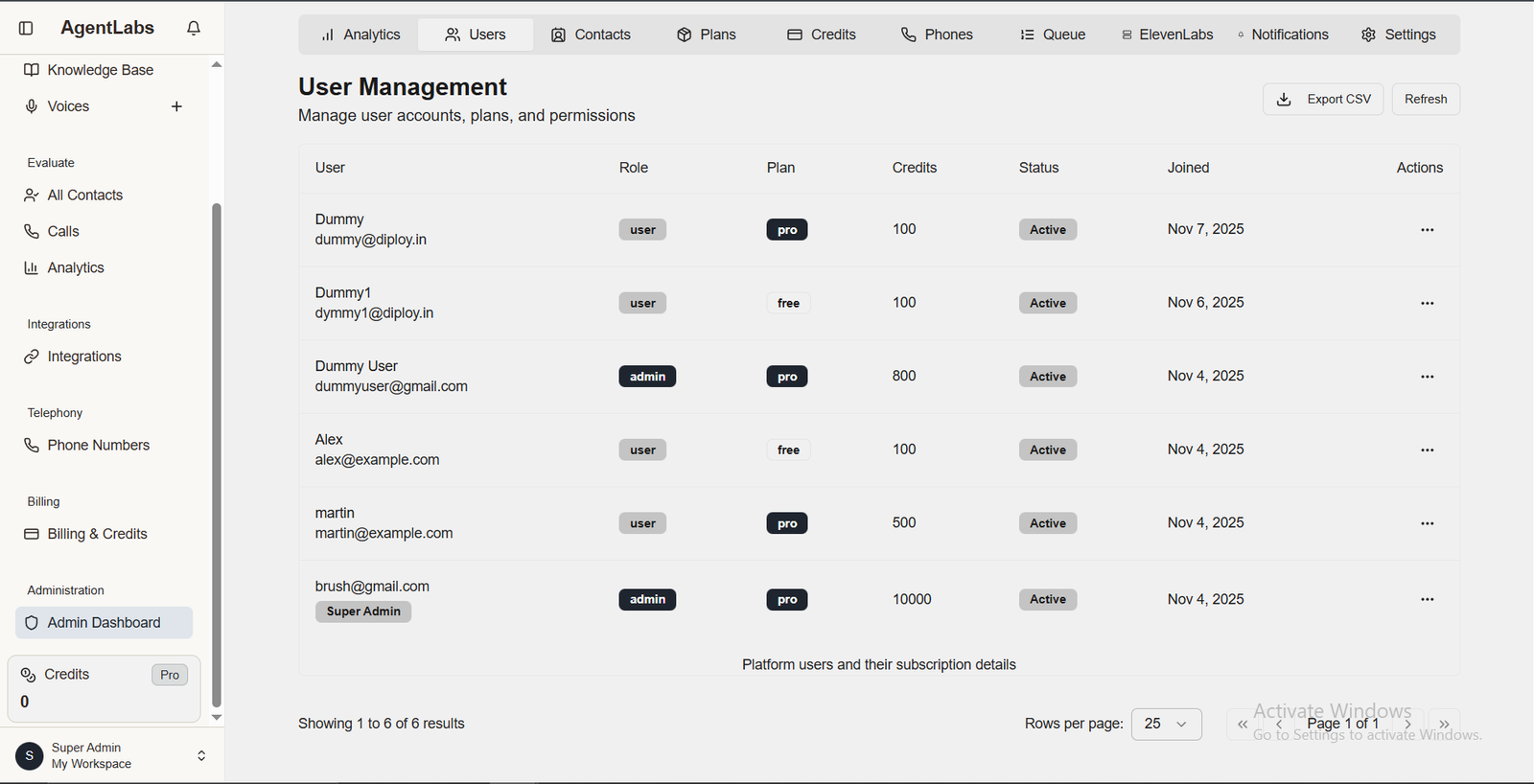
📋 User Management Overview
Table Columns
- • User: Name and email address
- • Role: User/Admin/Super Admin badges
- • Plan: Free or Pro subscription
- • Credits: Available credit balance
- • Status: Active/Inactive account status
- • Joined: Account creation date
Quick Actions
- • Export CSV: Download user list data
- • Refresh: Reload latest user data
- • Actions Menu (...): Edit, manage credits, change plan, suspend user
- • Pagination: Navigate through user pages (25, 50, 100 rows per page)
Plan Management
Configure subscription plans and their limits
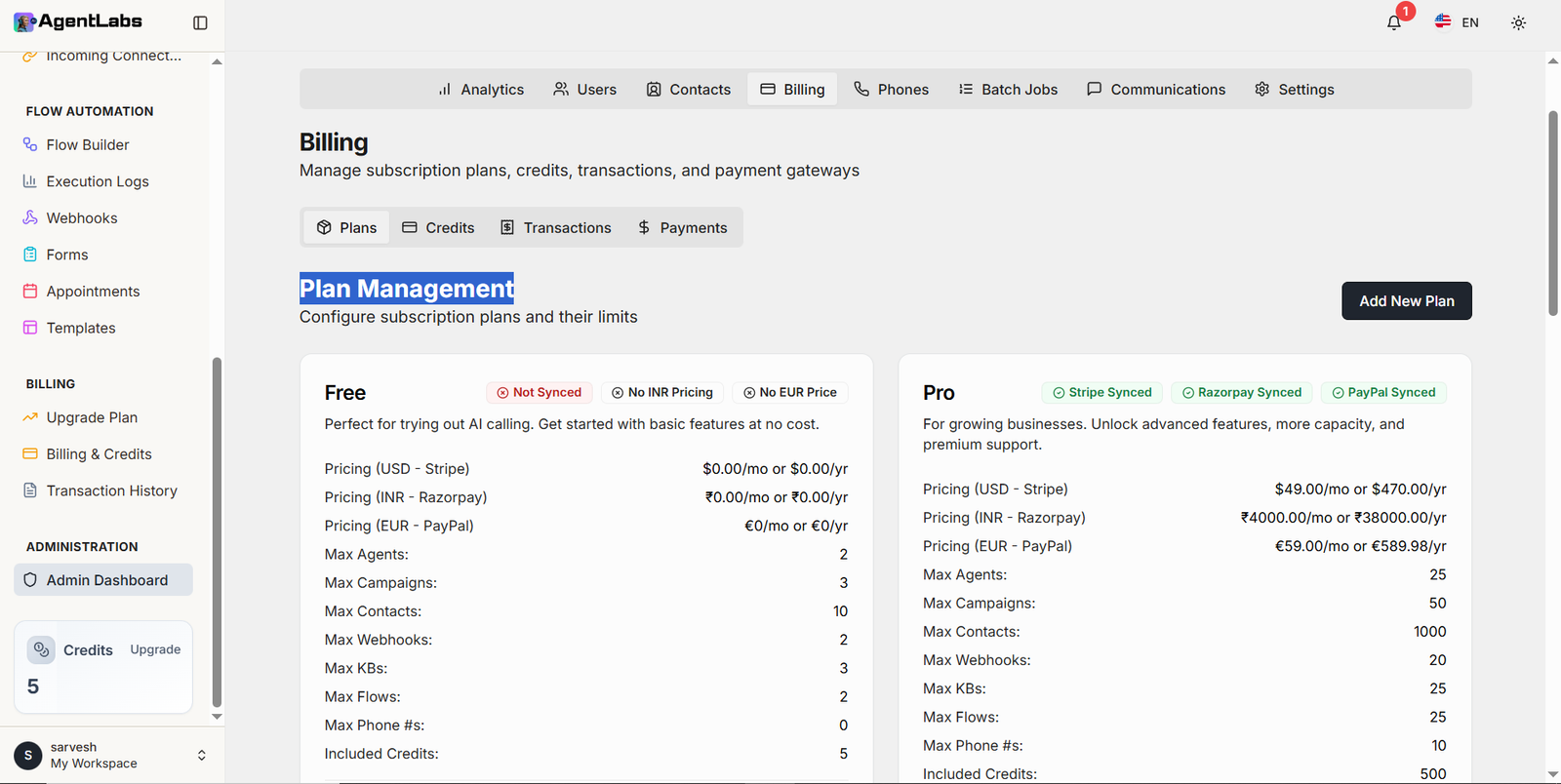
💼 What Plan Management Shows
Free Tier Features
- • Pricing Configuration: Multi-currency pricing setup for USD (Stripe), INR (Razorpay), and EUR (PayPal)
- • Agent Limits: Maximum number of AI agents allowed on free plan
- • Campaign Limits: Maximum concurrent campaigns users can create
- • Contact Limits: Maximum contacts that can be stored in database
- • Webhook Limits: Number of webhook integrations available
Pro Tier Features
- • Premium Pricing: Monthly and yearly subscription rates across multiple payment gateways
- • Extended Limits: Higher resource allocation for agents, campaigns, and contacts
- • Knowledge Base Access: Maximum number of RAG documents for AI training
- • Flow Automation: Maximum automated workflows allowed
- • Phone Number Capacity: Number of phone numbers that can be configured
💰 Payment Gateway Status
Stripe
💳USD payment processing with sync status indicator
Razorpay
🇮🇳INR payment processing for Indian market
PayPal
🌐EUR payment processing for European users
⚙️ Plan Configuration Actions
- • Edit Plan: Modify pricing, limits, and features for each subscription tier
- • Add New Plan: Create custom subscription tiers with specific resource allocations
- • Included Credits: Define default credit amounts bundled with each plan
LLM Model Configuration
Configure which AI models are available to Free vs Pro users
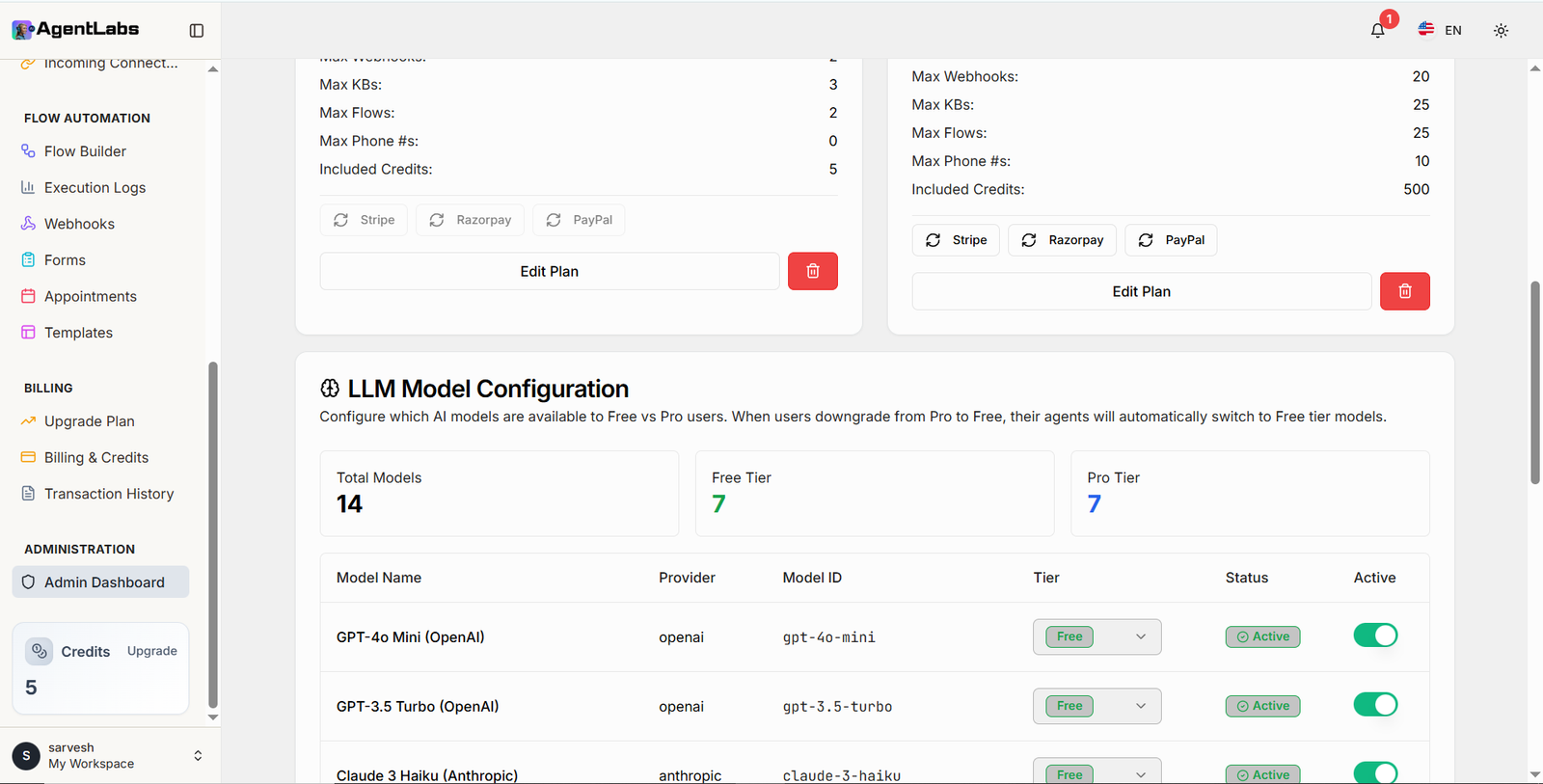
🧠 What LLM Configuration Shows
Model Overview
- • Total Models: Complete count of AI models configured in the system
- • Free Tier Models: Number of models accessible to free plan users
- • Pro Tier Models: Number of premium models available to paid subscribers
- • Auto-Downgrade Logic: Automatic model switching when users downgrade from Pro to Free
Model Details Table
- • Model Name: Display name of the AI model (e.g., GPT-4o Mini, Claude 3 Haiku)
- • Provider: AI service provider (OpenAI, Anthropic, etc.)
- • Model ID: Technical identifier for API integration
- • Tier Assignment: Dropdown to assign model to Free or Pro tier
🎛️ Model Status & Controls
Status Indicators
- • Active Status Badge: Shows whether model is currently operational and available
- • Toggle Switch: Enable or disable models for platform-wide availability
Supported Providers
- • OpenAI: GPT-4o Mini, GPT-3.5 Turbo models
- • Anthropic: Claude 3 Haiku and other Claude models
🔄 Automatic Tier Management
When users downgrade from Pro to Free tier, their AI agents automatically switch to Free tier models to ensure uninterrupted service.
- • Seamless Migration: Agents continue functioning with appropriate model tier
- • No Service Interruption: Automatic fallback prevents agent downtime
Credit Packages
Manage credit packages available for purchase
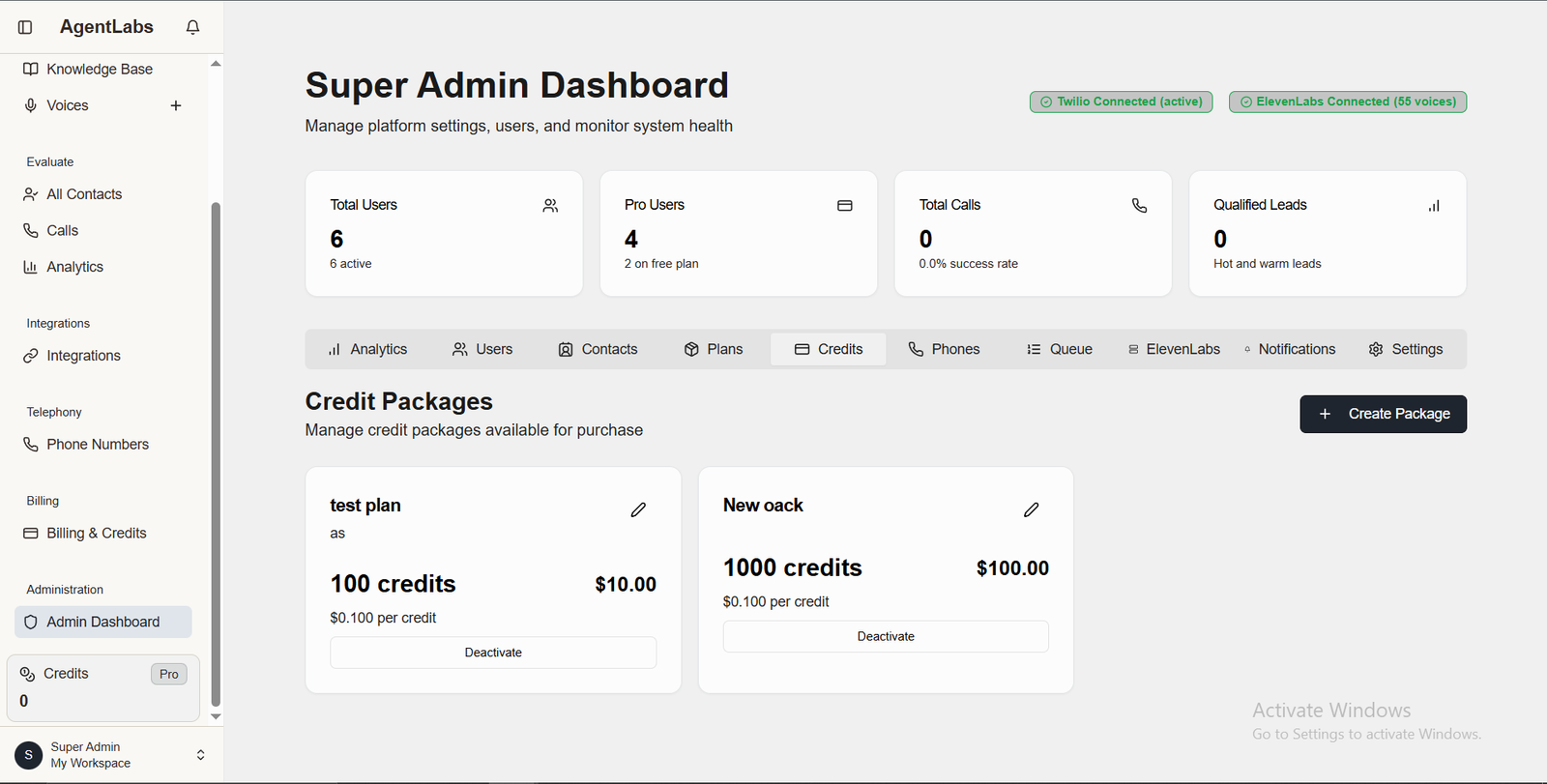
📋 Credit Packages Overview
Available Packages
- • Test Plan: 100 credits for $10.00 ($0.100 per credit)
- • New Pack: 1000 credits for $100.00 ($0.100 per credit)
Quick Actions
- • Create Package: Add new credit packages from top right button
- • Edit Package: Modify credits amount and pricing with pencil icon
- • Deactivate: Disable package from being purchased
Phone Number Management
Manage system pool and user phone numbers
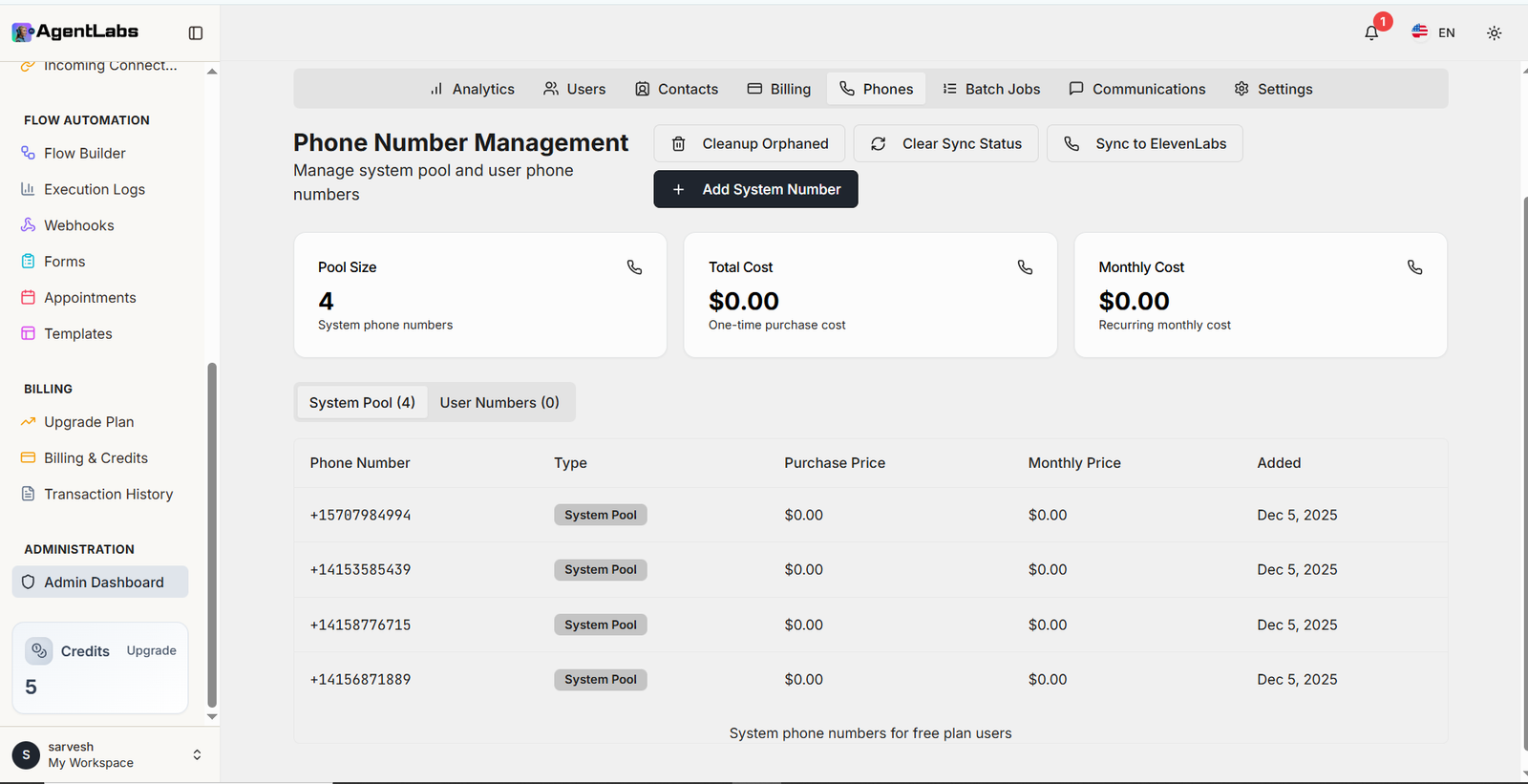
📋 Phone Number Management Overview
Pool Metrics
- • Pool Size: Total count of system phone numbers available in the pool
- • Total Cost: One-time purchase cost for all phone numbers in system
- • Monthly Cost: Recurring monthly maintenance cost for active numbers
Number Categories
- • System Pool: Numbers available for free plan users to share
- • User Numbers: Dedicated numbers assigned to individual Pro users
- • Tab Navigation: Switch between System Pool and User Numbers views
⚙️ Management Actions
Quick Actions
- • Add System Number: Purchase and add new phone numbers to the system pool
- • Cleanup Orphaned: Remove disconnected or invalid numbers from database
- • Clear Sync Status: Reset synchronization status for troubleshooting
Integration Actions
- • Sync to ElevenLabs: Synchronize phone numbers with voice synthesis platform
- • Twilio Integration: Connect and manage numbers from Twilio API
📊 Phone Number Details
Number Information
- • Phone Number: Complete phone number with country code format
- • Type: Number category (System Pool or User-assigned)
- • Added Date: Timestamp when number was added to system
Cost Tracking
- • Purchase Price: One-time cost paid to acquire the phone number
- • Monthly Price: Recurring monthly fee for number maintenance
- • Cost Aggregation: Automatic calculation of total and monthly costs
💡 System Pool Usage
System phone numbers are shared resources for free plan users. These numbers enable basic calling functionality without requiring users to purchase dedicated phone numbers.
Batch Jobs Dashboard
Monitor ElevenLabs batch calling jobs across all campaigns
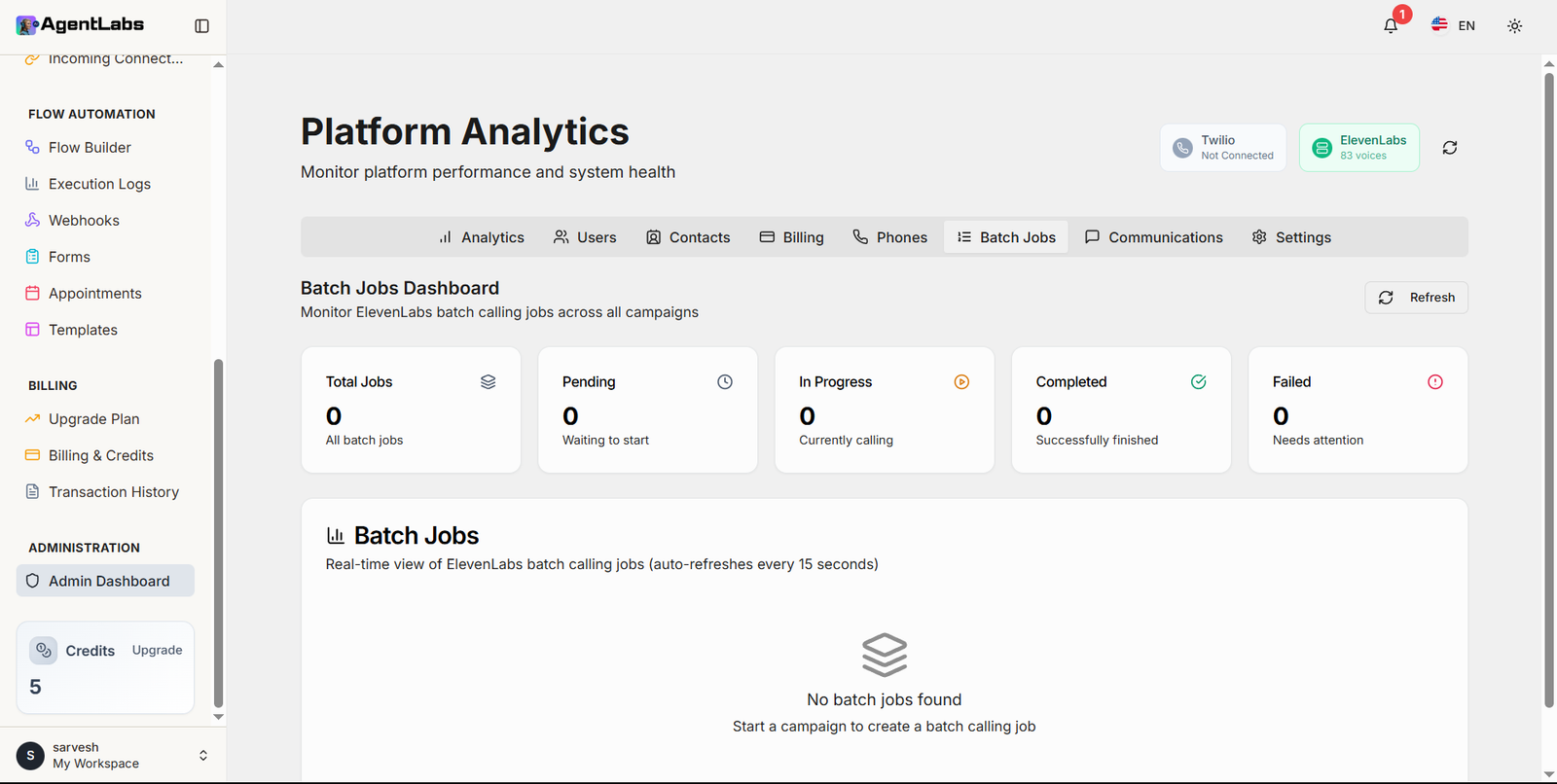
📊 Job Status Metrics
Job Counts
- • Total Jobs: Aggregate count of all batch calling jobs in system
- • Pending: Jobs queued and waiting to start execution
- • In Progress: Jobs currently executing and making calls
- • Completed: Jobs that have successfully finished all calls
- • Failed: Jobs that encountered errors and need attention
Status Indicators
- • Visual Cards: Color-coded status cards for quick overview
- • Status Icons: Visual indicators for each job state
- • Real-time Updates: Auto-refresh every 15 seconds for live monitoring
- • Manual Refresh: Instant data reload with refresh button
📋 Batch Jobs List
Job Information
- • Job Details: Real-time view of all ElevenLabs batch calling jobs
- • Auto-Refresh: Data automatically refreshes every 15 seconds
- • Empty State: Message displayed when no batch jobs exist
- • Job Creation: Prompt to start campaign for creating batch jobs
Job Tracking
- • Job ID: Unique identifier for each batch calling job
- • Campaign Association: Link batch job to specific campaign
- • Progress Tracking: Monitor call completion status
- • Error Details: View failure reasons for troubleshooting
🎙️ ElevenLabs Batch Calling
Batch Processing
- • Bulk Calling: Process multiple outbound calls simultaneously
- • Campaign-Based: Batch jobs linked to specific marketing campaigns
- • Voice Synthesis: AI-powered voice agents for automated calling
- • Contact Lists: Process entire contact lists in batches
Job Management
- • Queue Management: Jobs processed based on priority and timing
- • Status Monitoring: Track job lifecycle from pending to completion
- • Retry Logic: Automatic retry for failed calls within job
- • Performance Metrics: Track success rates and call outcomes
⚙️ Dashboard Features
Monitoring Capabilities
- • Live Dashboard: Real-time view of all batch calling activities
- • Status Overview: At-a-glance metrics for all job states
- • Detailed View: Click through for comprehensive job details
- • Historical Data: Access past job records and performance
Administrative Actions
- • Pause Jobs: Temporarily halt in-progress batch jobs
- • Cancel Jobs: Stop and remove queued or active jobs
- • Retry Failed: Restart failed jobs with updated parameters
- • Export Reports: Download job performance and call data
🔄 Auto-Refresh Monitoring
The Batch Jobs Dashboard automatically refreshes every 15 seconds to provide real-time monitoring of ElevenLabs batch calling jobs. Use the manual refresh button for instant updates or to check status immediately after campaign changes.
Call Queue Management
Real-time view of queued and processing calls
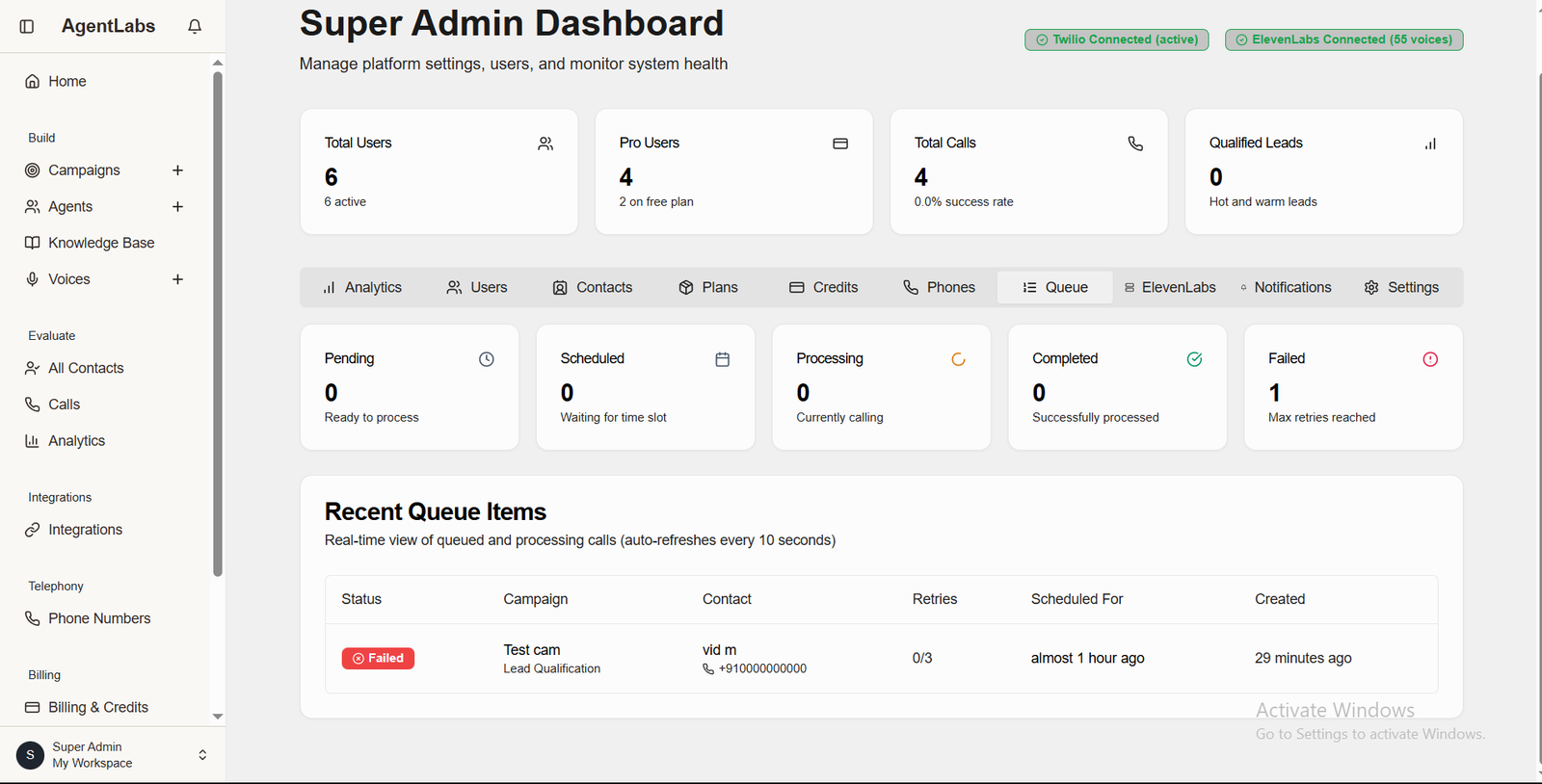
📋 Queue Status Overview
Queue Statuses
- • Pending: 0 calls ready to process
- • Scheduled: 0 calls waiting for time slot
- • Processing: 0 calls currently calling
- • Completed: 0 calls successfully processed
- • Failed: 1 call max retries reached
Queue Details Table
- • Status: Failed/Pending/Scheduled/Processing/Completed badges
- • Campaign: Campaign name (Test cam - Lead Qualification)
- • Contact: Phone number of contact (vid m +910000000000)
- • Retries: Attempt count (0/3)
- • Scheduled For & Created: Timestamps for tracking
Communications
Manage email templates, notifications, and communication settings
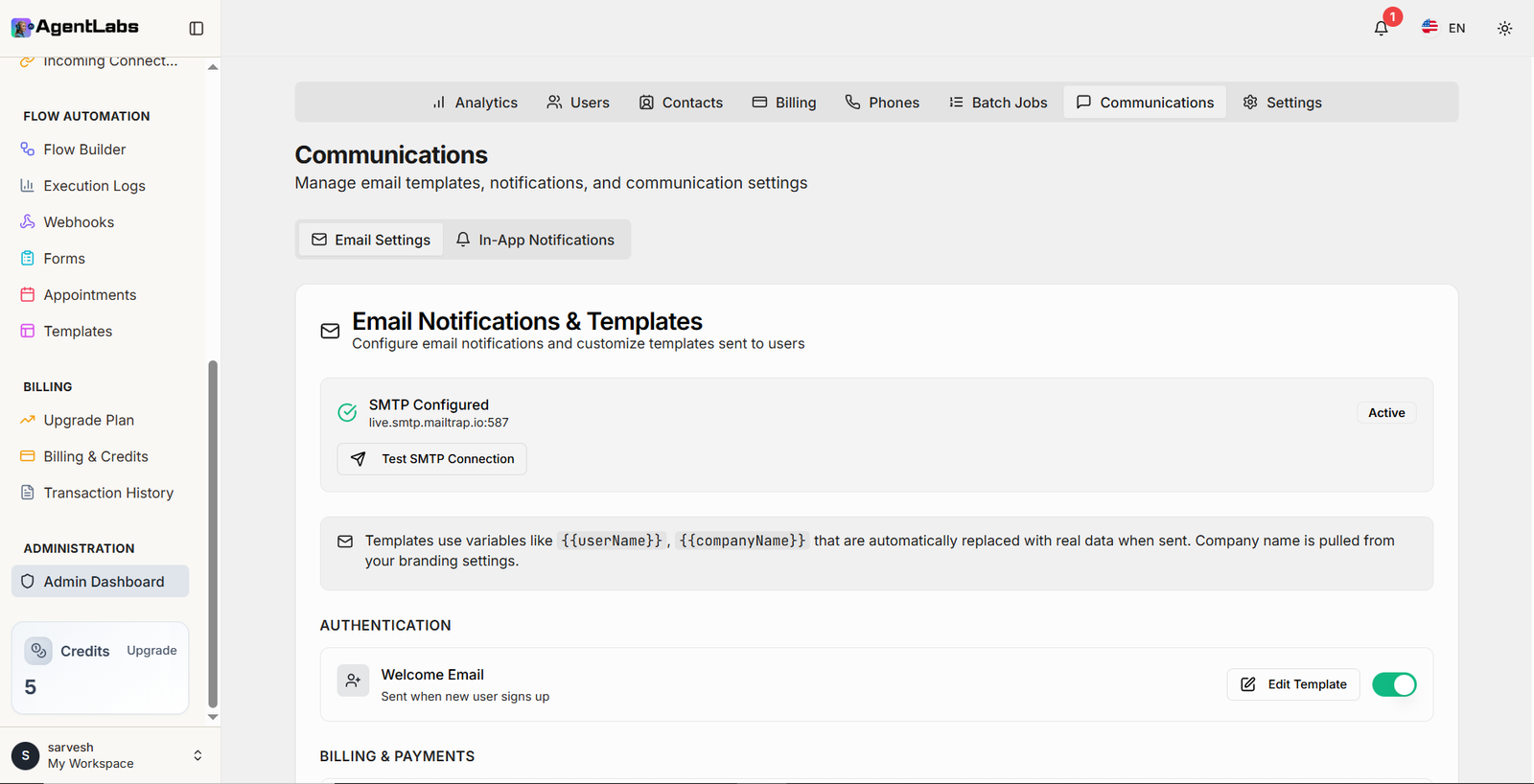
📧 Email Notifications & Templates
SMTP Configuration
- • SMTP Status: Real-time connection status indicator (Configured/Active)
- • Server Details: Display of configured SMTP server and port information
- • Test Connection: Button to verify SMTP configuration and connectivity
- • Configuration Management: Edit and update email server settings
Template System
- • Dynamic Variables: Support for {{userName}}, {{companyName}} placeholders
- • Auto-Replacement: Variables automatically replaced with real user data
- • Branding Integration: Company name pulled from branding settings
- • Template Editor: Customize email content and layout
📋 Email Template Categories
Authentication Emails
- • Welcome Email: Sent automatically when new user signs up
- • Password Reset: Triggered when user requests password change
- • Email Verification: Sent for account verification process
- • Toggle Control: Enable/disable each email type individually
Billing & Payment Emails
- • Subscription Confirmation: Sent after successful plan purchase
- • Payment Receipt: Automatic invoice generation and delivery
- • Payment Failed: Notification for declined or failed payments
- • Subscription Renewal: Reminder emails before renewal date
✏️ Template Management Features
Editing & Customization
- • Edit Template: Rich text editor for customizing email content
- • Subject Line: Customize email subject with variable support
- • HTML Support: Full HTML email template customization
- • Preview Mode: Test template appearance before sending
Control & Activation
- • Toggle Switches: Enable or disable specific email notifications
- • Status Indicators: Visual feedback for active/inactive templates
- • Trigger Conditions: Define when each email should be sent
- • Template Description: Context about when email is triggered
🔔 In-App Notifications
Configure real-time notifications displayed within the application interface
Notification Types
- • System Alerts: Platform-wide announcements and updates
- • Activity Notifications: Real-time updates on user actions
Delivery Settings
- • Push Notifications: Browser and mobile push notification support
- • Badge Counters: Unread notification count tracking
📑 Communication Sections
Navigate between Email Settings and In-App Notifications tabs to manage different communication channels across the platform.
Global Settings
Configure platform-wide settings and defaults
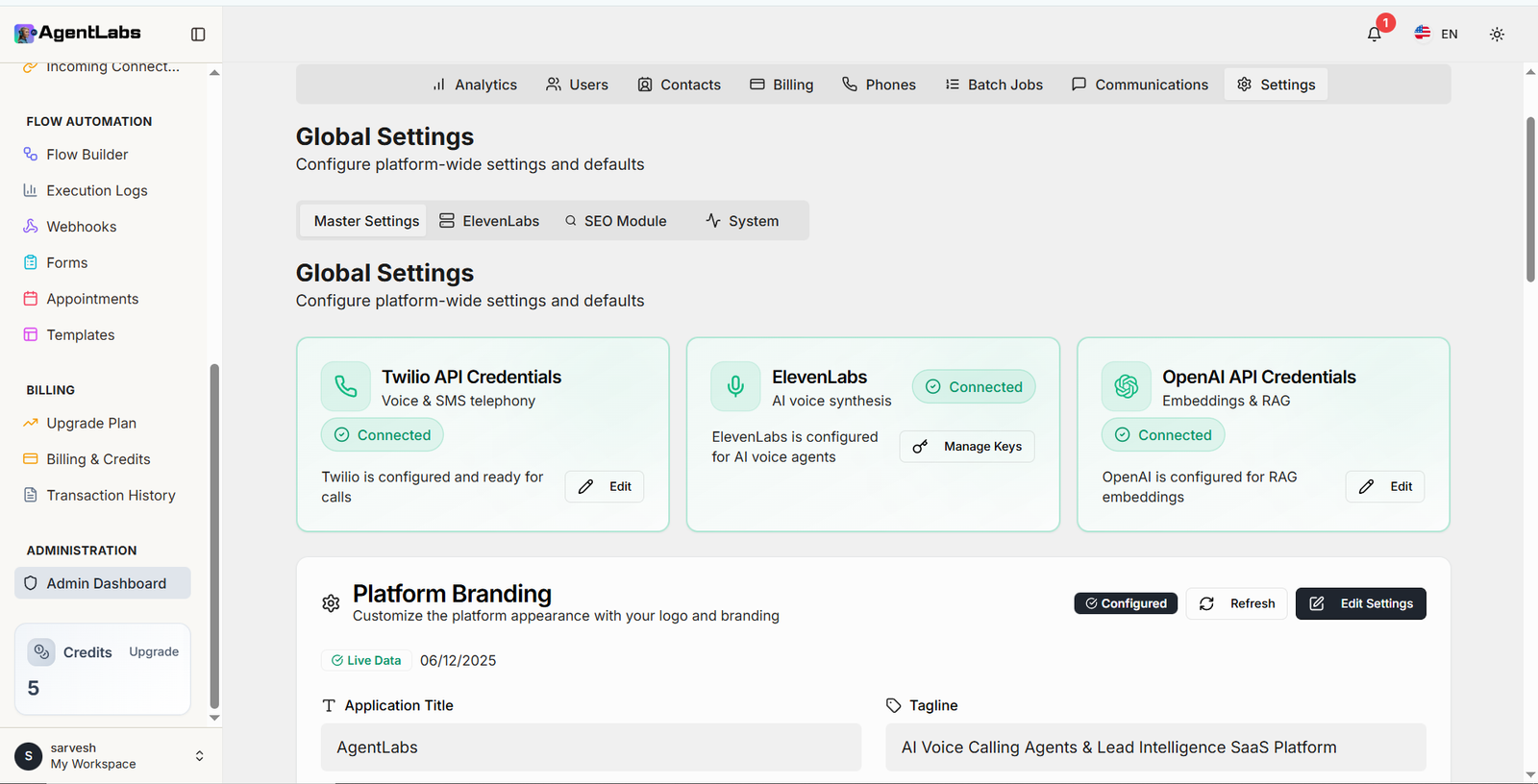
🔑 API Credentials Management
Twilio API
- • Purpose: Voice and SMS telephony services
- • Status Indicator: Connected/Disconnected badge display
- • Configuration: Account SID and Auth Token management
- • Edit Action: Update credentials and test connection
ElevenLabs API
- • Purpose: AI voice synthesis for voice agents
- • Connection Status: Real-time active/inactive indicator
- • Voice Library: Display available voice count
- • Manage Keys: API key configuration and validation
OpenAI API
- • Purpose: Embeddings and RAG functionality
- • Status: Connected status badge with validation
- • Key Format: sk-xxxx format validation
- • Database Storage: Secure encrypted credential storage
🎨 Platform Branding
Branding Elements
- • Application Title: Platform name displayed across the interface
- • Tagline: Platform description or slogan for branding
- • Logo (Light Mode): Logo file for light theme interface
- • Logo (Dark Mode): Logo file optimized for dark theme
- • Favicon: Browser tab icon for brand recognition
Configuration Features
- • Live Data Indicator: Shows last update timestamp
- • Status Badge: Configured status confirmation
- • Upload Preview: Visual confirmation of uploaded assets
- • Refresh Action: Reload branding configuration from database
- • Edit Settings: Modify and update branding elements
🔐 Credential Configuration
Twilio Credentials
- • Account SID: Unique account identifier with AC prefix format
- • Auth Token: 32-character authentication token (masked for security)
- • Format Validation: Real-time credential format checking
- • Status Confirmation: Green badge when configured and active
OpenAI Credentials
- • API Key: Secret key for OpenAI API access (masked)
- • Format: sk-xxxx format validation
- • Database Storage: Confirmation of secure storage
- • Active Status: Real-time validation and status indicator
📧 SMTP Email Settings
Email Configuration
- • SMTP Host: Mail server hostname or IP address
- • SMTP Port: Server port number (typically 587 or 465)
- • Username: Email account username for authentication
- • Password: Encrypted password storage for SMTP
Email Features
- • From Email: Default sender email address
- • From Name: Display name for outgoing emails
- • Encryption: TLS/SSL encryption support
- • Test Connection: Validate SMTP configuration before saving
ElevenLabs Settings
Configure voice synthesis capacity and TTS models
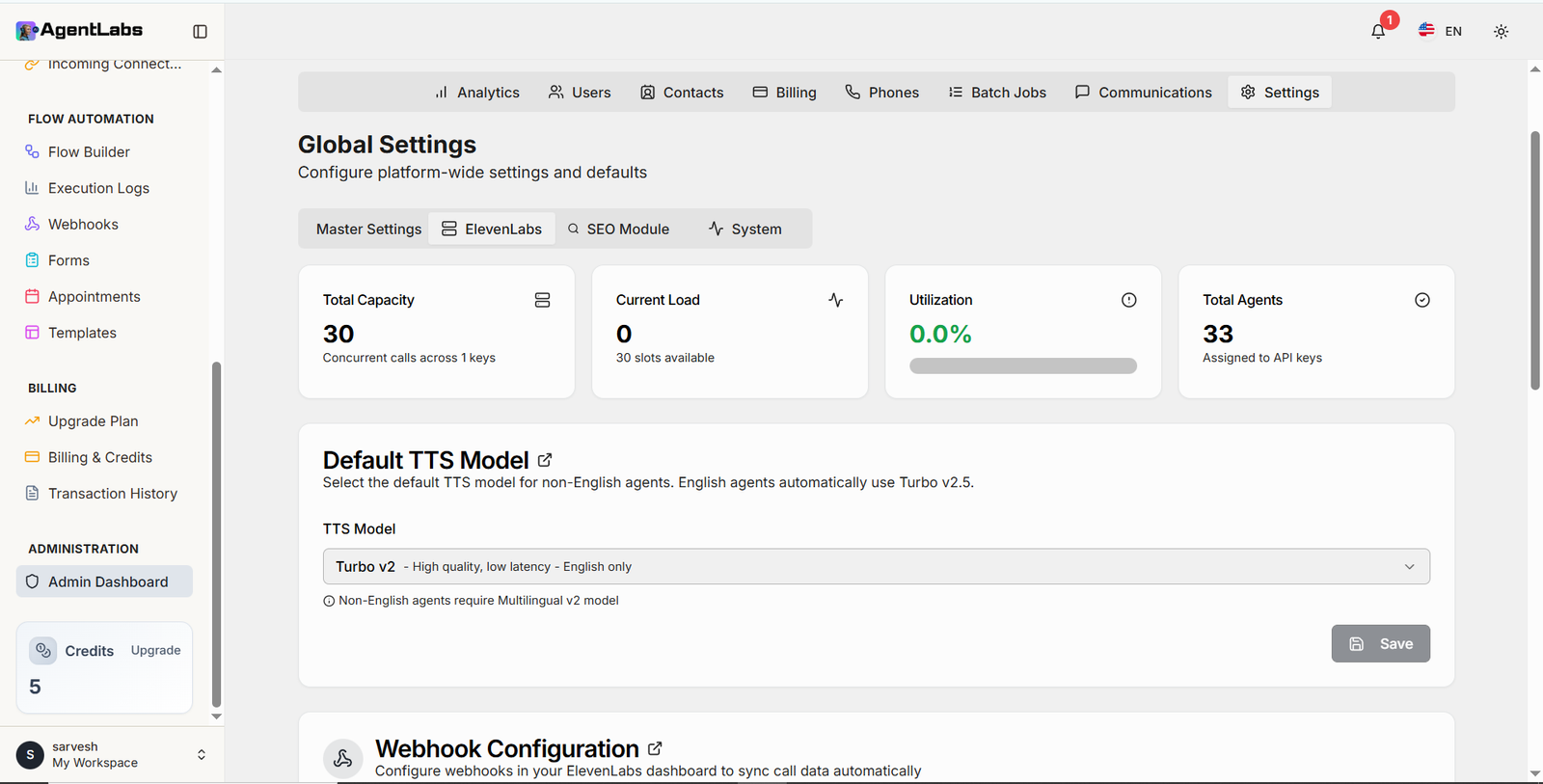
📊 Voice Synthesis Capacity
Capacity Metrics
- • Total Capacity: Maximum concurrent voice calls across all API keys
- • Key Distribution: Calls distributed across configured keys automatically
- • Current Load: Real-time count of active ongoing calls
- • Available Slots: Number of slots currently free for new calls
Performance Tracking
- • Utilization Percentage: Current usage as percentage of total capacity
- • Visual Progress Bar: Graphical representation of capacity usage
- • Total Agents: Count of agents assigned to ElevenLabs API keys
- • Real-time Updates: Live monitoring of capacity and load changes
🗣️ Default TTS Model
Model Selection
- • Default Model: Select TTS model for non-English language agents
- • Turbo v2: High quality, low latency - optimized for English only
- • Multilingual v2: Required for non-English speaking agents
- • Dropdown Selection: Easy model switching with description tooltips
Model Features
- • Auto-Selection: English agents automatically use Turbo v2.5
- • Language Support: Configure models based on agent language requirements
- • Quality Options: Balance between quality and latency based on use case
- • Save Configuration: Apply and save model preferences globally
🔗 Webhook Configuration
Webhook Purpose
- • Auto Sync: Configure webhooks in ElevenLabs dashboard for automatic data sync
- • Call Data: Sync call recordings, transcripts, and metrics automatically
- • Real-time Updates: Receive instant notifications on call status changes
- • Dashboard Integration: Configure directly from ElevenLabs platform
Configuration Steps
- • Webhook URL: Copy provided URL to ElevenLabs webhook settings
- • Event Types: Select which events trigger webhook notifications
- • Authentication: Secure webhook endpoint with API keys
- • Testing: Validate webhook configuration before deployment
🔑 API Key Management
Multiple Keys Support
- • Key Pool: Configure multiple ElevenLabs API keys for load distribution
- • Capacity Pooling: Total capacity calculated across all active keys
- • Auto Balancing: System automatically distributes agents across keys
- • Agent Assignment: Track which agents are assigned to which API keys
Key Management Features
- • Add Keys: Configure new API keys to increase capacity
- • Key Status: Monitor active/inactive status of each API key
- • Usage Monitoring: Track capacity usage per individual key
- • Remove Keys: Safely deactivate keys without disrupting active calls
⚙️ ElevenLabs Configuration
This section provides comprehensive control over ElevenLabs voice synthesis integration, including capacity management, TTS model selection, webhook synchronization, and multi-key load balancing for optimal performance.
SEO Module
Configure search engine optimization and meta tags
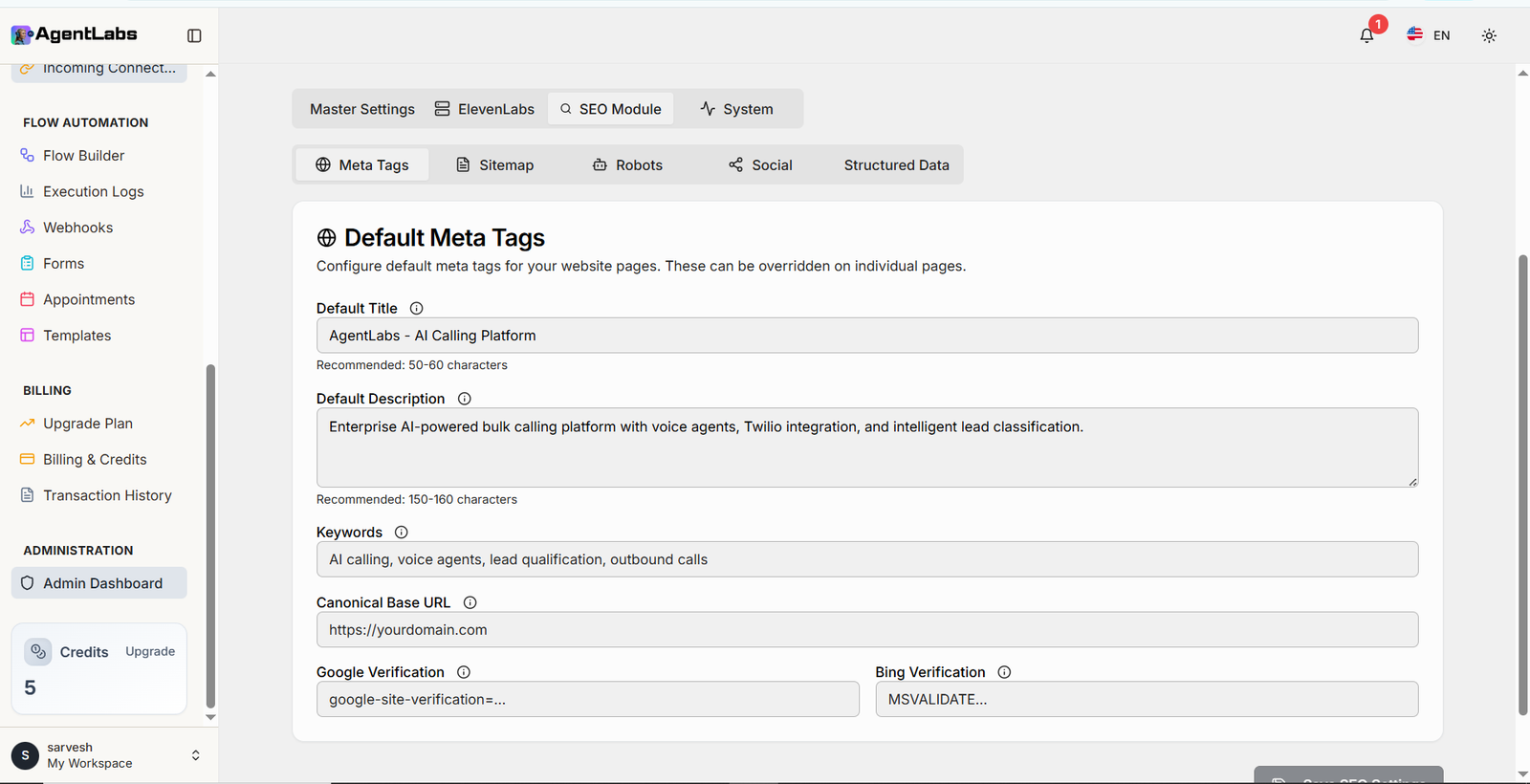
🏷️ Default Meta Tags
Basic Meta Tags
- • Default Title: Page title displayed in browser tabs and search results
- • Character Limit: Recommended 50-60 characters for optimal display
- • Default Description: Summary text shown in search engine results
- • Description Length: Recommended 150-160 characters for SEO
SEO Elements
- • Keywords: Comma-separated list of relevant search terms
- • Canonical URL: Primary domain URL to avoid duplicate content issues
- • Page Override: Individual pages can override these default values
- • Info Tooltips: Guidance for each field with best practices
✅ Search Engine Verification
Google Verification
- • Verification Code: Meta tag provided by Google Search Console
- • Format: google-site-verification=xxxxx format
- • Purpose: Verify site ownership for Google Search Console access
- • Benefits: Track search performance, indexing, and analytics
Bing Verification
- • Verification Code: Meta tag from Bing Webmaster Tools
- • Format: MSVALIDATE.01 content code
- • Purpose: Verify ownership for Bing Webmaster Tools access
- • Benefits: Monitor Bing search performance and indexing
🗺️ Sitemap
Sitemap Features
- • Auto Generation: Automatically generate XML sitemap for all pages
- • Dynamic Updates: Sitemap updates when pages are added or removed
- • URL Priority: Set priority levels for different page types
- • Change Frequency: Configure how often pages are updated
Sitemap Management
- • Submission: Submit sitemap URL to Google and Bing
- • URL Format: https://yourdomain.com/sitemap.xml
- • Page Exclusion: Exclude specific pages from sitemap
- • Validation: Test sitemap format and structure
🤖 Robots.txt
Crawling Rules
- • User-Agent Rules: Define crawling rules for different search engines
- • Allow Paths: Specify which URLs search engines can crawl
- • Disallow Paths: Block specific URLs or directories from indexing
- • Crawl Delay: Set delay between bot requests to reduce server load
Configuration Options
- • Sitemap Reference: Include sitemap URL in robots.txt
- • Custom Rules: Add custom directives for specific bots
- • Admin Pages: Block admin and sensitive pages from crawling
- • Testing: Validate robots.txt syntax and rules
📱 Social Media Tags
Open Graph (Facebook)
- • OG Title: Title displayed when shared on Facebook and LinkedIn
- • OG Description: Description text shown in social media previews
- • OG Image: Featured image for social media link previews
- • Image Size: Recommended 1200x630px for optimal display
Twitter Cards
- • Card Type: Summary or large image card format
- • Twitter Title: Custom title for Twitter shares
- • Twitter Description: Description shown in Twitter previews
- • Twitter Image: Image displayed in Twitter card
📊 Structured Data
Schema.org Markup
- • Organization Schema: Define business information and details
- • Product Schema: Configure product information for rich results
- • Article Schema: Markup for blog posts and content pages
- • FAQ Schema: Structure frequently asked questions
Rich Results
- • Rich Snippets: Enhanced search results with ratings and images
- • Knowledge Graph: Display business info in Google Knowledge Panel
- • Breadcrumbs: Show navigation path in search results
- • JSON-LD Format: Use recommended structured data format
🔍 SEO Module Sections
Navigate between different SEO configuration tabs:
- • Meta Tags: Configure default title, description, and keywords
- • Sitemap: Auto-generate and manage XML sitemap
- • Robots: Control search engine crawling behavior
- • Social: Configure Open Graph and Twitter Cards
- • Structured Data: Add Schema.org markup for rich results
System Configuration
Configure security, credits, and webhook settings for the platform
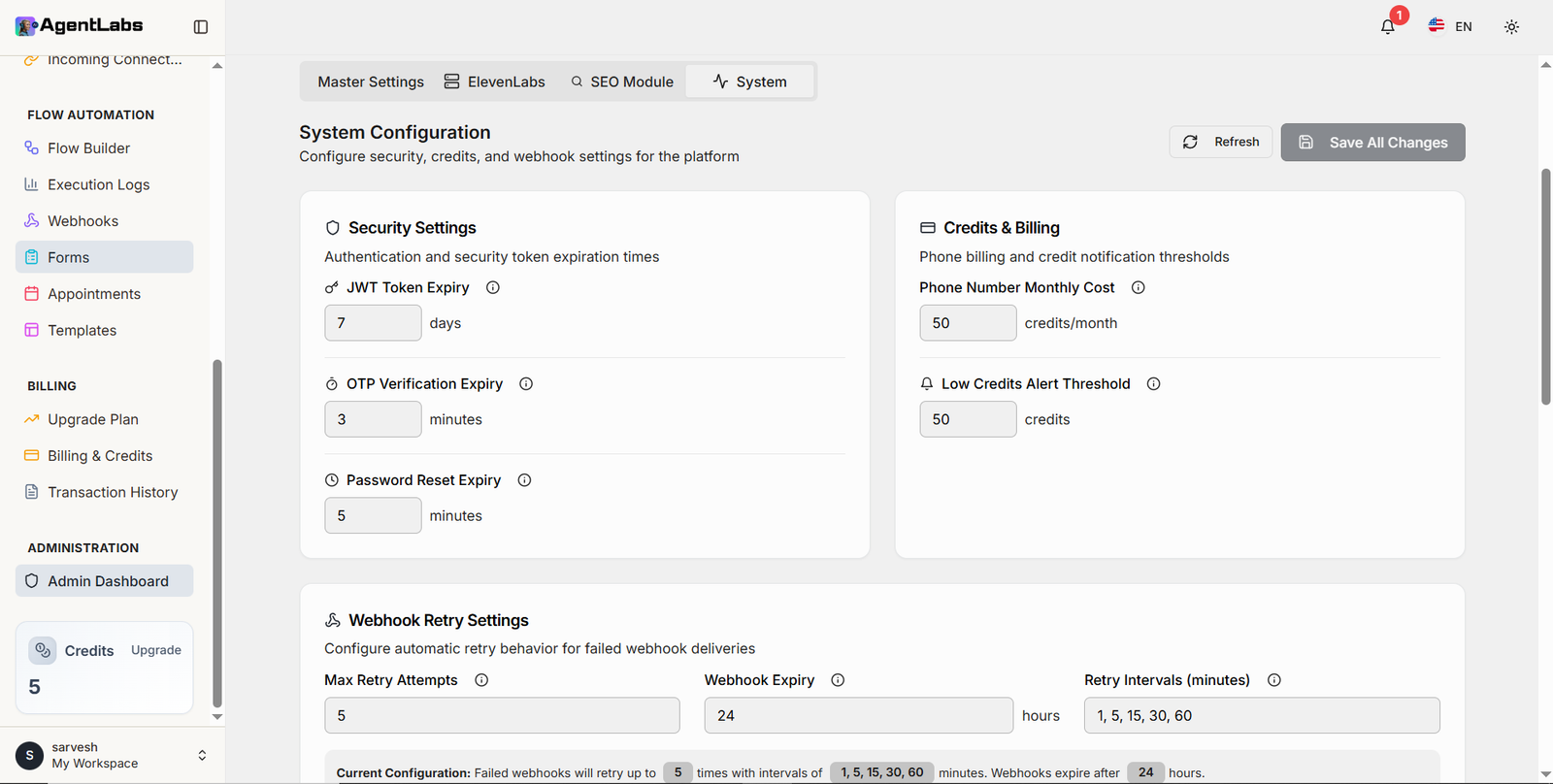
🔒 Security Settings
Authentication Tokens
- • JWT Token Expiry: Configure session duration for authentication tokens
- • Time Unit: Set expiration in days for secure session management
- • Auto Logout: Users automatically logged out after token expiration
- • Security Balance: Balance between convenience and security
Verification & Reset
- • OTP Verification Expiry: Time limit for one-time password validity
- • Expiry Minutes: Configurable timeout for OTP codes
- • Password Reset Expiry: Time limit for password reset link validity
- • Security Links: Expired links require new reset request
💳 Credits & Billing
Phone Number Costs
- • Monthly Cost: Configure credit deduction for phone number maintenance
- • Credits per Month: Set how many credits are charged monthly
- • Auto Deduction: Credits automatically deducted on billing cycle
- • Cost Transparency: Users see monthly costs before purchasing numbers
Alert Thresholds
- • Low Credits Alert: Threshold for triggering low balance notifications
- • Credit Minimum: Alert users when credits fall below this value
- • Email Notifications: Automatic emails sent when threshold reached
- • In-App Alerts: Dashboard warnings for low credit balance
🔄 Webhook Retry Settings
Retry Configuration
- • Max Retry Attempts: Maximum number of automatic retry attempts for failed webhooks
- • Failure Handling: System automatically retries failed webhook deliveries
- • Webhook Expiry: Time limit before webhook request is permanently abandoned
- • Expiry Hours: Configurable timeout for webhook delivery attempts
Retry Intervals
- • Interval Pattern: Define time gaps between retry attempts
- • Progressive Delays: Comma-separated intervals (1, 5, 15, 30, 60 minutes)
- • Exponential Backoff: Increasing delays reduce server load
- • Custom Intervals: Flexible configuration for retry timing
📋 Configuration Summary
Webhook Retry Logic
- • Visual Summary: Real-time display of current configuration settings
- • Retry Count: Shows maximum retry attempts configured
- • Interval Display: Lists all retry interval values
- • Expiry Time: Shows webhook expiration hours
Configuration Actions
- • Refresh Button: Reload configuration from database
- • Save All Changes: Apply and persist all configuration updates
- • Validation: System validates values before saving
- • Instant Effect: Changes take effect immediately after saving
💡 System Configuration Best Practices
- • JWT Expiry: Balance security (shorter) vs user convenience (longer)
- • OTP Timeout: Keep short (3-5 minutes) for security
- • Credit Alerts: Set threshold high enough to allow time for recharge
- • Webhook Retries: Use progressive intervals to avoid overwhelming endpoints
Broadcast Notifications
Send notifications to all users in the platform
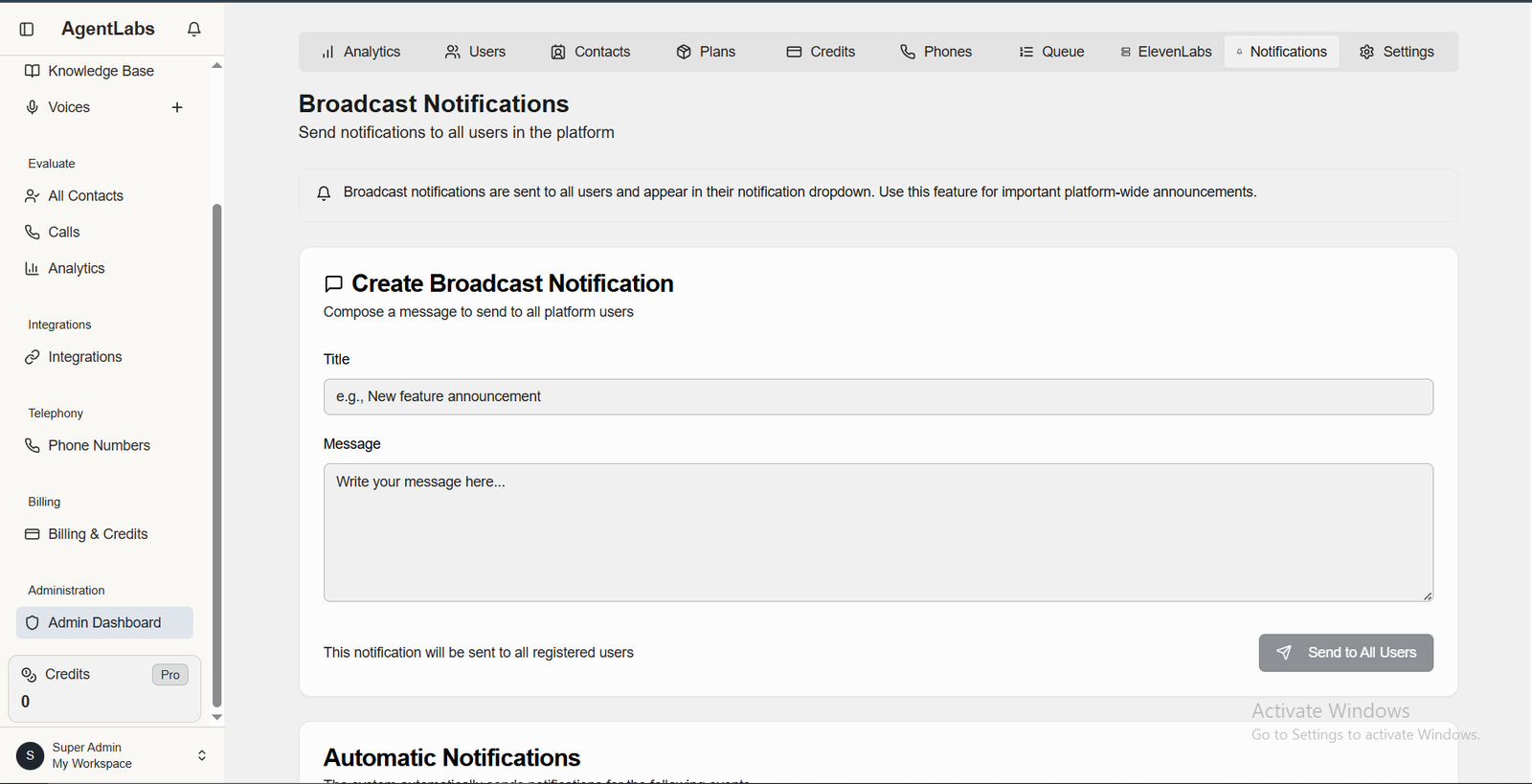
📋 Notifications Overview
Broadcast Features
- • Title Field: Notification subject (e.g., "New feature announcement")
- • Message Field: Rich text message body for detailed announcement
- • Send to All: Button to send notification to all registered users
Notification Details
- • Delivery: Notifications sent to all users in notification dropdown
- • Purpose: Important platform-wide announcements and updates
- • Automatic Notifications: System sends alerts for critical events
Global Settings
Configure platform-wide settings and defaults
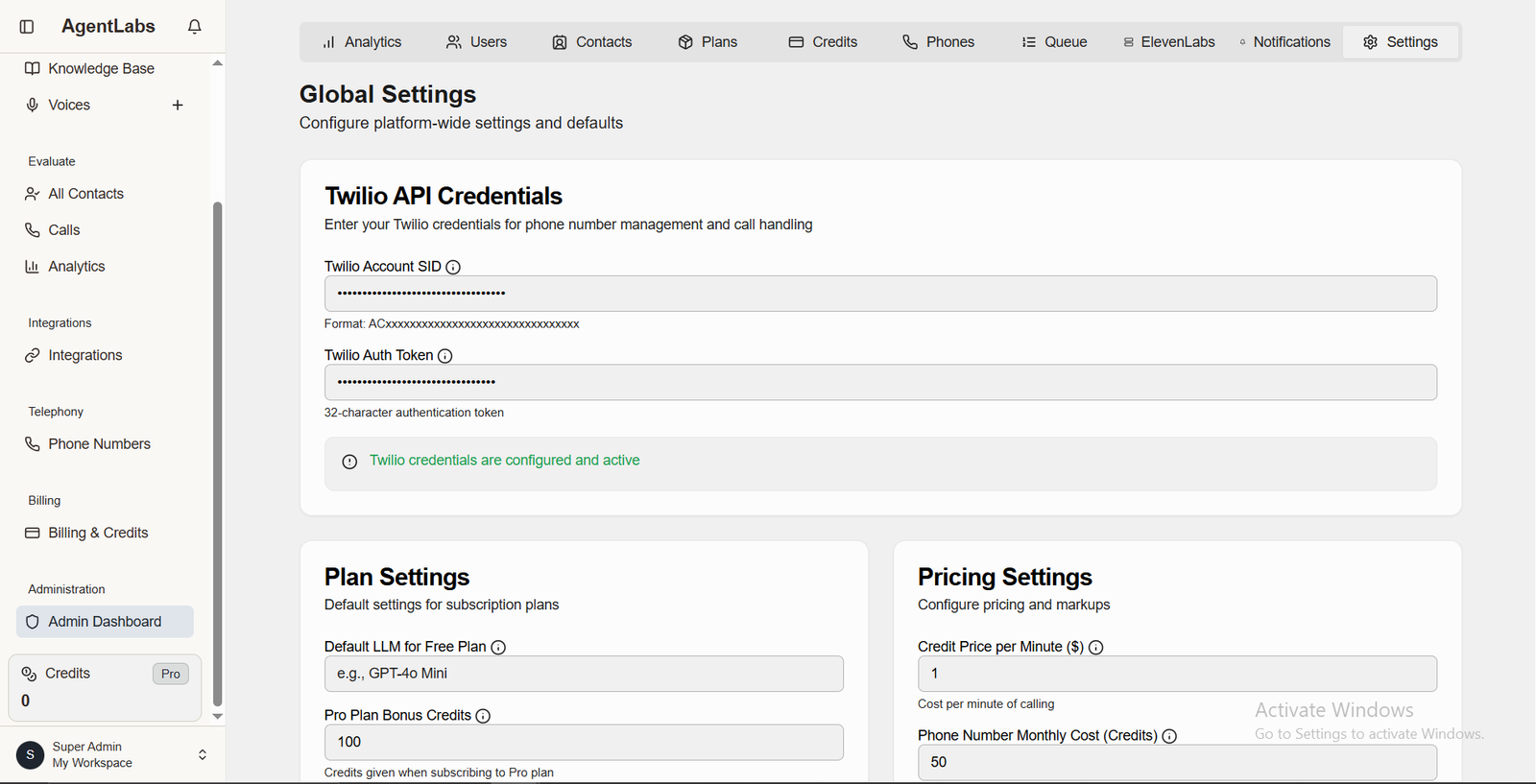
📋 Settings Overview
Twilio API Credentials
- • Account SID: Format ACxxxxxxxxxxxxxxxxxxxxx (masked)
- • Auth Token: 32-character authentication token (masked)
- • Status: Twilio credentials configured and active (green indicator)
Plan & Pricing Settings
- • Default LLM: GPT-4o Mini (AI model for conversations)
- • Pro Plan Bonus: 100 credits included with Pro subscription
- • Credit Price: $1 per minute of calling
- • Phone Cost: 50 credits monthly per phone number
All Contacts
View all unique contacts across all campaigns (duplicates merged by phone number)
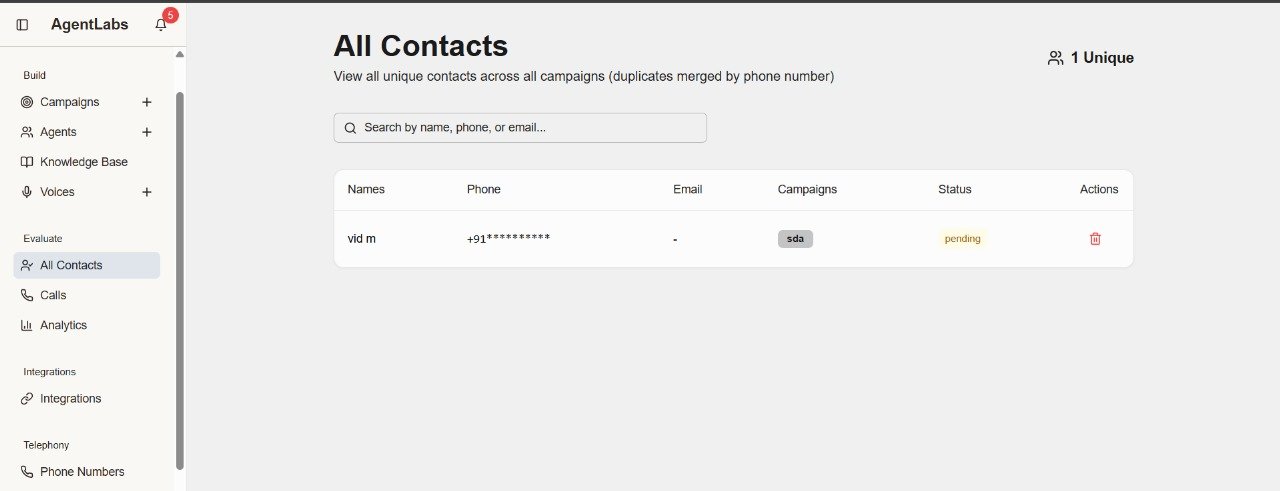
📋 All Contacts Overview
Contact List Features
- • Unique Counter: "1 Unique" contact shown in top right
- • Search Bar: Search by name, phone, or email
- • Duplicate Merging: Auto-merge contacts with same phone number
- • Contact Display: Name: "vid m" with masked phone (+91**********)
Table Columns
- • Names: Contact full name display
- • Phone: Phone number (partially masked for privacy)
- • Email: Email address (shows "-" if not available)
- • Campaigns: Badge showing associated campaign (e.g., "sda")
- • Status: Call status badge (pending, completed, failed)
- • Actions: Delete icon to remove contact
Contact Management Features
- ✓ View all contacts from every campaign in one place
- ✓ Search and filter contacts quickly
- ✓ See which campaigns each contact is part of
- ✓ Track call status for each contact (pending, in-progress, completed)
- ✓ Delete unwanted contacts individually
- ✓ Automatic deduplication by phone number
- ✓ Privacy protection with masked phone numbers
Calls & Conversations
View call records, transcripts, recordings, and AI analysis
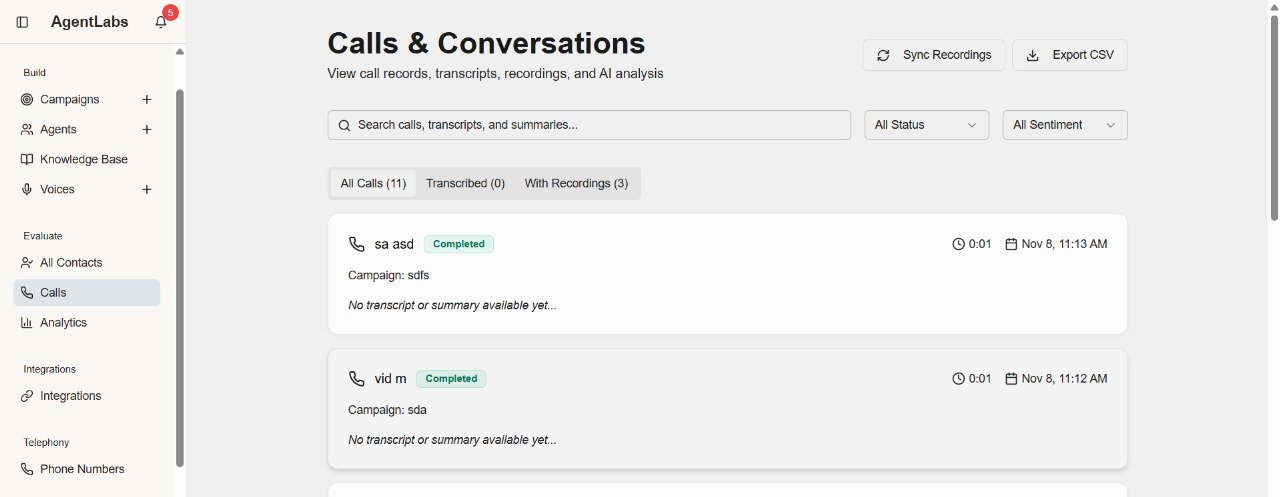
📋 Calls & Conversations Overview
Call List Features
- • Search Bar: Search calls, transcripts, and summaries
- • Filter Options: All Status dropdown and All Sentiment filter
- • Sync Recordings: Button to sync call recordings from Twilio
- • Export CSV: Download all call data in CSV format
Call Tabs
- • All Calls (11): Complete list of all calls made
- • Transcribed (0): Calls with AI-generated transcripts
- • With Recordings (3): Calls with audio recordings available
Call Record Details
Example Call 1: "sa asd"
- • Status: Completed (green badge)
- • Campaign: sdfs
- • Duration: 0:01
- • Timestamp: Nov 8, 11:13 AM
- • Note: "No transcript or summary available yet..."
Example Call 2: "vid m"
- • Status: Completed (green badge)
- • Campaign: sda
- • Duration: 0:01
- • Timestamp: Nov 8, 11:12 AM
- • Note: "No transcript or summary available yet..."
Call Information Displayed
- ✓ Contact name with phone icon
- ✓ Call status badge (Completed, In Progress, Failed)
- ✓ Associated campaign name
- ✓ Call duration (minutes:seconds)
- ✓ Date and time of call
- ✓ Transcript availability status
- ✓ AI summary and sentiment analysis (when available)
- ✓ Recording playback option
Key Features
- ✓ View complete call history across all campaigns
- ✓ Listen to call recordings
- ✓ Read AI-generated transcripts
- ✓ Review conversation summaries
- ✓ Filter by call status and sentiment
- ✓ Export data for reporting and analysis
- ✓ Sync recordings from Twilio automatically
👨💼 User Dashboard Features
Complete admin panel tools for managing campaigns, contacts, and calling operations
Home
Dashboard overview
Campaigns
Create & manage campaigns
Agents
AI voice agents
Templates
Call templates
Knowledge Base
Training data
Voices
Voice models
All Contacts
Contact management
Calls
Call history & logs
Analytics
Performance reports
Phone Numbers
Twilio phone management
Incoming Connect
Inbound call settings
Flow Builder
Visual workflow editor
Execution Logs
Flow execution history
Webhooks
API webhooks
Forms
Data collection forms
Appointments
Booking management
Flow Templates
Pre-built flow templates
Upgrade Plan
Subscription upgrade
Billing & Credits
Credit balance & payments
Transaction History
Payment transactions
Home Dashboard
Overview of your campaigns, calls, and performance metrics
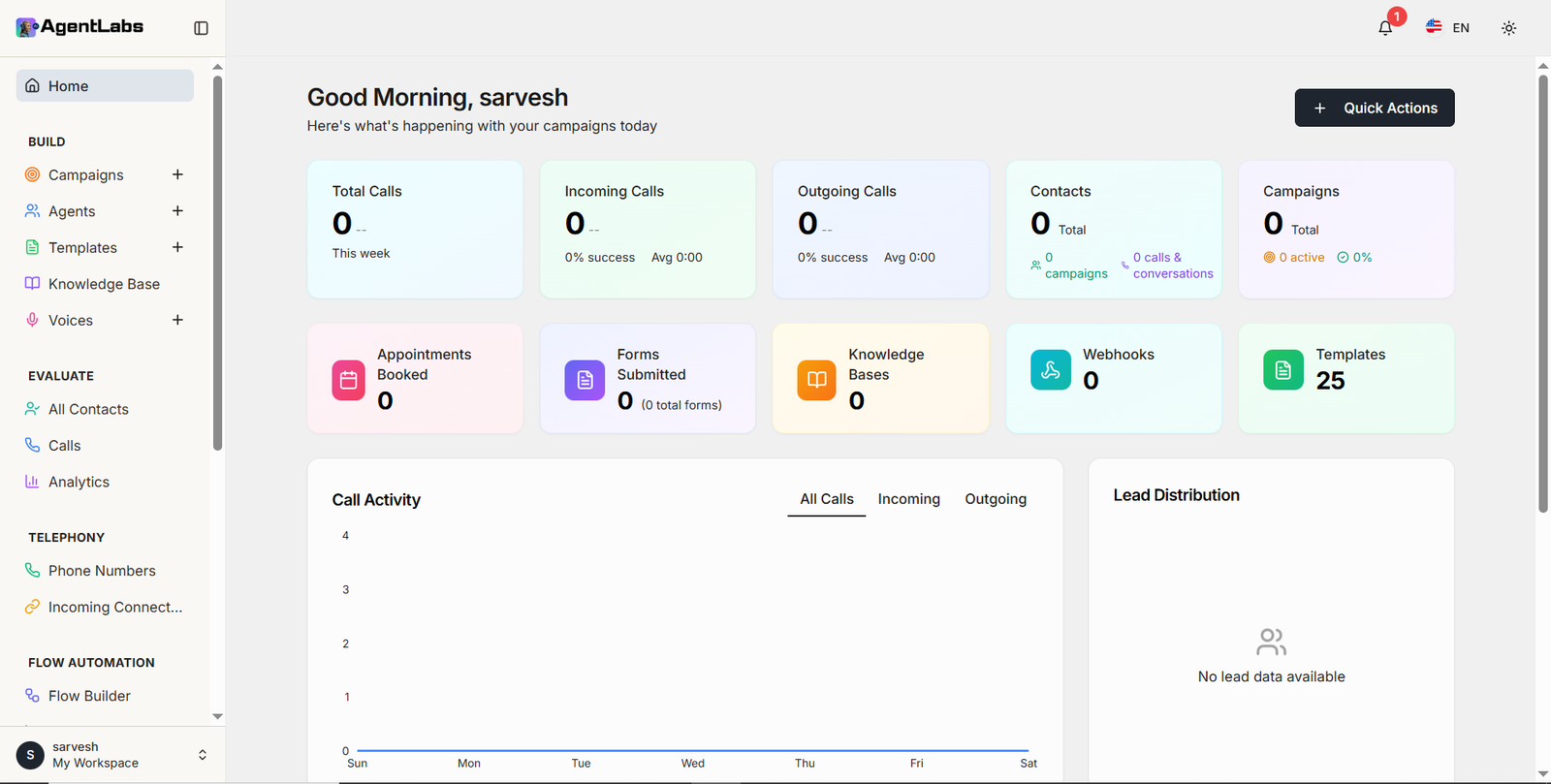
📊 Dashboard Overview
Key Metrics
- • Total Calls: View all calls made this week across campaigns
- • Incoming/Outgoing: Track call direction with success rates and average duration
- • Contacts: Total contacts with active campaigns breakdown
- • Campaigns: Active campaigns count with completion percentage
Dashboard Features
- • Quick Actions: Create campaigns instantly with top-right button
- • Resource Cards: Quick access to Appointments, Forms, Knowledge Bases, Webhooks, and Templates
- • Call Activity Chart: Visual timeline of call distribution across the week
- • Lead Distribution: Track and analyze lead data in real-time
Campaigns Management
Manage and monitor all your calling campaigns
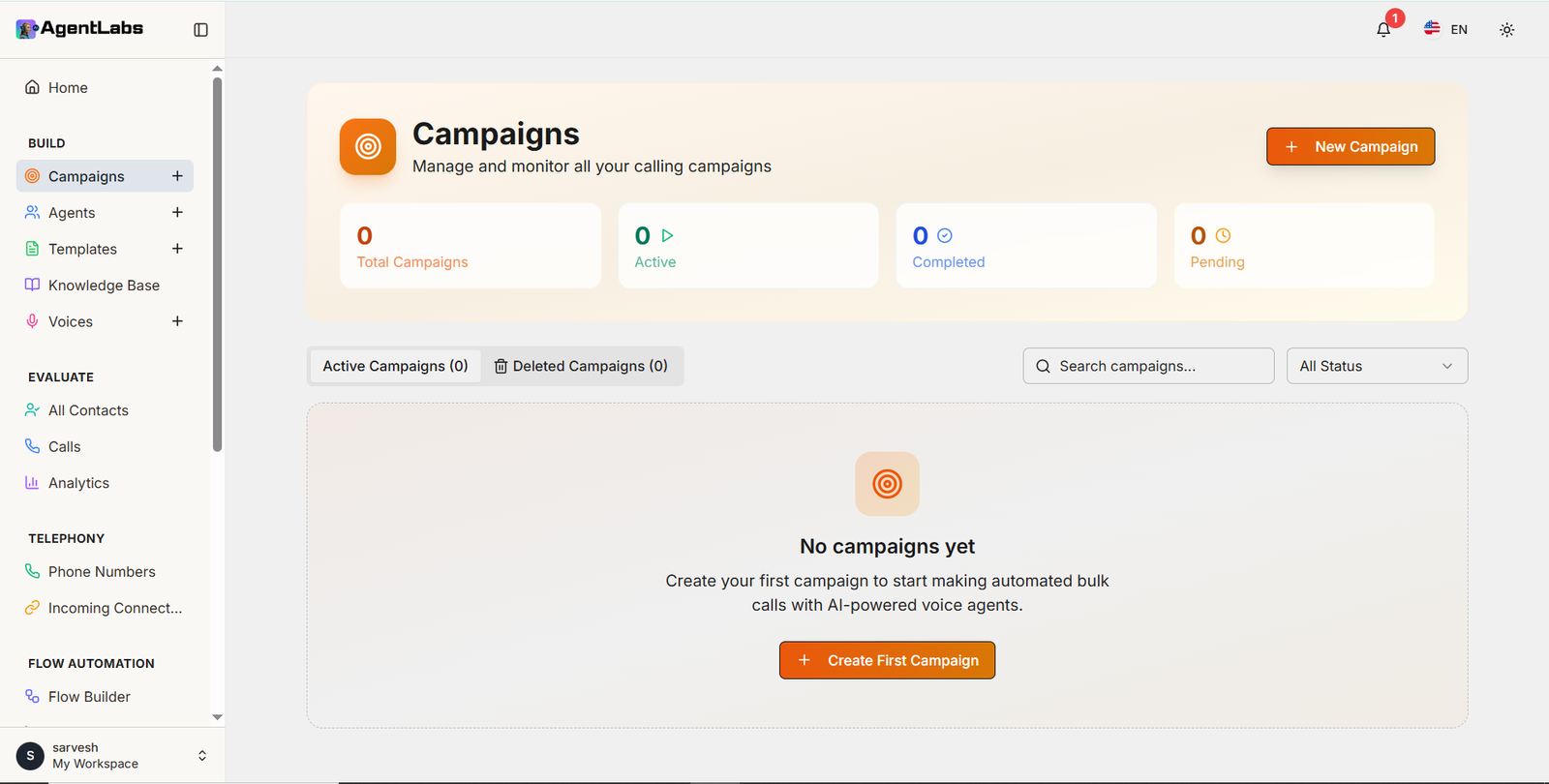
📋 Campaigns Overview
Main Dashboard Features
- • Campaign Statistics: Total Campaigns, Active, Completed, and Pending counts displayed at top
- • Active Campaigns Tab: View all active campaigns with count indicator
- • Deleted Campaigns Tab: Access deleted campaigns archive
- • Search Functionality: Search campaigns by name or keywords
- • Status Filter Dropdown: Filter campaigns by All Status or specific status
- • New Campaign Button: Orange button in top right to create campaigns
- • Empty State: Shows "No campaigns yet" with description and "Create First Campaign" button
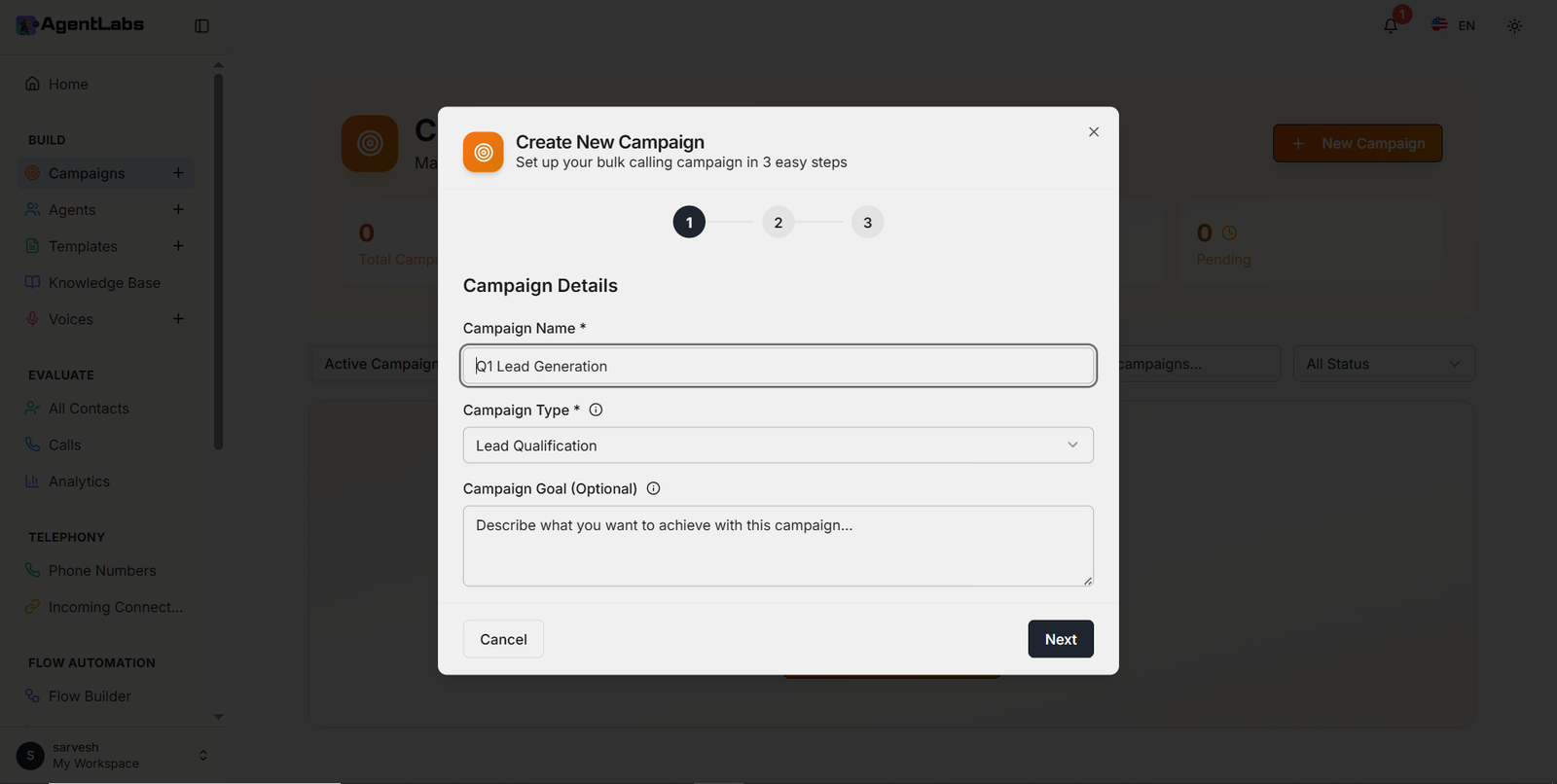
Create New Campaign (Step 1 of 3)
- • 3-Step Process: Visual step indicator showing steps 1, 2, and 3
- • Campaign Name Field: Required text input for campaign name (e.g., "Q1 Lead Generation")
- • Campaign Type Dropdown: Required field to select Lead Qualification or other types
- • Campaign Goal (Optional): Text area to describe campaign objectives
- • Info Icons: Helpful tooltips next to Campaign Type and Goal fields
- • Action Buttons: Cancel (white) and Next (black) buttons at bottom
- • Modal Header: Title "Create New Campaign" with subtitle "Set up your bulk calling campaign in 3 easy steps"
AI Agents Management
Create and manage your conversational AI agents
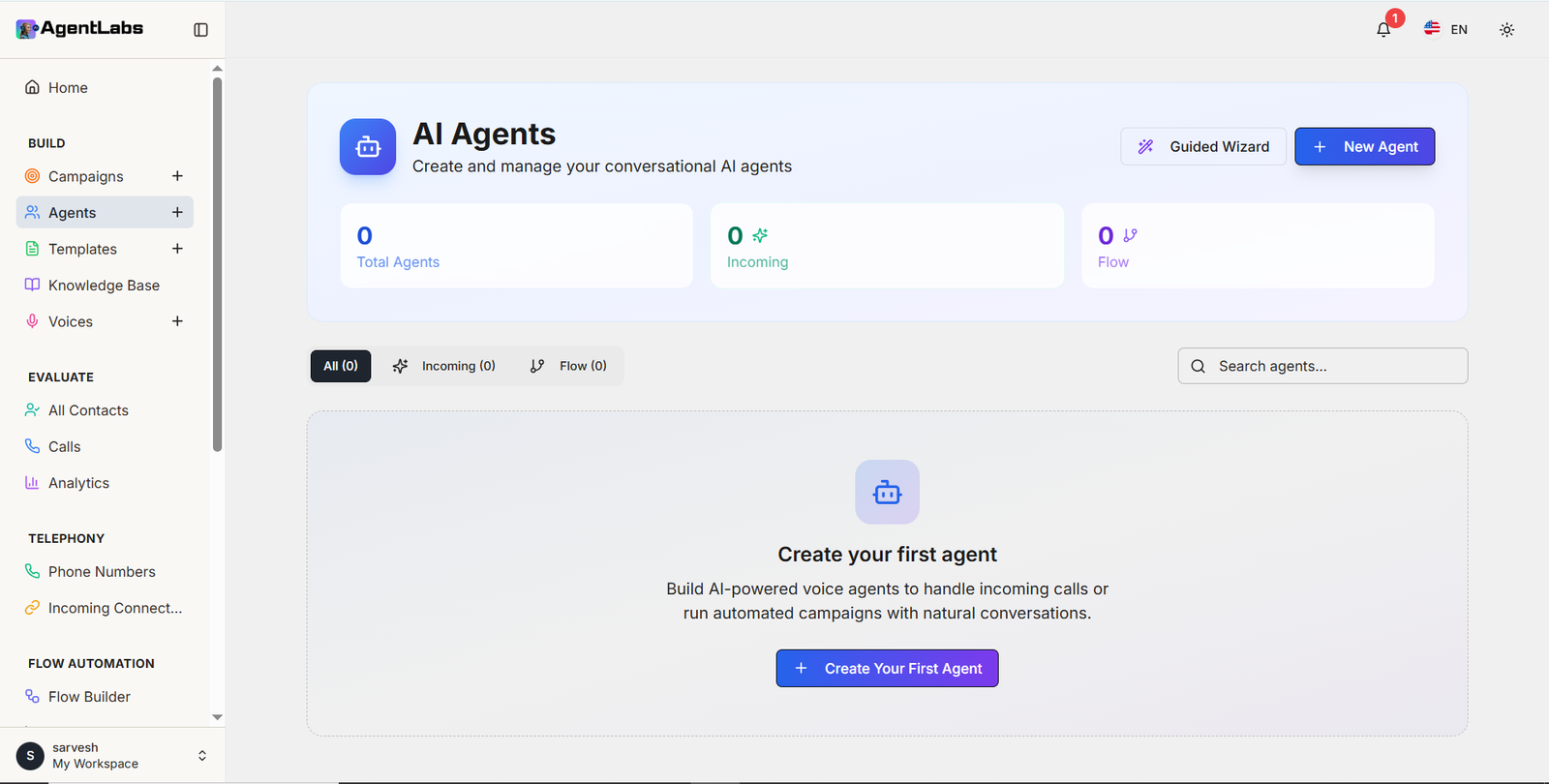
🤖 Agents Overview
Agents Dashboard
- • Total Agents: View count of all created AI agents
- • Incoming Agents: Track agents handling incoming calls
- • Flow Agents: Manage flow-based automated agents
- • Filter Tabs: Switch between All, Incoming, and Flow agent types
- • Search Bar: Quick search functionality to find agents
- • Quick Actions: "Guided Wizard" and "+ New Agent" buttons at top right
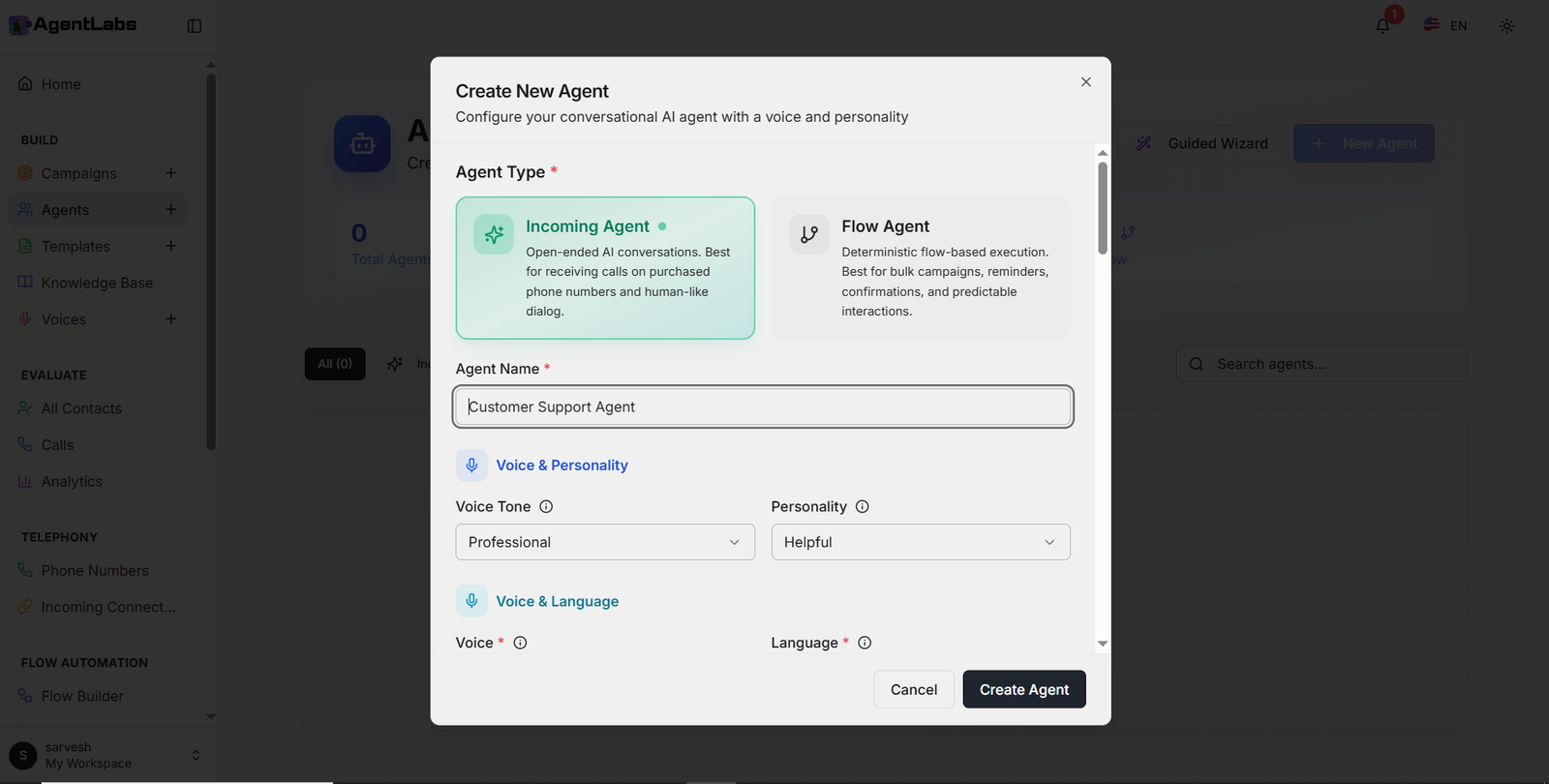
Create New Agent
- • Agent Type Selection: Choose between Incoming Agent (open-ended AI conversations) or Flow Agent (deterministic flow-based execution)
- • Agent Name: Enter custom name for your agent
- • Voice & Personality: Configure voice tone (Professional, Friendly, etc.) and personality traits (Helpful, Assertive, etc.)
- • Voice & Language: Select voice model and preferred language for conversations
- • Easy Configuration: User-friendly modal with clear sections and dropdown selections
Agent Types Explained
Incoming Agent
Open-ended AI conversations. Best for receiving calls on purchased phone numbers and human-like dialog.
Flow Agent
Deterministic flow-based execution. Best for bulk campaigns, reminders, confirmations, and predictable interactions.
Prompt Templates
Create and manage reusable AI prompt templates
📋 Prompt Templates Overview
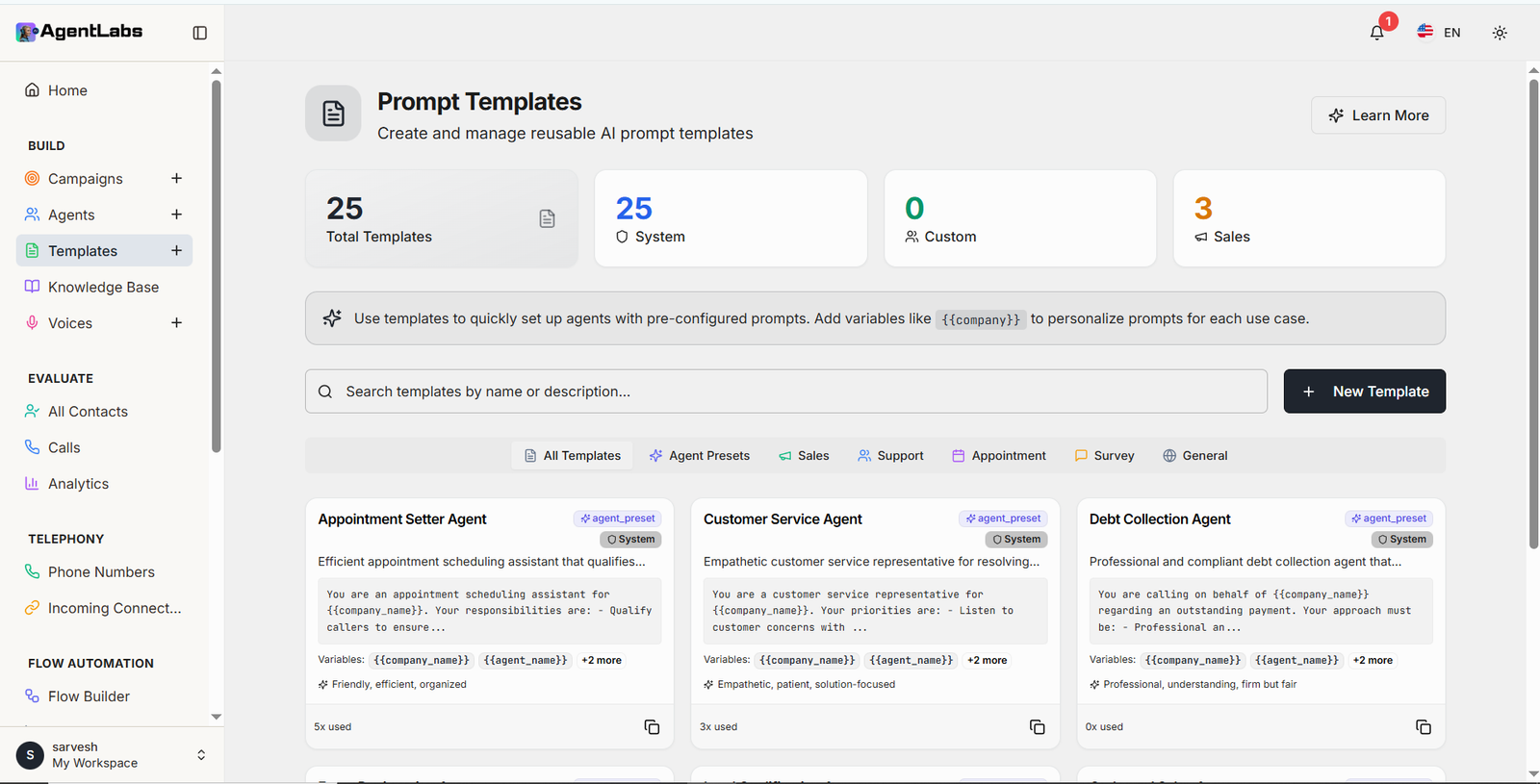
Templates Dashboard Features
- • Template Statistics: Total Templates (25), System templates (25), Custom templates (0), and Sales templates (3) counts
- • Variable Usage Info: Banner explaining how to use variables like {{company}} to personalize prompts
- • Search Functionality: Search templates by name or description
- • New Template Button: Black button in top right to create new templates
- • Category Filters: Tabs for All Templates, Agent Presets, Sales, Support, Appointment, Survey, and General
- • Template Cards: Display template name, description, preview text, variables, personality traits, and usage count
- • System Badge: Shows "System" label for pre-configured templates
- • Agent Preset Badge: Blue "agent_preset" tag for agent-specific templates
- • Copy Action: Copy icon to duplicate template for reuse
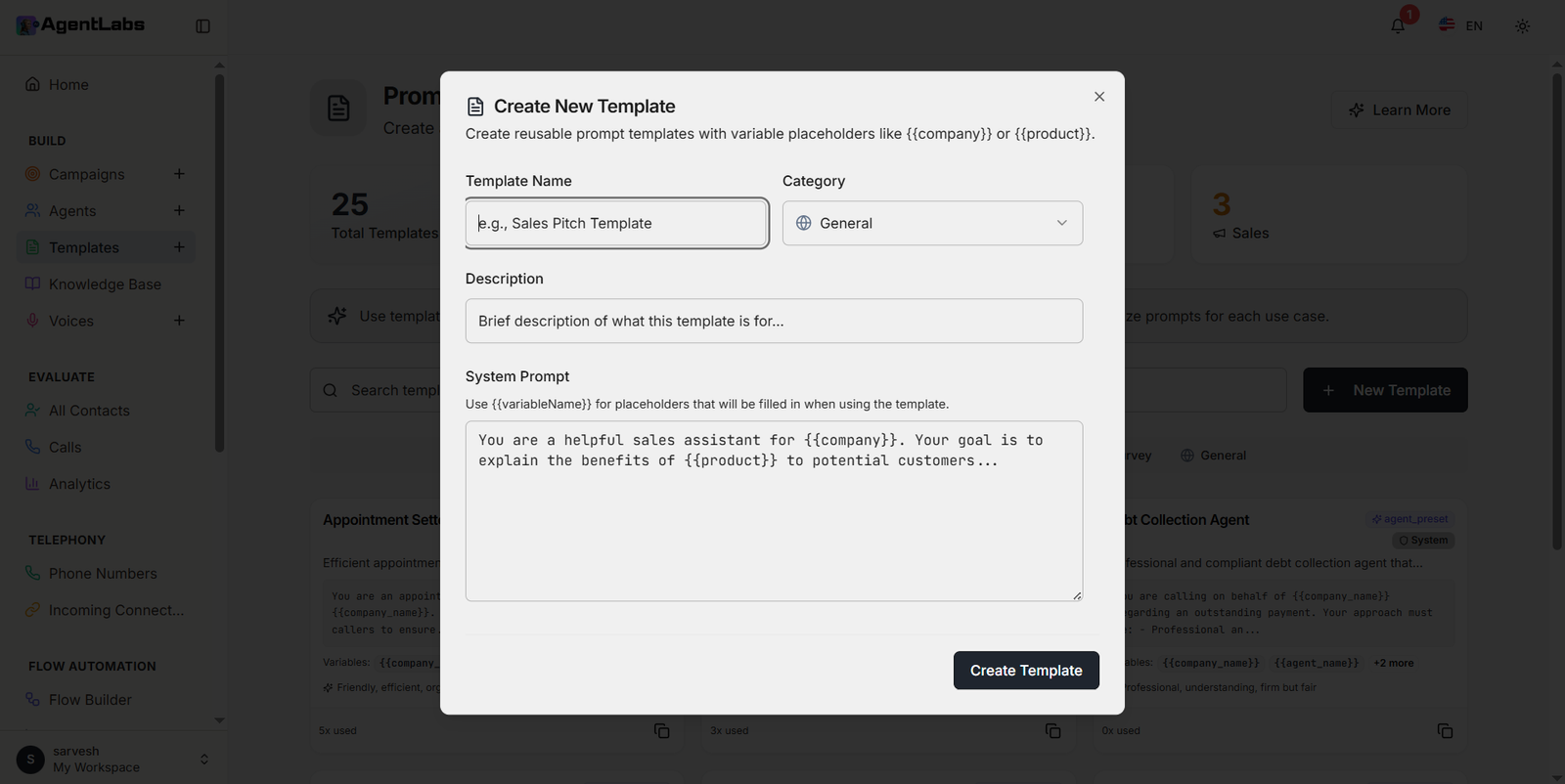
Create New Template Modal
- • Modal Header: "Create New Template" with subtitle about variable placeholders like {{company}} or {{product}}
- • Template Name Field: Text input with placeholder "e.g., Sales Pitch Template"
- • Category Dropdown: Select category (General, Sales, Support, Appointment, Survey)
- • Description Field: Text area for template description with placeholder text
- • System Prompt Field: Large text area for main prompt content with variable placeholder example
- • Variable Helper Text: Instructions to use {{variableName}} format for dynamic content
- • Sample Prompt: Pre-filled example showing sales assistant prompt with {{company}} and {{product}} variables
- • Create Template Button: Black button at bottom to save new template
- • Close Icon: X button in top right corner to dismiss modal
Featured Template Examples
Appointment Setter Agent
Variables: {{company_name}}, {{agent_name}}
Traits: Friendly, efficient, organized
5x used
Customer Service Agent
Variables: {{company_name}}, {{agent_name}}
Traits: Empathetic, patient, solution-focused
3x used
Debt Collection Agent
Variables: {{company_name}}, {{agent_name}}
Traits: Professional, understanding, firm but fair
0x used
Knowledge Base Management
Provide your AI agents with custom documents, URLs, and text content
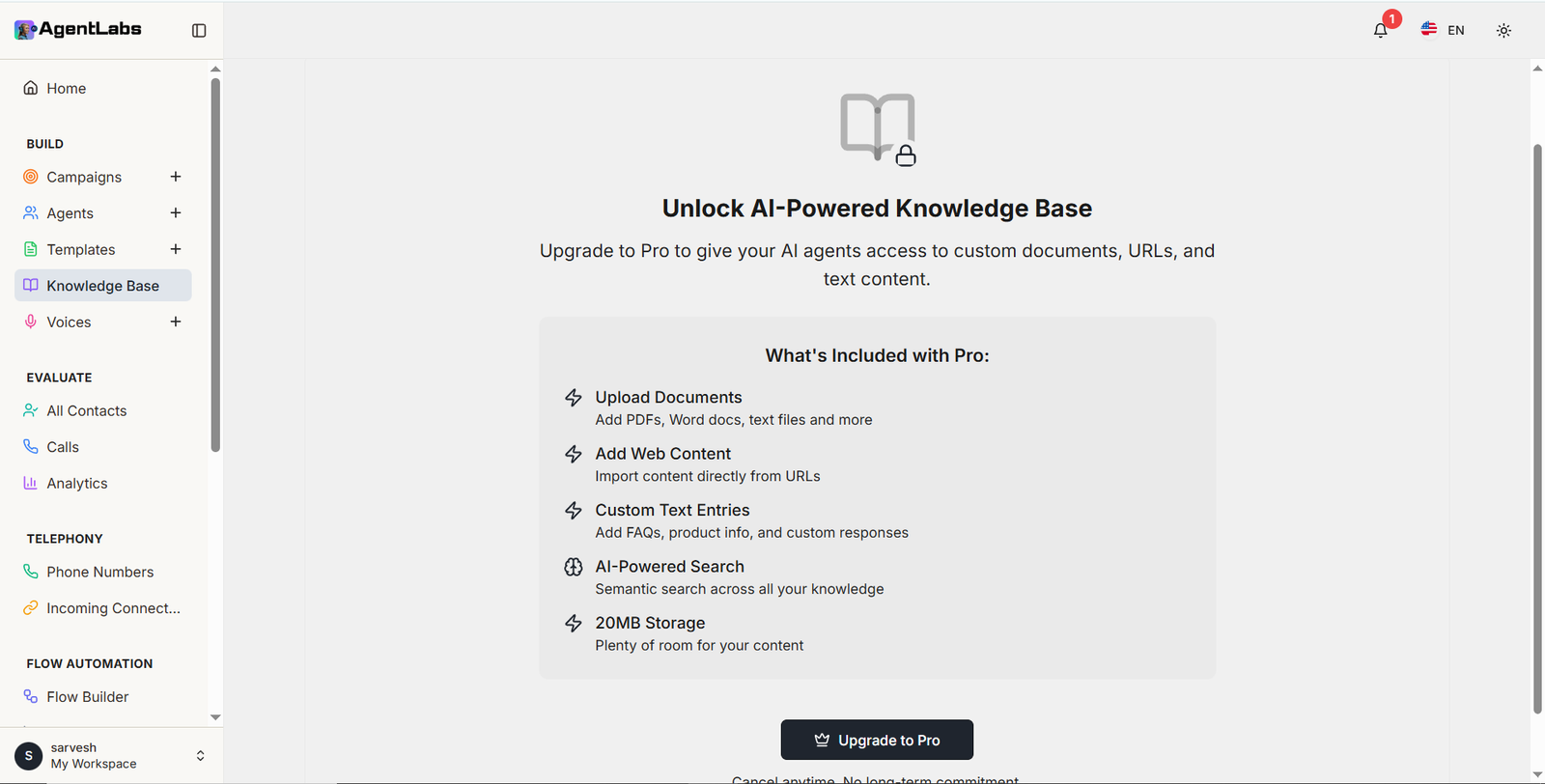
📚 Knowledge Base Features
🔒 Pro Feature - Unlock AI-Powered Knowledge Base
Upgrade to Pro to give your AI agents access to custom documents, URLs, and text content for enhanced conversations.
What's Included with Pro
- ⚡ Upload Documents: Add PDFs, Word docs, text files and more
- ⚡ Add Web Content: Import content directly from URLs
- ⚡ Custom Text Entries: Add FAQs, product info, and custom responses
- 🌐 AI-Powered Search: Semantic search across all your knowledge
Additional Benefits
- ⚡ 20MB Storage: Plenty of room for your content
- 📄 Multiple Formats: Support for various document types
- 🔍 Quick Search: Find documents instantly across knowledge base
- 🎯 Smart Integration: AI agents automatically access relevant information during calls
How It Works
The Knowledge Base feature allows you to enhance your AI agents with custom information. Upload documents, add website URLs, or create text entries that your agents can reference during conversations. This ensures accurate, context-aware responses tailored to your business needs.
Note: This is a premium feature. Upgrade to Pro to unlock full knowledge base capabilities with 20MB storage, semantic search, and unlimited content entries.
Voice Library
Browse and preview 83 voices for your agents
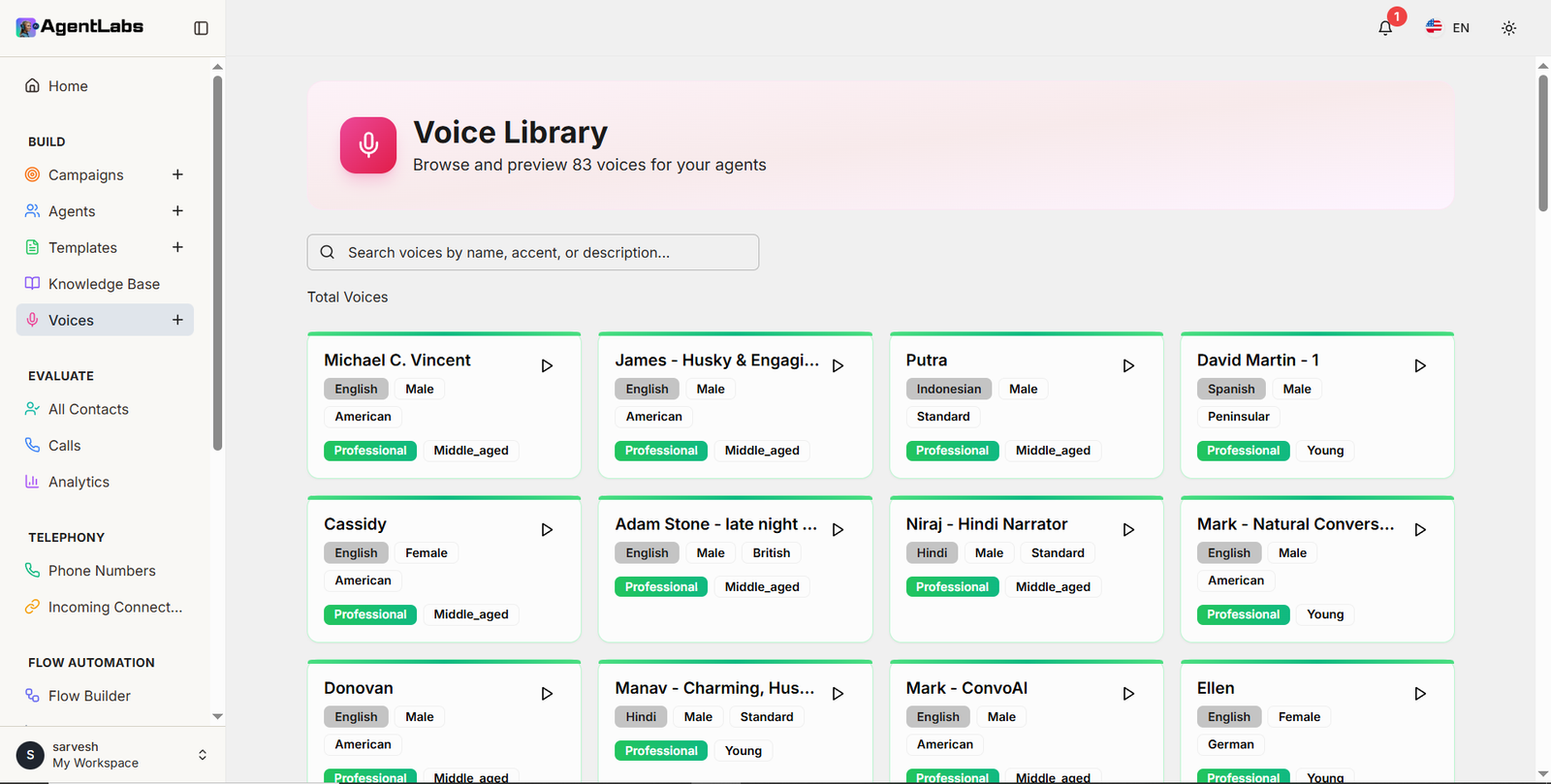
🎤 Voice Library Features
Voice Selection & Filtering
- • Total Voices: Access to 83 professional AI voices
- • Search Functionality: Search voices by name, accent, or description
- • Voice Cards Grid: Clean card layout displaying all voice options
- • Play Button: Preview each voice with play icon on every card
- • Voice Name Display: Clear voice identification (e.g., "Michael C. Vincent", "James - Husky & Engaging")
Voice Attributes & Details
- • Language Tags: English, Spanish, Hindi, Indonesian, and more
- • Gender Labels: Male, Female indicators for each voice
- • Accent Information: American, British, German, Peninsular accents shown
- • Quality Badge: Green "Professional" or "Standard" quality indicators
- • Age Category: Middle_aged, Young labels displayed
Featured Voice Examples
Michael C. Vincent
English • Male • American
Professional Middle_aged
James - Husky & Engaging
English • Male • American
Professional Middle_aged
Niraj - Hindi Narrator
Hindi • Male • Standard
Professional Middle_aged
How to Use Voice Library
The Voice Library provides a comprehensive collection of 83 professional AI voices in multiple languages and accents. Browse through different voice options, preview them using the play button, and select the perfect voice that matches your brand and campaign requirements.
Tip: Use the search bar to quickly filter voices by language, accent, or specific characteristics. Each voice card displays complete information including language, gender, accent, quality level, and age category to help you make the right choice for your AI agents.
All Contacts
View all unique contacts across campaigns
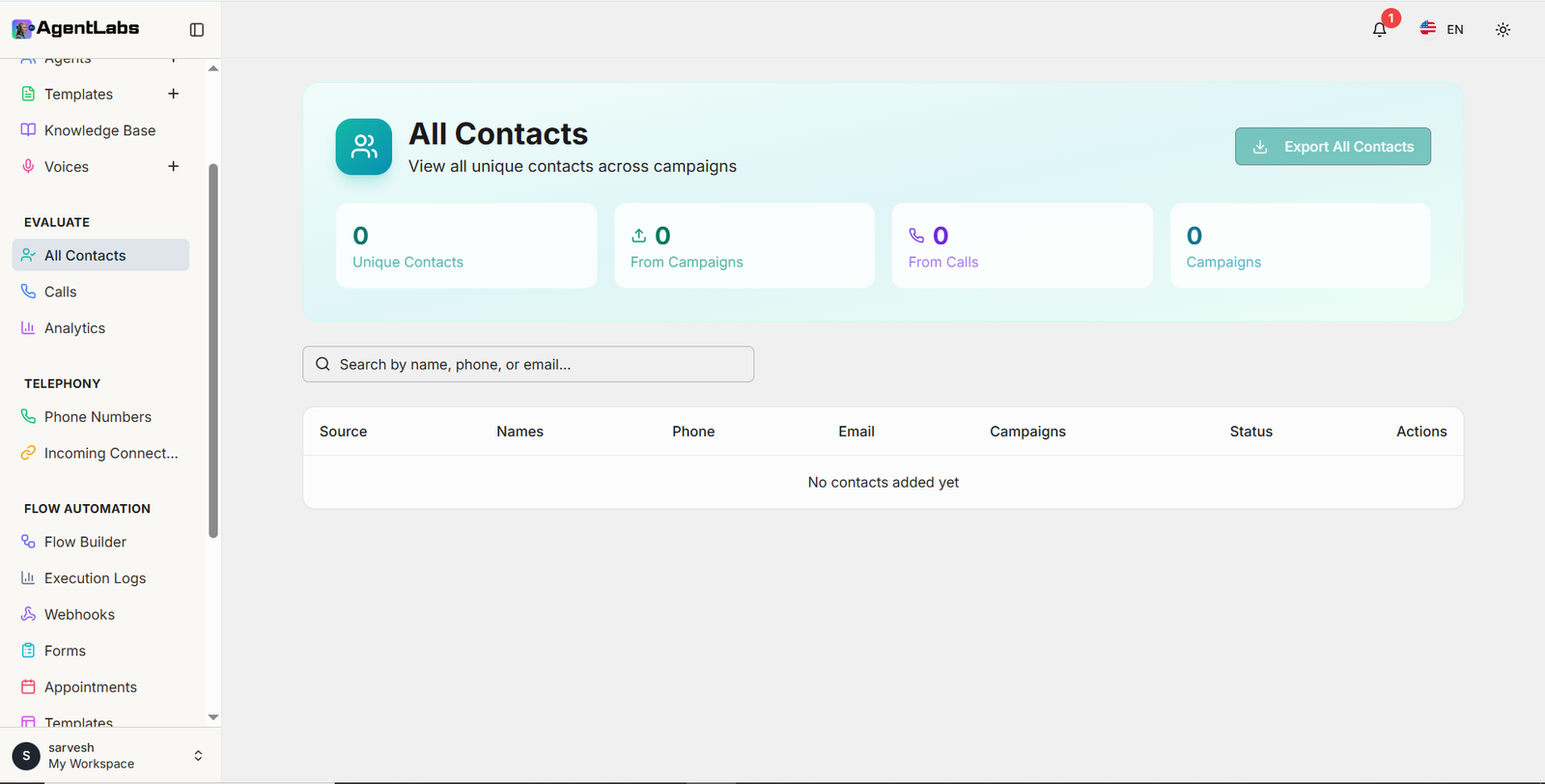
👥 All Contacts Features
Contact Management Dashboard
- • Contact Statistics: Four metric cards showing Unique Contacts (0), From Campaigns (0), From Calls (0), and Campaigns (0)
- • Export All Contacts Button: Teal button in top right to download all contacts
- • Search Functionality: Search bar to find contacts by name, phone, or email
- • Empty State Message: "No contacts added yet" displayed when no contacts exist
- • Contact Table View: Organized table with multiple columns for data display
Contact Table Columns
- • Source Column: Shows where the contact originated from
- • Names Column: Displays contact's full name
- • Phone Column: Contact's phone number information
- • Email Column: Contact's email address
- • Campaigns Column: Associated campaigns for each contact
- • Status Column: Current status of the contact
- • Actions Column: Available actions for each contact
Contact Statistics Breakdown
0
Unique Contacts
Total unique individuals in system
0
From Campaigns
Contacts added via campaigns
0
From Calls
Contacts from inbound calls
0
Campaigns
Total campaigns with contacts
How Contact Management Works
The All Contacts section provides a centralized view of all unique contacts across your campaigns and call activities. Track contacts from different sources, search through your database, and export all contact information with a single click. The system automatically tracks contact origins (campaigns or direct calls) and associates them with relevant campaigns.
Key Features: Use the search bar to quickly find specific contacts by name, phone number, or email. Export functionality allows you to download your entire contact database for external use. The table view provides comprehensive information including source, contact details, campaign associations, status, and available actions for each contact.
Calls & Conversations
View recordings, transcripts, and AI analysis
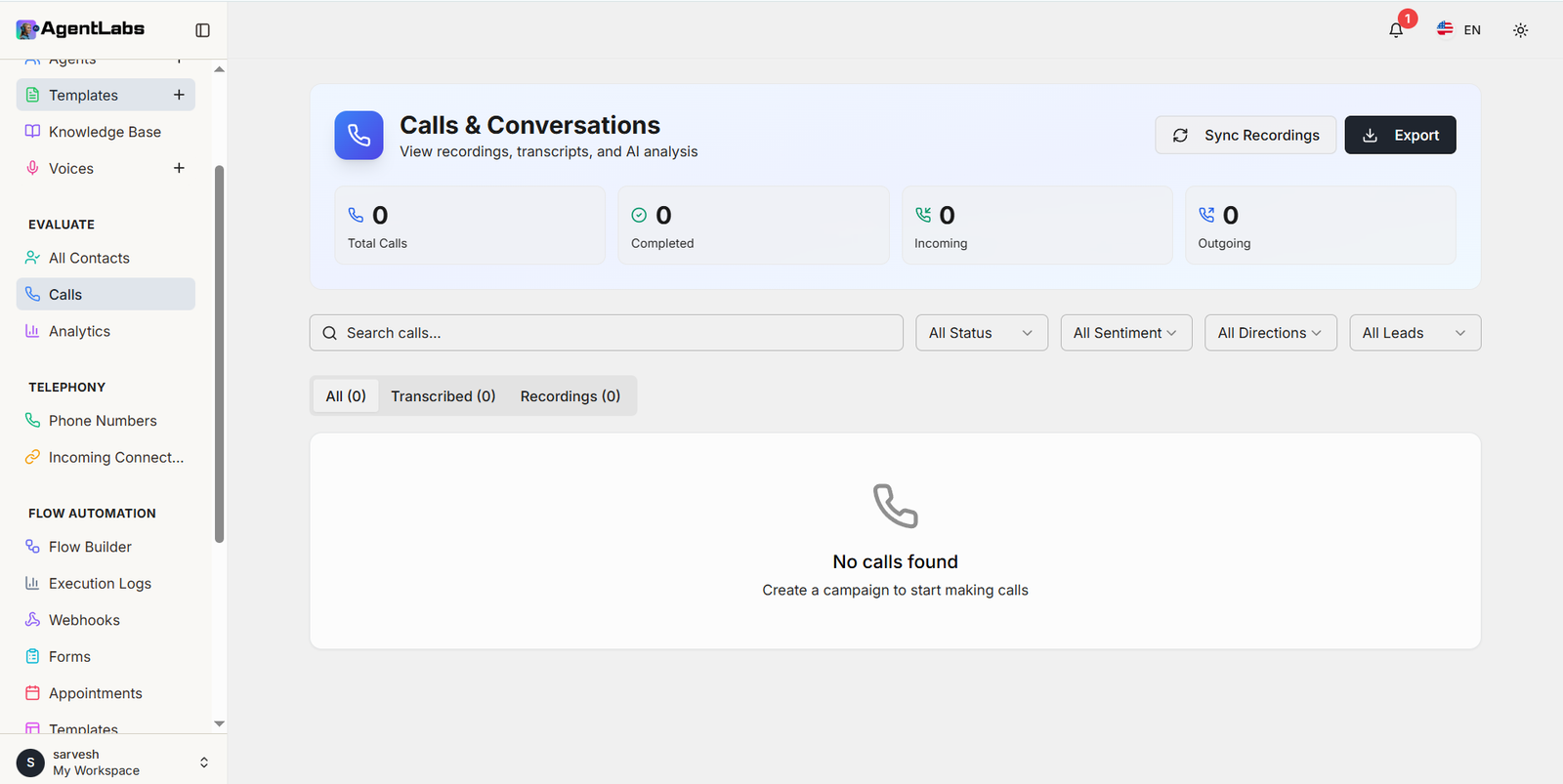
📞 Calls & Conversations Features
Call Monitoring Dashboard
- • Call Statistics: Four metric cards showing Total Calls (0), Completed (0), Incoming (0), and Outgoing (0)
- • Sync Recordings Button: Refresh icon button to sync latest recordings
- • Export Button: Black button in top right to export call data
- • Search Functionality: Search calls by any criteria
- • Empty State Message: "No calls found" with prompt to create a campaign
Filtering & Organization
- • All Status Filter: Filter calls by status (All, Completed, Failed, In Progress)
- • All Sentiment Filter: Filter by AI-detected sentiment (Positive, Negative, Neutral)
- • All Directions Filter: Filter by Incoming or Outgoing calls
- • All Leads Filter: Filter by lead status and quality
- • Tab Navigation: Switch between All (0), Transcribed (0), and Recordings (0)
Call Statistics Breakdown
0
📞 Total Calls
All calls across campaigns
0
✓ Completed
Successfully completed calls
0
📥 Incoming
Received inbound calls
0
📤 Outgoing
Outbound campaign calls
Available Call Views
📋 All Calls (0)
Complete list of all calls made through the system, including ongoing, completed, and failed attempts
📝 Transcribed (0)
Calls with AI-generated transcripts available for review and analysis
🎙️ Recordings (0)
Calls with audio recordings available for playback and quality monitoring
How Calls & Conversations Works
The Calls & Conversations section provides comprehensive monitoring and analysis of all call activities. Track call volumes, monitor completion rates, and analyze conversation quality through AI-powered transcripts and sentiment analysis. Use advanced filters to segment calls by status, sentiment, direction, and lead quality.
Key Capabilities: Access call recordings for quality assurance, review AI-generated transcripts for detailed conversation analysis, and export call data for reporting. The Sync Recordings feature ensures you always have the latest call data available. Perfect for managers and supervisors who need to monitor team performance and customer interactions.
Analytics Dashboard
Comprehensive insights and performance metrics
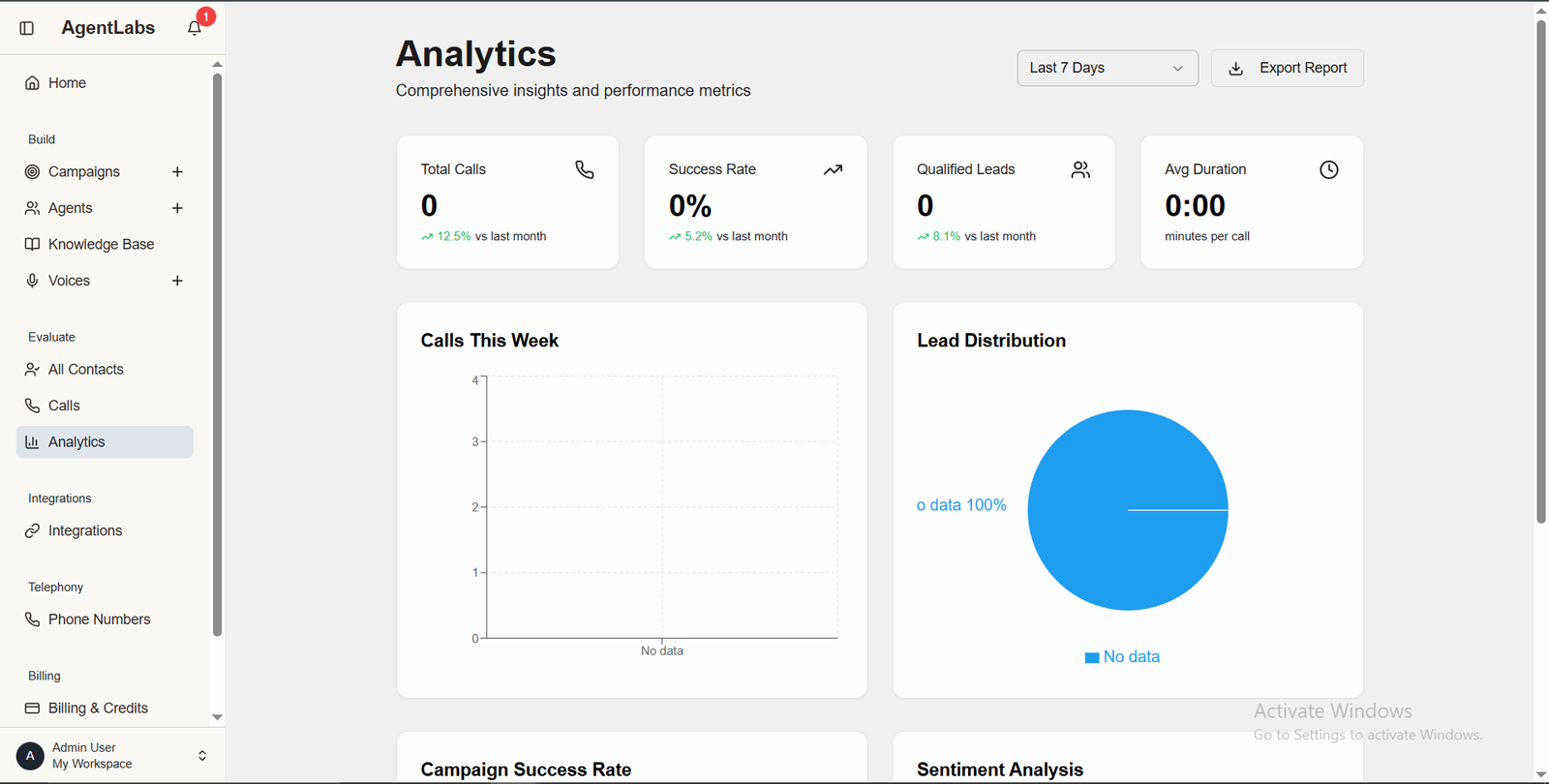
📋 Analytics Overview
Key Metrics
- • Total Calls: 0 calls (12.5% vs last month trend)
- • Success Rate: 0% (5.2% improvement vs last month)
- • Qualified Leads: 0 leads (8.1% increase vs last month)
- • Avg Duration: 0:00 minutes per call
Filter & Export Options
- • Time Filter: Last 7 Days dropdown selector
- • Export Report: Download analytics data as PDF/CSV
- • Date Range: Switch between Last 7 Days, 30 Days, Custom
Dashboard Charts
Calls This Week
Bar chart showing call volume by day. Currently shows "No data" state.
Lead Distribution
Pie chart showing lead quality breakdown (Hot/Warm/Cold). Shows "0 data 100%" currently.
Campaign Success Rate
Detailed breakdown of call completion rates across campaigns
Sentiment Analysis
Customer sentiment tracking during conversations (Positive/Negative/Neutral)
Insights Provided
- ✓ Real-time campaign performance tracking
- ✓ Month-over-month comparison trends
- ✓ Lead quality assessment
- ✓ Customer sentiment analysis
- ✓ Success rate metrics and improvements
- ✓ Call duration patterns
Phone Numbers
Manage your dedicated phone numbers for inbound and outbound calls
📱 Phone Numbers Management
Dashboard Features
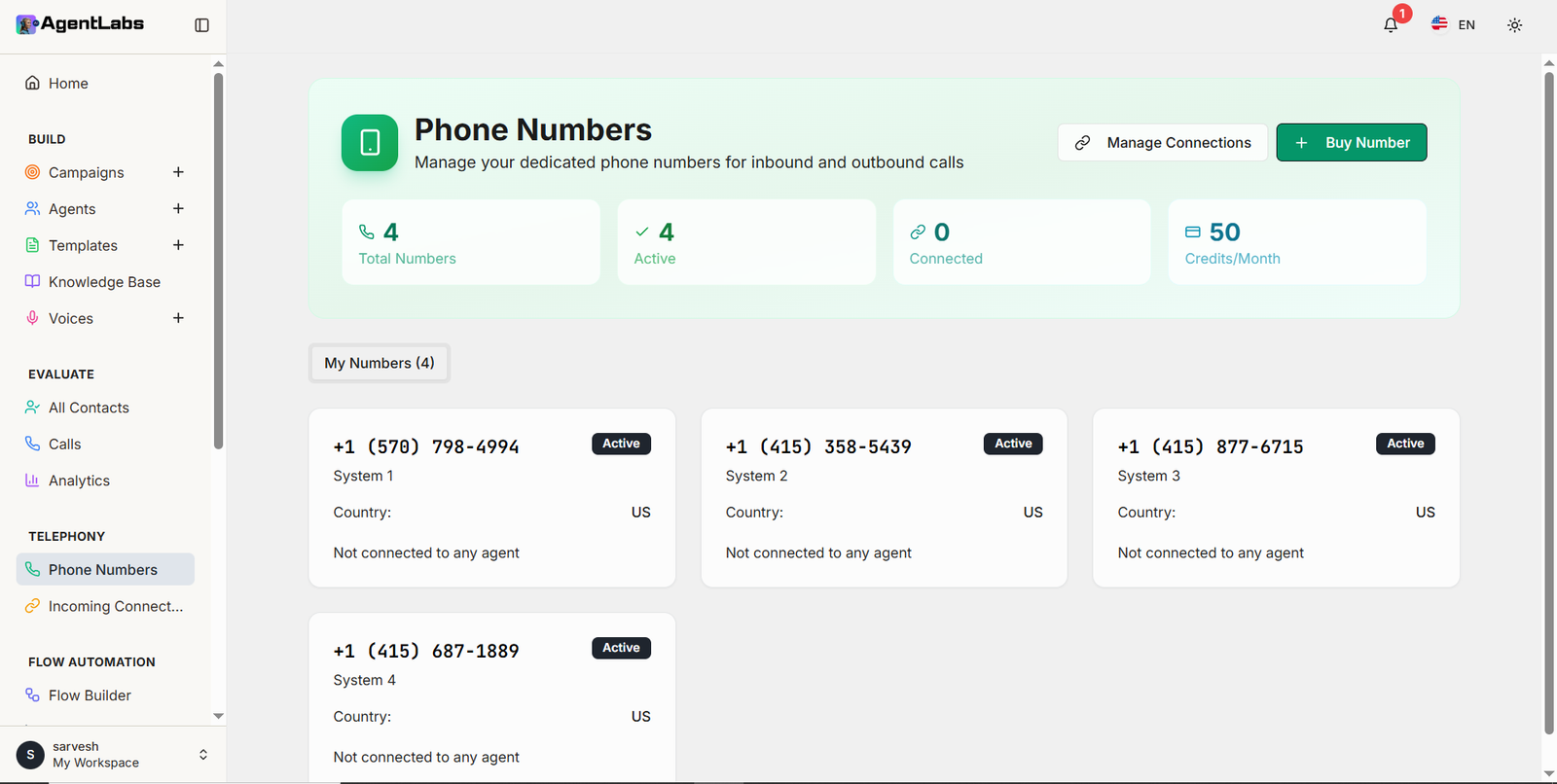
- • Number Statistics: Total Numbers (4), Active (4), Connected (0), and Credits/Month (50) displayed
- • Manage Connections Button: Link icon button to manage phone number connections
- • Buy Number Button: Green button in top right to purchase new numbers
- • My Numbers Section: List view showing all owned phone numbers (4)
- • Number Cards: Individual cards displaying phone number, system name, country, and status
- • Active Status Badge: Black "Active" label on each number card
- • Connection Status: Shows "Not connected to any agent" message
- • System Labels: System 1, System 2, System 3, System 4 identifiers
Rent Phone Number Modal
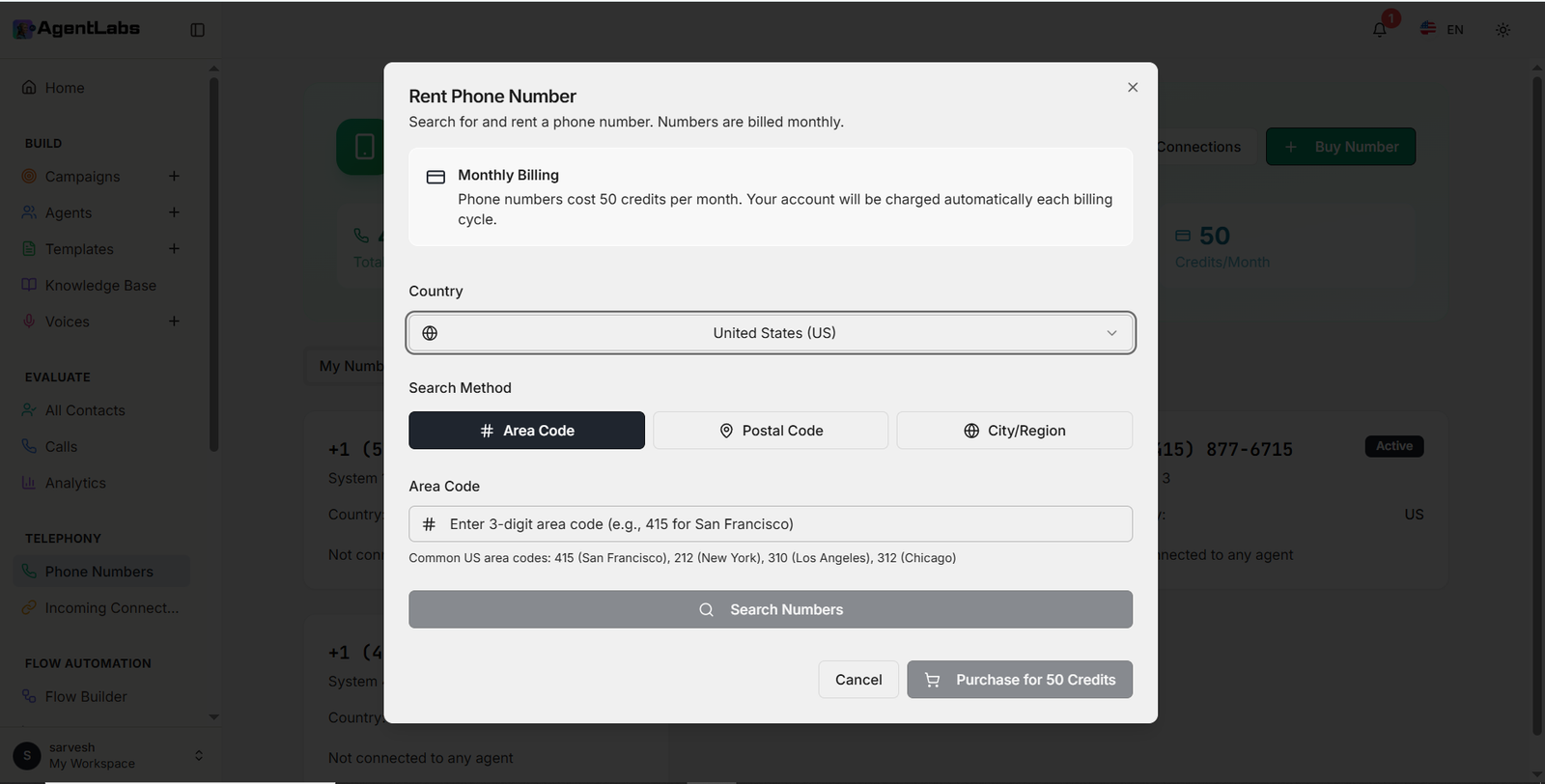
- • Modal Header: "Rent Phone Number" with subtitle about monthly billing
- • Monthly Billing Info: Notification that phone numbers cost 50 credits per month with automatic charging
- • Country Dropdown: Select country with United States (US) as default
- • Search Method Tabs: Three options - Area Code (default), Postal Code, City/Region
- • Area Code Input: Text field to enter 3-digit area code (e.g., 415 for San Francisco)
- • Common Area Codes: Helper text showing examples - 415 (San Francisco), 212 (New York), 310 (Los Angeles), 312 (Chicago)
- • Search Numbers Button: Gray button to search available numbers
- • Purchase Button: "Purchase for 50 Credits" button with shopping cart icon
- • Cancel Button: White cancel button to close modal
Sample Phone Numbers
+1 (570) 798-4994
System 1 • US
Active
+1 (415) 358-5439
System 2 • US
Active
+1 (415) 877-6715
System 3 • US
Active
+1 (415) 687-1889
System 4 • US
Active
How Phone Number Management Works
The Phone Numbers section allows you to rent and manage dedicated phone numbers for your AI calling agents. Each number costs 50 credits per month and can be used for both inbound and outbound calls. Search for numbers by area code, postal code, or city/region to find the perfect local presence for your business.
Note: Numbers are billed monthly and charged automatically. You can connect each phone number to specific AI agents through the "Manage Connections" feature. Track your active numbers, connection status, and monthly credit usage directly from the dashboard.
Visual Flow Builder
Create and manage conversation flows with drag-and-drop visual builder
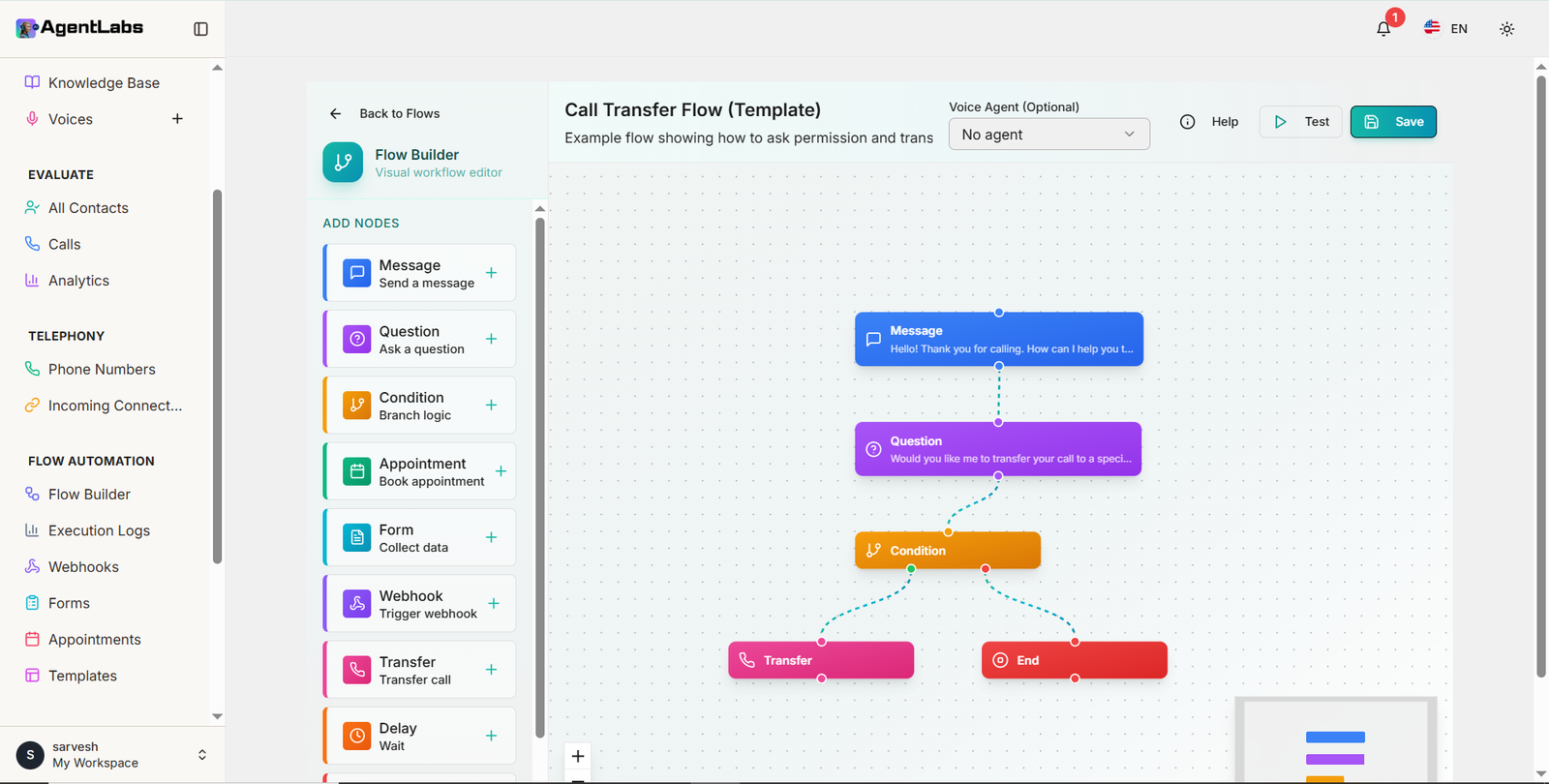
🔄 Flow Builder CRUD Operations
📋 List & Manage Flows
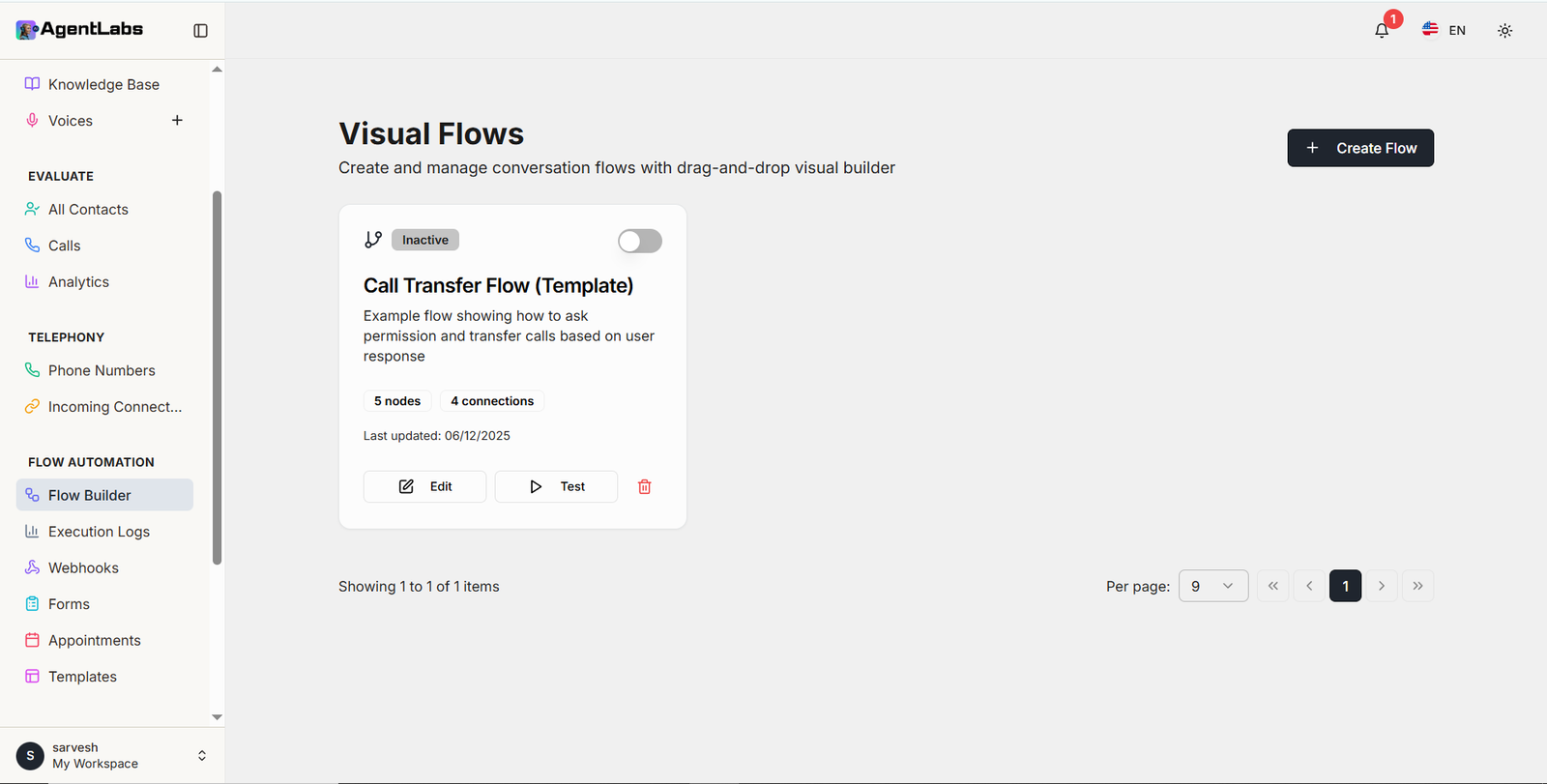
- • View All Flows: Display all created conversation flows with status indicators
- • Flow Status Toggle: Enable/disable flows with inactive/active status
- • Flow Details: View node count, connections, and last update timestamp
- • Quick Actions: Edit, Test, and Delete buttons for each flow
- • Create New Flow: "+ Create Flow" button at top right
- • Pagination: Navigate through multiple flows with per-page selector
✏️ Create & Edit Flows
- • Drag-and-Drop Editor: Visual workflow canvas with node-based interface
- • Flow Name & Description: Add title and description for each flow
- • Voice Agent Selection: Optional voice agent assignment dropdown
- • Node Connections: Visual dotted lines showing flow logic paths
- • Save & Test: Save button and Test functionality for flow validation
- • Back Navigation: "Back to Flows" link to return to list view
🧩 Available Flow Nodes
Communication Nodes
- • Message: Send a message
- • Question: Ask a question
Logic & Actions
- • Condition: Branch logic
- • Delay: Wait timing
- • Transfer: Transfer call
- • End: End conversation
Integrations
- • Appointment: Book appointment
- • Form: Collect data
- • Webhook: Trigger webhook
🗑️ Delete Operation
- • Delete Button: Red delete icon on each flow card
- • Confirmation: Safely remove unwanted flows from system
🧪 Test & Validation
- • Test Button: Validate flow logic before deployment
- • Real-time Testing: Test conversation flows in editor
💡 Flow Builder Benefits
The Visual Flow Builder provides a powerful drag-and-drop interface to design conversation workflows without coding. Create complex call flows with branching logic, integrate appointments and forms, transfer calls conditionally, and control conversation timing with delays.
Example Use Case: The "Call Transfer Flow" template demonstrates how to greet callers, ask permission, and conditionally transfer calls based on user response - perfect for customer support routing.
Webhooks
Configure webhook endpoints for real-time event notifications
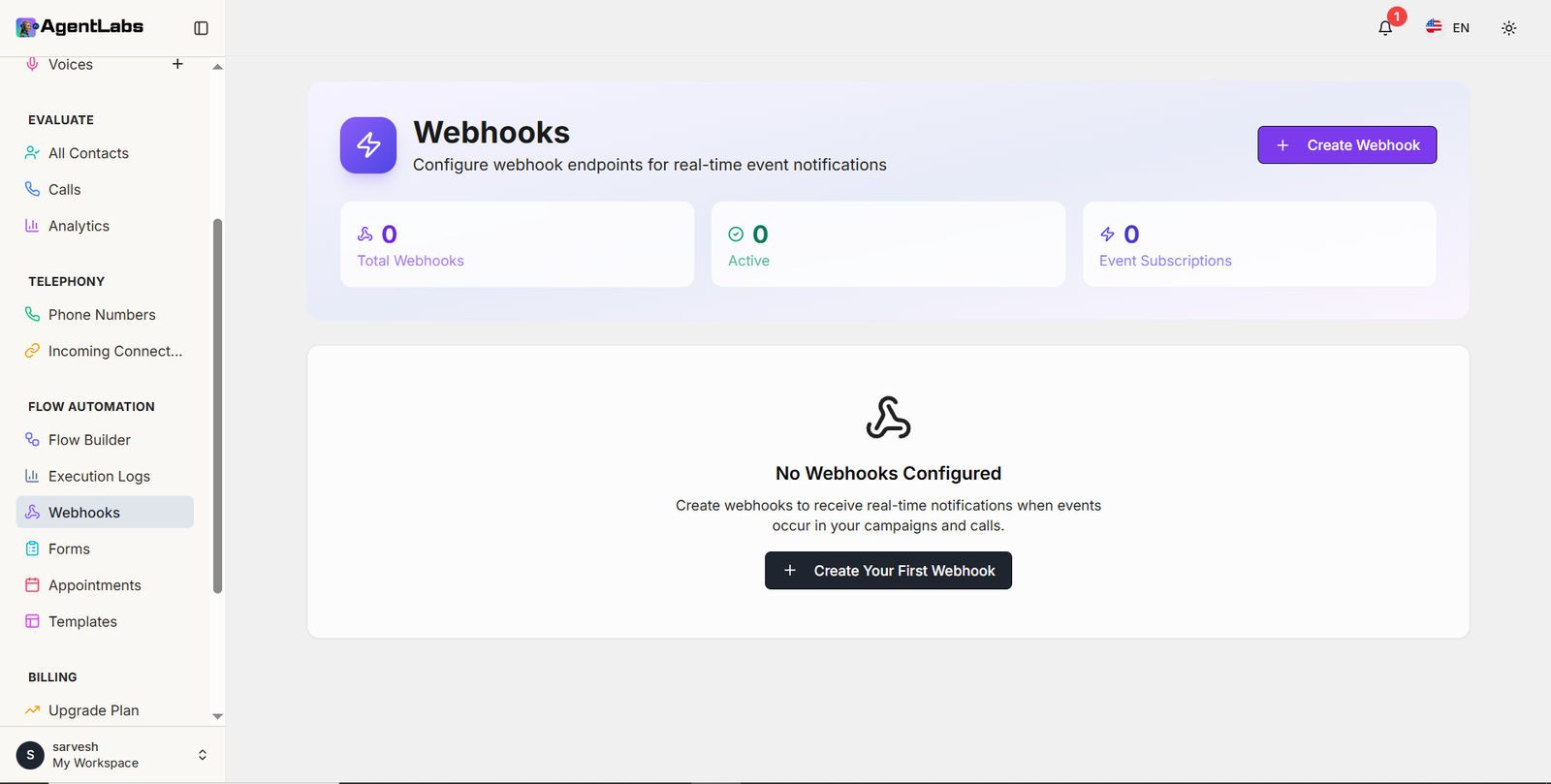
⚡ Webhooks Management
Webhooks Dashboard Features
- • Webhook Statistics: Total Webhooks (0), Active (0), and Event Subscriptions (0) displayed
- • Create Webhook Button: Purple button in top right to add new webhooks
- • Empty State: "No Webhooks Configured" message with webhook icon
- • Descriptive Text: Explains webhooks receive real-time notifications for campaign and call events
- • Create First Webhook: Black button to start webhook configuration
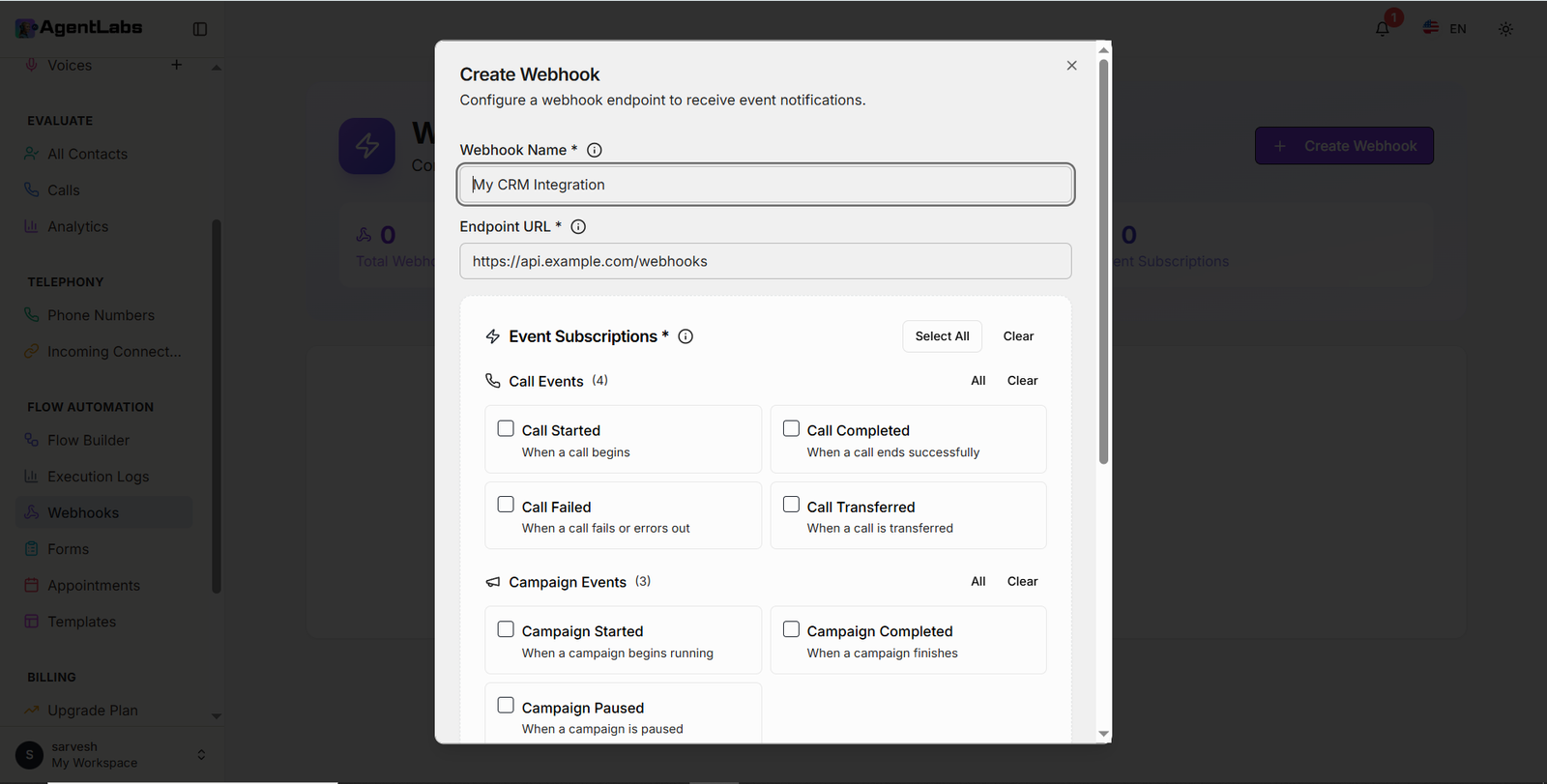
Create Webhook Modal
- • Modal Header: "Create Webhook" with subtitle to configure endpoint for event notifications
- • Webhook Name Field: Required text input with info icon (e.g., "My CRM Integration")
- • Endpoint URL Field: Required URL input with info icon (e.g., "https://api.example.com/webhooks")
- • Event Subscriptions Section: Required field with Select All and Clear buttons
- • Call Events (4): Call Started, Call Completed, Call Failed, Call Transferred with descriptions
- • Campaign Events (3): Campaign Started, Campaign Completed, Campaign Paused with descriptions
- • All/Clear Toggles: Quick selection buttons for each event category
- • Checkbox Grid: Two-column layout for event selection
Available Webhook Events
📞 Call Events (4)
- • Call Started: When a call begins
- • Call Completed: When a call ends successfully
- • Call Failed: When a call fails or errors out
- • Call Transferred: When a call is transferred
🎯 Campaign Events (3)
- • Campaign Started: When a campaign begins running
- • Campaign Completed: When a campaign finishes
- • Campaign Paused: When a campaign is paused
How Webhooks Work
Webhooks allow you to receive real-time event notifications from AgentLabs directly to your application or CRM system. Configure webhook endpoints with your desired URL, select which events you want to subscribe to (call events or campaign events), and receive instant HTTP POST requests whenever those events occur in your campaigns and calls.
Use Cases: Integrate with CRM systems for automatic contact updates, trigger custom workflows based on call outcomes, sync campaign data with external analytics platforms, or build custom notifications for your team. Each webhook can be configured with specific event subscriptions to receive only the data you need.
Dynamic Forms
Create custom forms to collect structured data during calls
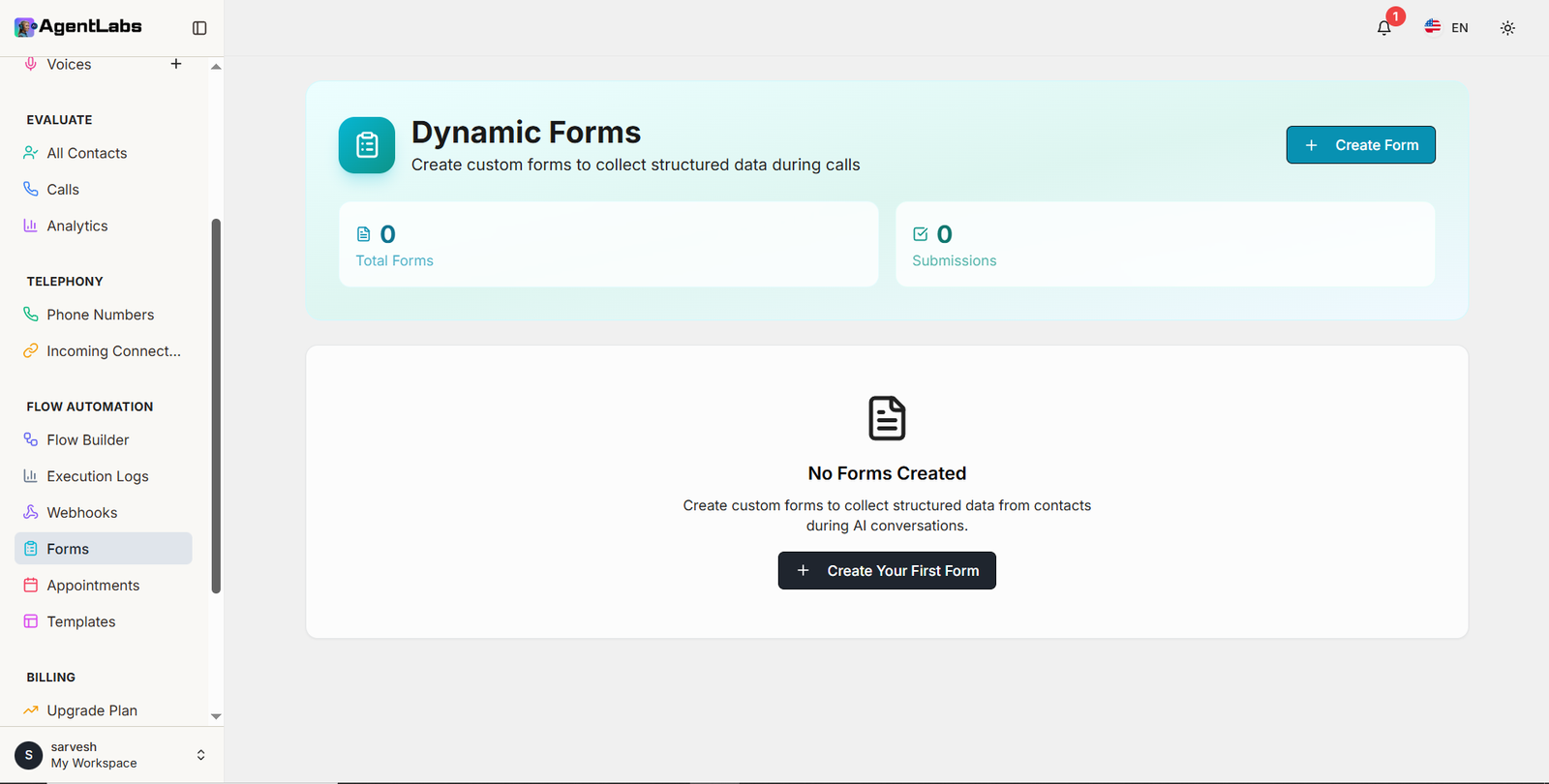
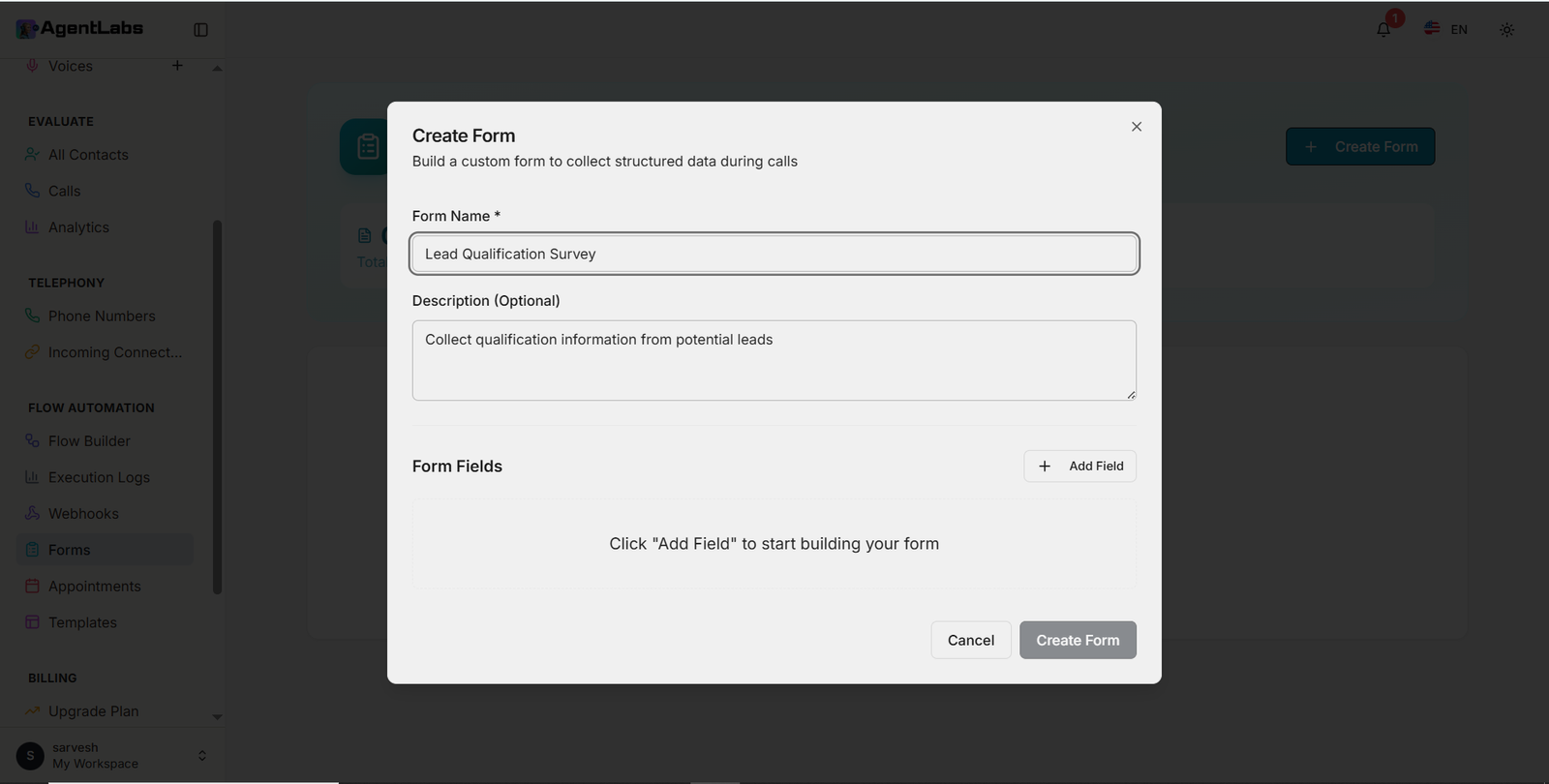
📋 Dynamic Forms Management
Forms Dashboard Features
- • Form Statistics: Total Forms (0) and Submissions (0) displayed with icons
- • Create Form Button: Cyan button in top right to add new forms
- • Empty State: "No Forms Created" message with form icon
- • Descriptive Text: Explains forms collect structured data from contacts during AI conversations
- • Create First Form: Black button to start form creation
Create Form Modal
- • Modal Header: "Create Form" with subtitle to build custom form for structured data collection
- • Form Name Field: Required text input (e.g., "Lead Qualification Survey")
- • Description Field: Optional text area for form purpose (e.g., "Collect qualification information from potential leads")
- • Form Fields Section: Area to add custom fields with "Add Field" button
- • Empty State Prompt: Text saying "Click 'Add Field' to start building your form"
- • Add Field Button: Plus icon button in top right of Form Fields section
- • Cancel Button: White cancel button at bottom
- • Create Form Button: Gray create button at bottom right
Form Building Process
1️⃣ Name Your Form
Give your form a descriptive name and optional description to identify its purpose
2️⃣ Add Fields
Click "Add Field" to create custom input fields for data collection during calls
3️⃣ Use in Conversations
Assign forms to AI agents to collect structured information during customer interactions
How Dynamic Forms Work
Dynamic Forms enable AI agents to collect structured data during conversations with contacts. Create custom forms with specific fields, assign them to your agents, and the AI will intelligently gather information during calls. All form submissions are stored and can be viewed in the submissions dashboard for easy data management and analysis.
Use Cases: Lead qualification surveys, customer feedback collection, appointment scheduling information, product preference gathering, contact information updates, or any scenario where structured data needs to be collected during AI-powered conversations. Forms can include various field types to capture different data formats.
Appointments
Manage and schedule appointments with availability settings
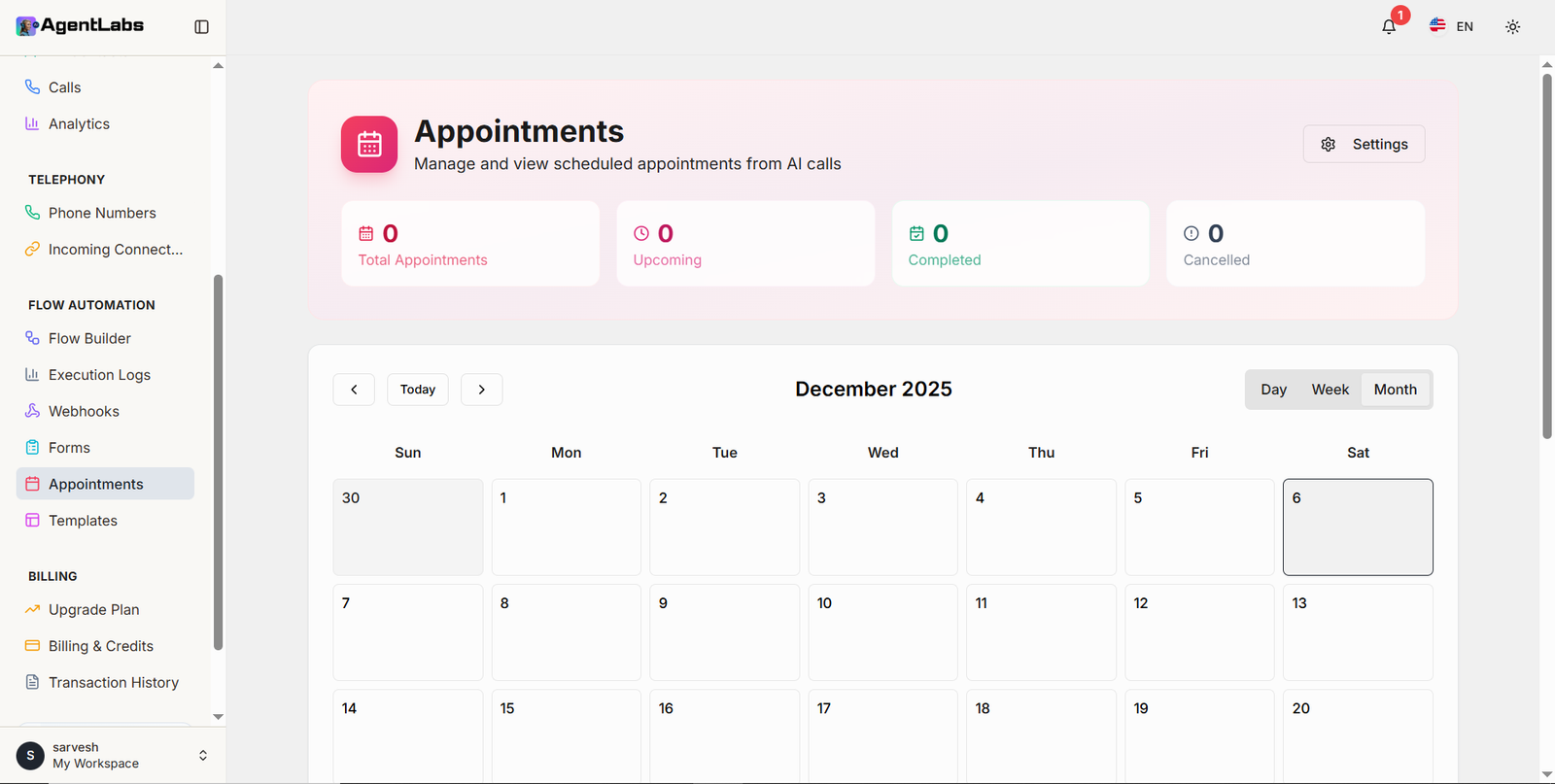
📅 Appointments Management
Appointment Settings Features
- • Settings Modal: "Appointment Settings" with subtitle to configure scheduling rules and availability
- • Overlapping Toggle: Enable/disable multiple appointments at the same time with toggle switch
- • Buffer Time Field: Set buffer time between appointments in minutes
- • Max Appointments Field: Optional limit for maximum appointments per day (default: "No limit")
- • Calendar View: Background shows calendar with Day, Week, Month view options
Working Hours Configuration
- • Start Time Field: Time picker with clock icon to set working hours start time
- • End Time Field: Time picker with clock icon to set working hours end time
- • Working Days Selection: Checkboxes for all 7 days of the week
- • Days Grid Layout: Days organized in two columns - Monday/Tuesday, Wednesday/Thursday, Friday/Saturday
- • Sunday Option: Available at the bottom (visible in scrollable modal)
Appointment Configuration Options
⚙️ Scheduling Rules
• Allow overlapping appointments toggle
• Buffer time between appointments
• Max appointments per day limit
🕐 Working Hours
• Customizable start and end times
• Time picker with clock icon
• Flexible scheduling windows
📆 Working Days
• Select any combination of weekdays
• Monday through Sunday options
• Custom availability patterns
Dashboard Statistics & Views
0
Total Appointments
0
Confirmed
0
Pending
0
Cancelled
Calendar views available: Day, Week, Month
How Appointments Work
The Appointments system allows AI agents to schedule meetings with contacts during calls. Configure scheduling rules including buffer times between appointments, maximum daily appointments, and working hours. Set your availability by selecting working days and defining start/end times. The calendar view displays all scheduled appointments with options to view by day, week, or month.
Key Features: Enable overlapping appointments for busy schedules, set buffer times to prevent back-to-back bookings, limit daily appointments to manage workload, and define custom working hours for each day. The system automatically prevents scheduling conflicts and respects your availability settings when AI agents book appointments on your behalf.
Flow Templates
Pre-built conversation flows to get you started quickly
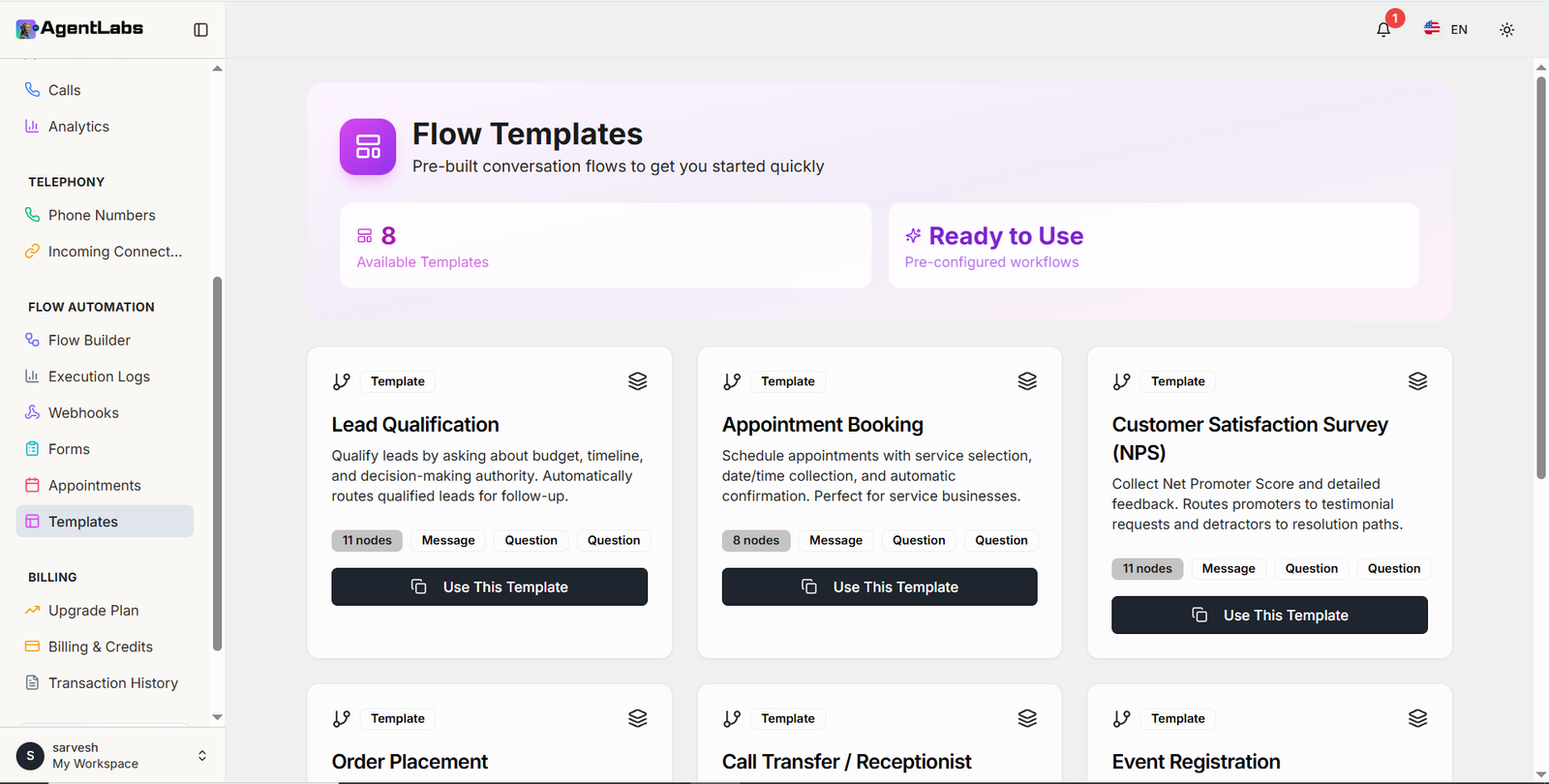
🔄 Flow Templates Overview
Templates Dashboard Features
- • Template Statistics: 8 Available Templates and Ready to Use status displayed
- • Pre-configured Workflows: Badge indicating templates are ready to use immediately
- • Template Cards: Grid layout displaying all available conversation flow templates
- • Template Icon: Flow diagram icon on each template card
- • Layers Icon: Stack icon indicating template complexity
Template Card Information
- • Template Name: Clear title for each workflow (e.g., "Lead Qualification")
- • Description: Detailed explanation of template purpose and functionality
- • Node Count Badge: Gray badge showing number of nodes (e.g., "11 nodes", "8 nodes")
- • Component Tags: Pills showing flow components (Message, Question)
- • Use This Template Button: Black button to apply template to workflow
Available Flow Templates (8)
🎯 Lead Qualification
Qualify leads by asking about budget, timeline, and decision-making authority
11 nodes • Message, Question
📅 Appointment Booking
Schedule appointments with service selection, date/time collection, and automatic confirmation
8 nodes • Message, Question
⭐ Customer Satisfaction Survey (NPS)
Collect Net Promoter Score and detailed feedback with routing based on responses
11 nodes • Message, Question
🛒 Order Placement
Process customer orders with product selection and details
Multiple nodes
📞 Call Transfer / Receptionist
Route calls to appropriate departments or personnel
Multiple nodes
🎫 Event Registration
Register attendees for events with information collection
Multiple nodes
How Flow Templates Work
Flow Templates provide pre-built conversation workflows that you can use immediately or customize for your specific needs. Each template includes a structured flow with nodes for messages, questions, and logic branches. Simply click "Use This Template" to add it to your Flow Builder, where you can modify the conversation flow, add custom responses, and integrate with your systems.
Template Benefits: Save time with ready-to-use workflows, follow best practices for conversation design, easily customize templates to match your brand voice, and quickly deploy AI agents with proven conversation patterns. Templates include common use cases like lead qualification, appointment booking, surveys, order processing, call routing, and event registration.
Upgrade Your Plan
Choose the plan that fits your needs
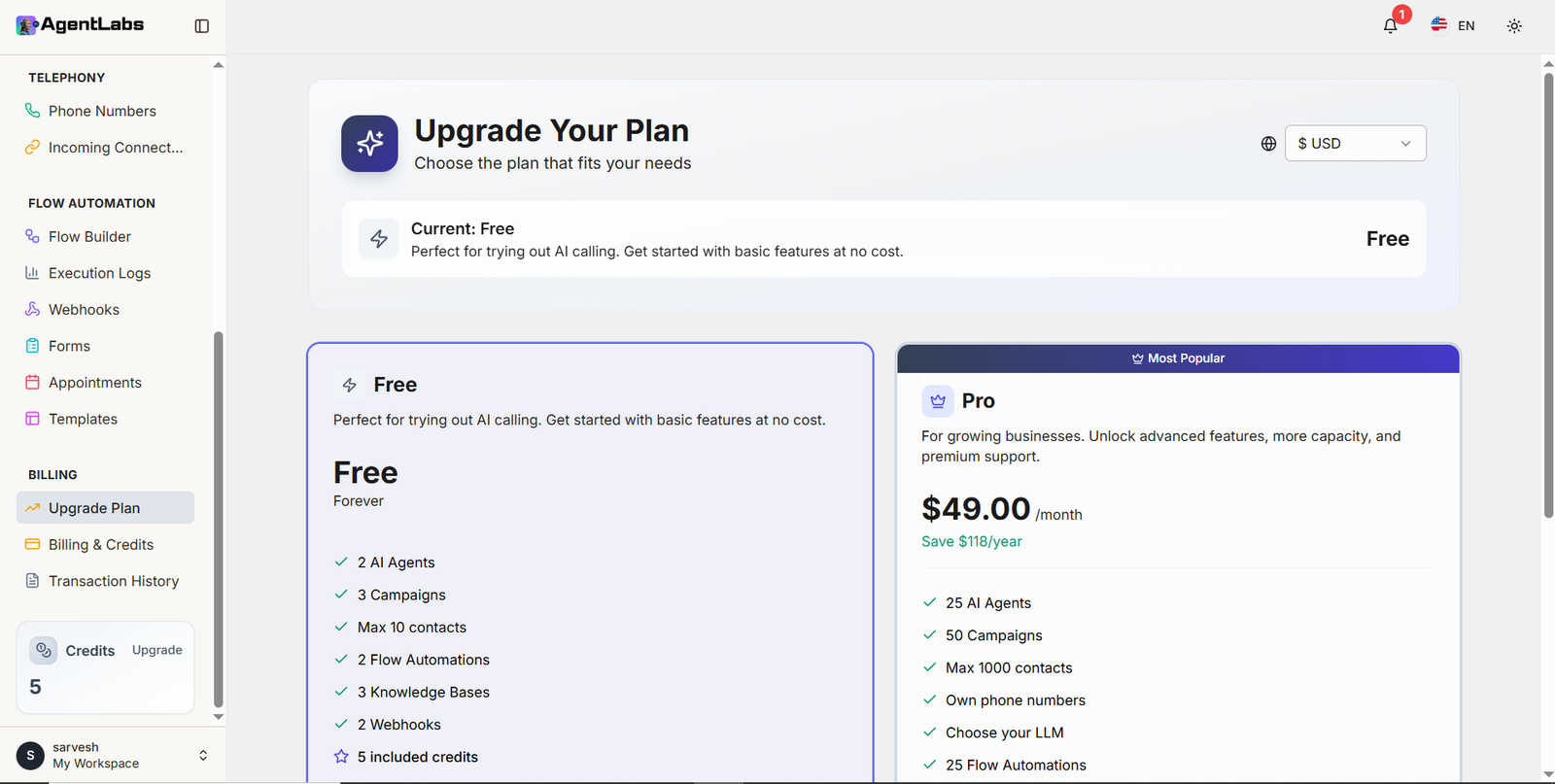
💎 Pricing Plans Overview
Free Plan Features
- ✓ 2 AI Agents: Create up to 2 AI calling agents
- ✓ 3 Campaigns: Run up to 3 calling campaigns
- ✓ Max 10 Contacts: Store up to 10 contacts
- ✓ 2 Flow Automations: Create 2 conversation flows
- ✓ 3 Knowledge Bases: Upload documents and URLs
- ✓ 2 Webhooks: Integration endpoints
- ⭐ 5 Included Credits: Free credits to get started
Pro Plan Features ($49/month)
- ✓ 25 AI Agents: Scale up to 25 AI agents
- ✓ 50 Campaigns: Run up to 50 campaigns simultaneously
- ✓ Max 1000 Contacts: Store up to 1000 contacts
- ✓ Own Phone Numbers: Rent and manage dedicated numbers
- ✓ Choose Your LLM: Select preferred AI language model
- ✓ 25 Flow Automations: Create complex conversation flows
- 💰 Save $118/year: Annual billing discount available
Plan Comparison
| Feature | Free | Pro (Most Popular) |
|---|---|---|
| AI Agents | 2 | 25 |
| Campaigns | 3 | 50 |
| Max Contacts | 10 | 1000 |
| Flow Automations | 2 | 25 |
| Knowledge Bases | 3 | Unlimited |
| Webhooks | 2 | Unlimited |
| Own Phone Numbers | ❌ | ✅ |
| Choose Your LLM | ❌ | ✅ |
| Price | Free Forever | $49/month |
Current Plan & Billing
The Upgrade Plan page displays your current subscription status and available upgrade options. Users on the Free plan can try out AI calling with basic features at no cost, perfect for testing and small-scale operations. The Pro plan ($49/month) unlocks advanced features including more AI agents, higher capacity limits, own phone numbers, LLM selection, and premium support for growing businesses.
Additional Features: Currency selection dropdown ($ USD) in top right, "Most Popular" badge on Pro plan, current plan indicator showing "Current: Free" with lightning icon, 5 credits display in sidebar, and annual billing option to save $118/year. Plans are designed to scale with your business needs from testing to enterprise-level operations.
Credits & Usage
Purchase credits to make calls and send messages
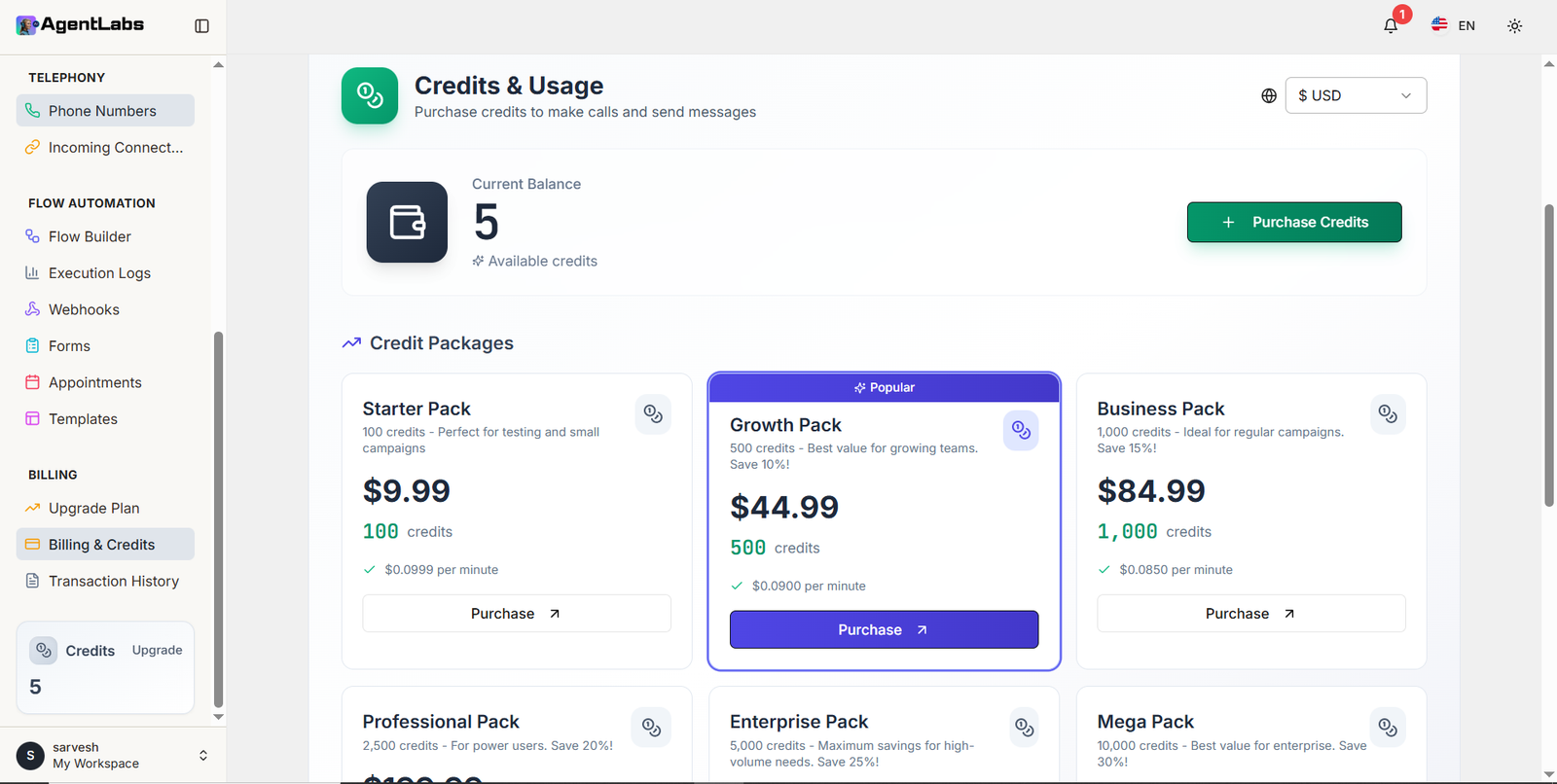
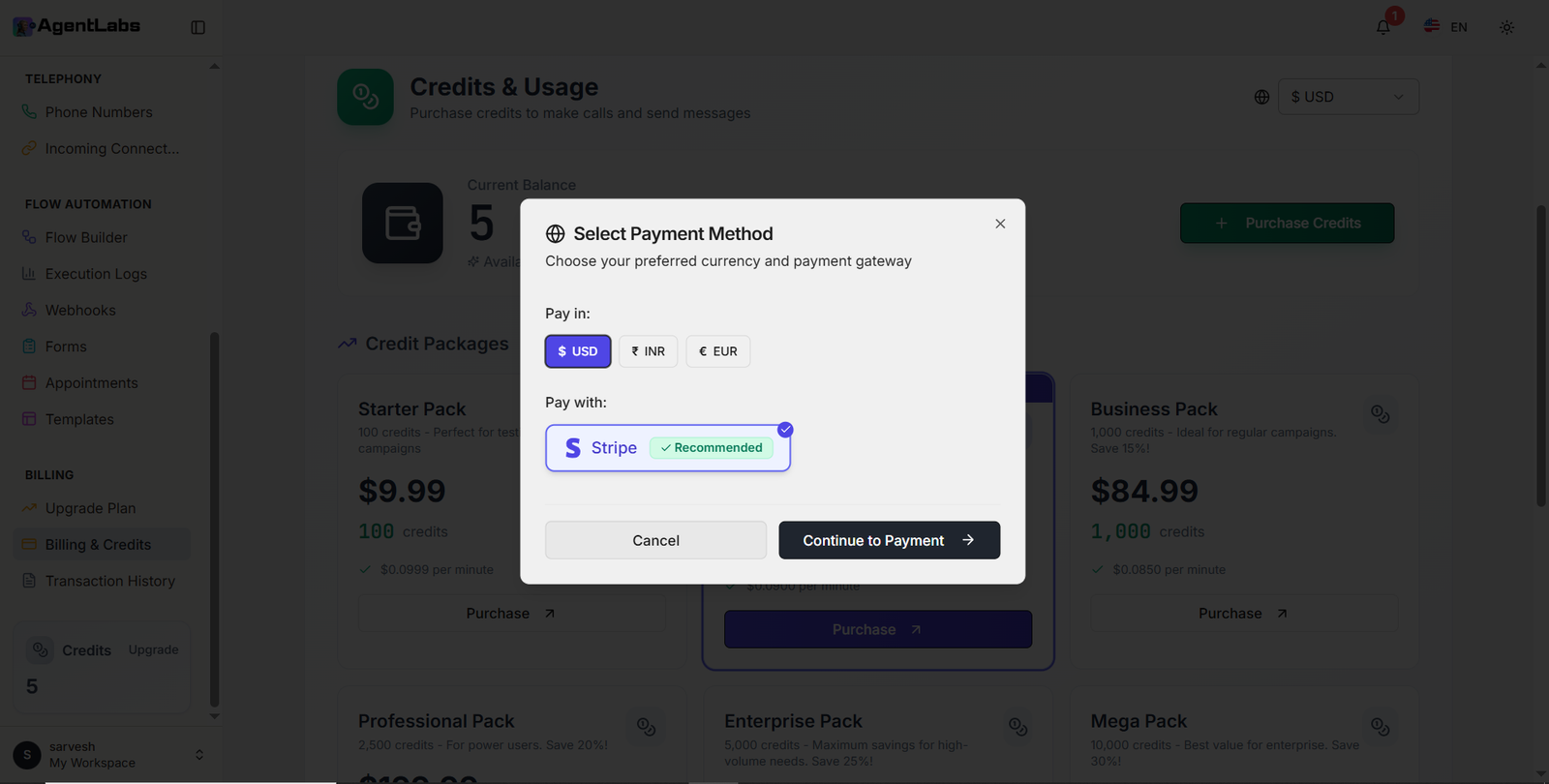
💳 Credits & Usage Management
Dashboard Features
- • Current Balance: Shows available credits (5) with wallet icon in dark card
- • Currency Selector: Dropdown to choose $ USD, INR, or EUR in top right
- • Purchase Credits Button: Green button in top right to buy more credits
- • Credit Packages Section: Grid displaying 6 different credit packages
- • Popular Badge: Star icon with "Popular" badge on Growth Pack
- • Sidebar Credits Display: Shows 5 credits with Upgrade link
Payment Method Modal
- • Modal Header: "Select Payment Method" with subtitle to choose currency and gateway
- • Currency Selection: Pills for $ USD (selected), ₹ INR, € EUR
- • Payment Gateway: Stripe option with "Recommended" badge and checkmark
- • Stripe Card: Purple Stripe logo with recommended tag
- • Cancel Button: White cancel button at bottom left
- • Continue Button: Black "Continue to Payment" button with arrow icon
Available Credit Packages
🎯 Starter Pack
100 credits - Perfect for testing and small campaigns
$9.99
$0.0999 per minute
⭐ Growth Pack (Popular)
500 credits - Best value for growing teams. Save 10%!
$44.99
$0.0900 per minute
💼 Business Pack
1,000 credits - Ideal for regular campaigns. Save 15%!
$84.99
$0.0850 per minute
🚀 Professional Pack
2,500 credits - For power users. Save 20%!
$199.99
Cost-effective pricing
🏢 Enterprise Pack
5,000 credits - Maximum savings for high-volume needs. Save 25%!
$374.99
Best per-minute rate
💎 Mega Pack
10,000 credits - Best value for enterprise. Save 30%!
$699.99
Maximum savings
How Credits Work
Credits are used to make AI-powered calls and send messages through AgentLabs. Each minute of calling consumes credits based on your selected package rate. Purchase credit packages ranging from 100 credits ($9.99) for testing to 10,000 credits ($699.99) for enterprise needs. Larger packages offer better per-minute rates with savings up to 30%.
Payment Options: Choose your preferred currency (USD, INR, or EUR) and pay securely through Stripe (recommended). The Growth Pack (500 credits for $44.99) is our most popular option, offering 10% savings and ideal for growing teams. Track your current balance in the dashboard and sidebar, and purchase more credits anytime with the green "Purchase Credits" button.
Transaction History
View your payment and subscription transactions
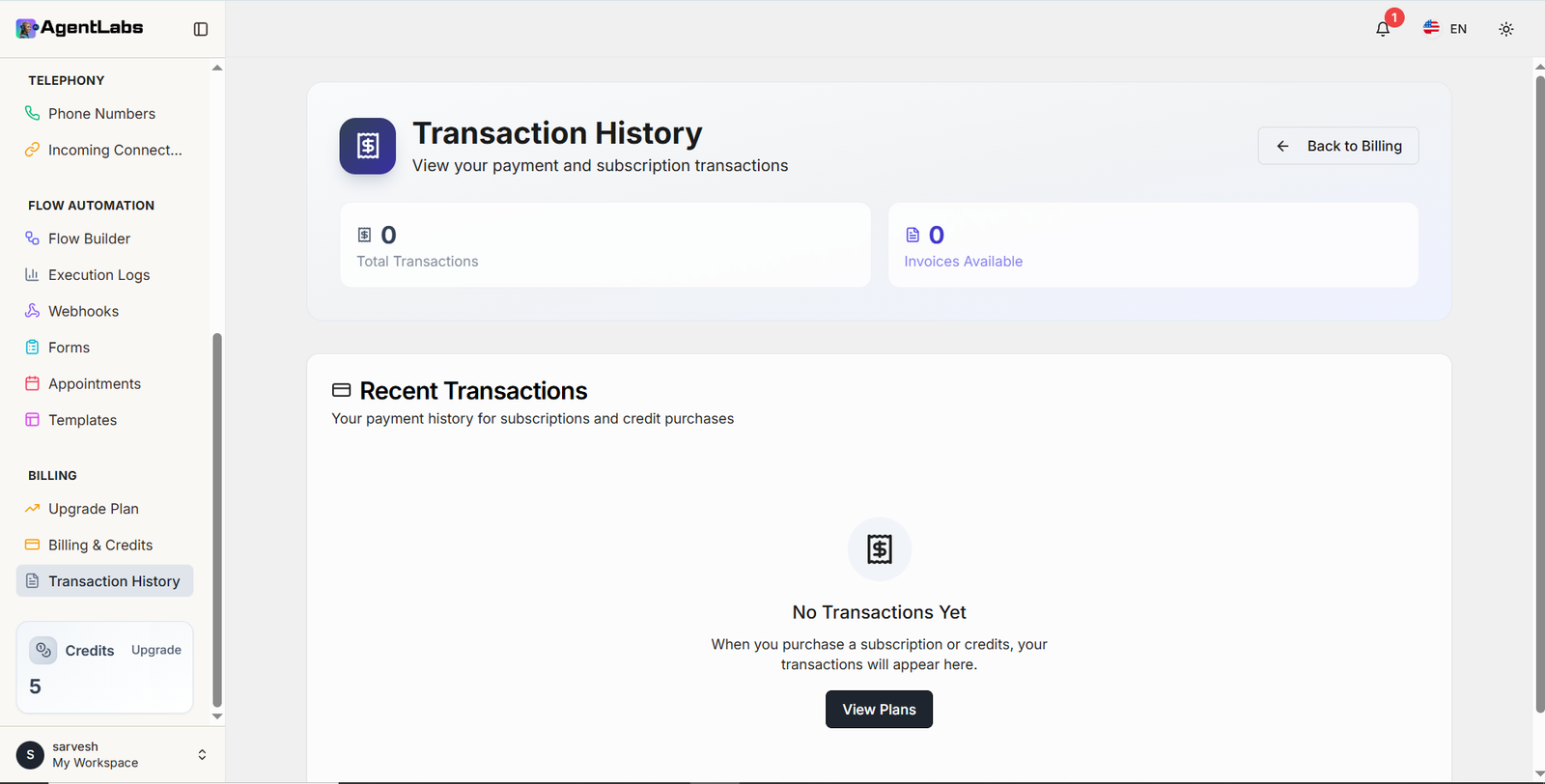
📜 Transaction History Overview
Dashboard Features
- • Back to Billing: Navigation link with arrow icon in top right
- • Transaction Statistics: Total Transactions (0) with receipt icon displayed
- • Invoices Available: Shows 0 invoices with invoice icon in purple
- • Recent Transactions Section: Heading with subtitle about payment history
- • Empty State: "No Transactions Yet" message with receipt/invoice icon
- • Descriptive Text: Explains transactions will appear after purchases
Transaction Features
- • View Plans Button: Black button to explore subscription and credit plans
- • Payment History Tracking: Records for subscriptions and credit purchases
- • Invoice Management: Access to downloadable invoices when available
- • Transaction Details: Date, amount, type, and status information
- • Subscription Tracking: Monitor recurring payments and plan changes
- • Credit Purchase Records: History of all credit package purchases
What Appears in Transaction History
💰 Credit Purchases
• Date and time of purchase
• Credit package name and amount
• Payment amount and method
• Transaction status and invoice
📅 Subscription Payments
• Monthly/annual billing records
• Plan type (Free/Pro)
• Recurring payment dates
• Upgrade/downgrade history
📋 Invoices & Receipts
• Downloadable PDF invoices
• Payment confirmation receipts
• Transaction reference numbers
• Tax and billing details
Empty State Information
Current Status: No transactions recorded yet
How to Generate Transactions:
- • Purchase credit packages from the Credits & Usage page
- • Upgrade to a Pro subscription plan
- • Rent phone numbers (50 credits/month)
- • Make any paid purchases within AgentLabs
Click "View Plans" to explore subscription options and credit packages
How Transaction History Works
The Transaction History page provides a comprehensive record of all your financial activities on AgentLabs. Track credit purchases, subscription payments, phone number rentals, and other transactions in one centralized location. Each transaction entry includes the date, amount, payment method, type, and status. Download invoices for accounting and expense reporting purposes.
Key Benefits: Maintain financial records for your business, access downloadable invoices for tax purposes, track subscription billing cycles, monitor credit usage patterns, and verify payment confirmations. Use the "Back to Billing" link to return to the main billing page, or click "View Plans" to explore available subscription and credit options.
Integrations & Webhooks
Configure webhooks to send call data to external systems like CRMs
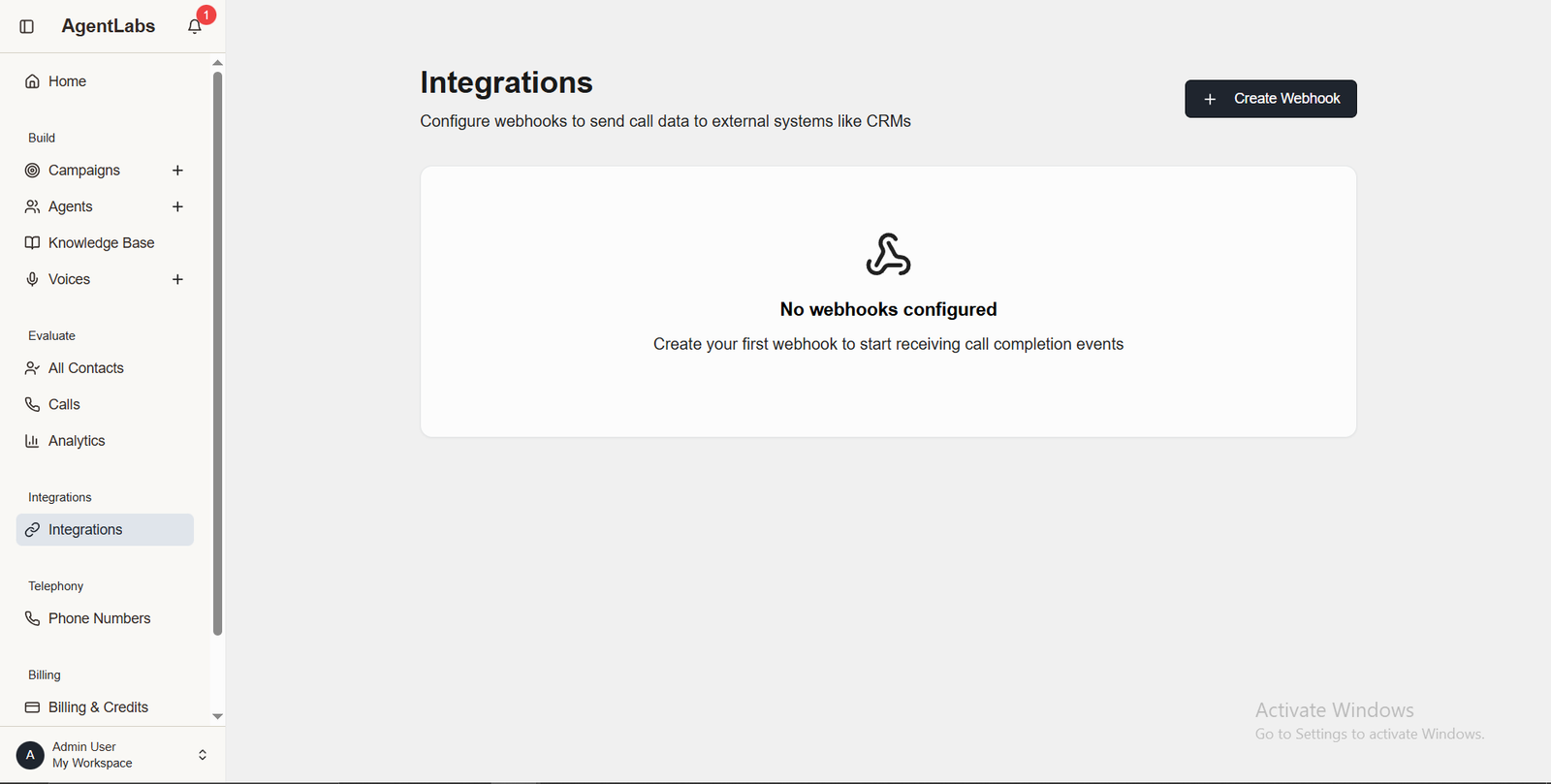
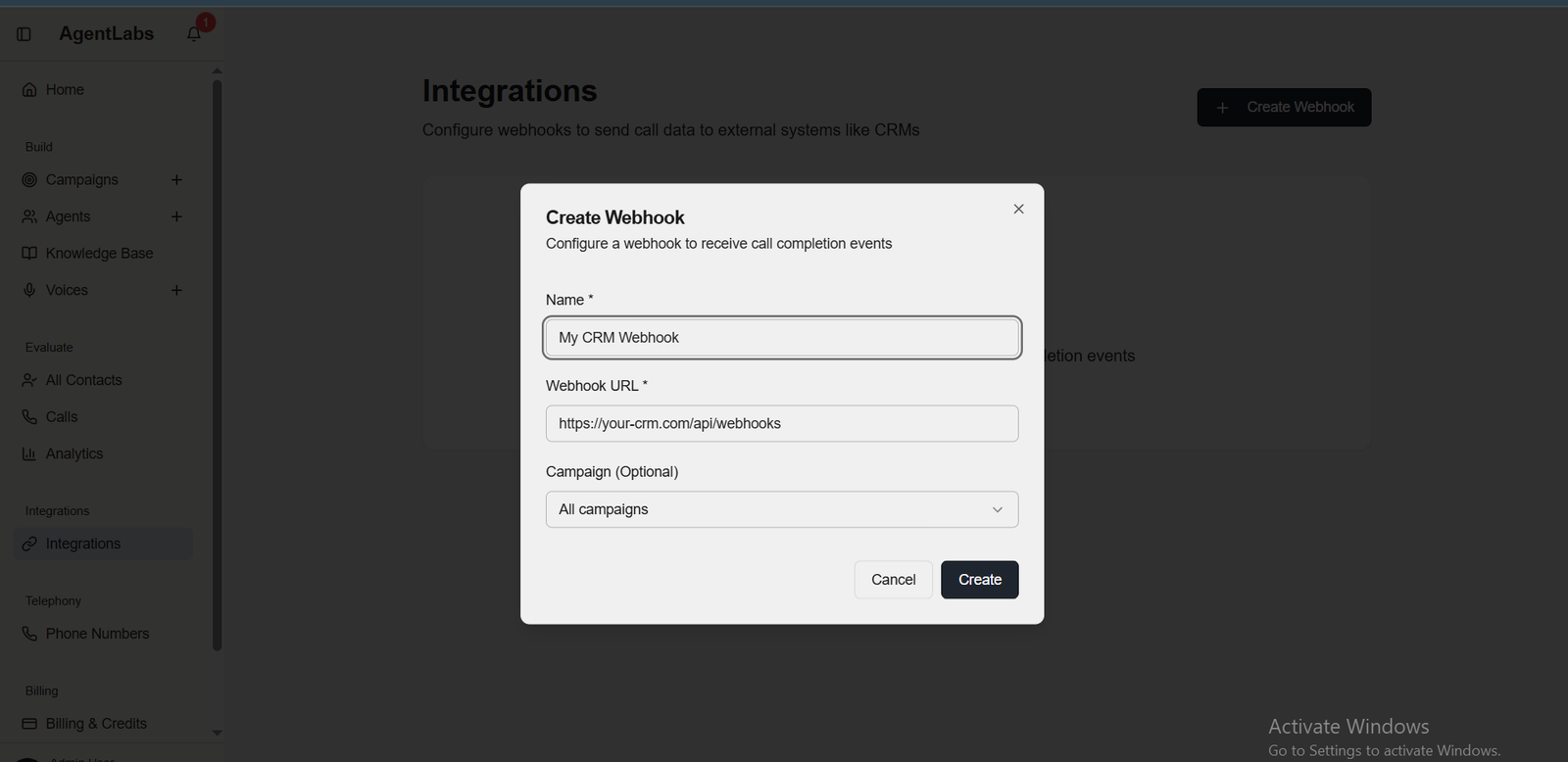
📋 Integrations Overview
Integrations List Features
- • Create Webhook Button: Top right to add new webhook integration
- • Empty State: "No webhooks configured" message
- • Purpose: Send call completion events to external systems
- • List Display: Shows all configured webhooks with details
Create Webhook Modal
- • Webhook Name: Identify webhook (e.g., "My CRM Webhook")
- • Webhook URL: Target endpoint (https://your-crm.com/api/webhooks)
- • Campaign Filter: Select which campaigns trigger webhook (All campaigns)
- • Create Button: Save webhook configuration
Webhook Events
- ✓ Call completion events
- ✓ Lead qualification updates
- ✓ Campaign status changes
- ✓ Agent performance metrics
- ✓ Real-time call data synchronization
- ✓ CRM integration support (Salesforce, HubSpot, Pipedrive, etc.)
Phone Numbers Management
Manage your Twilio phone numbers for calling campaigns
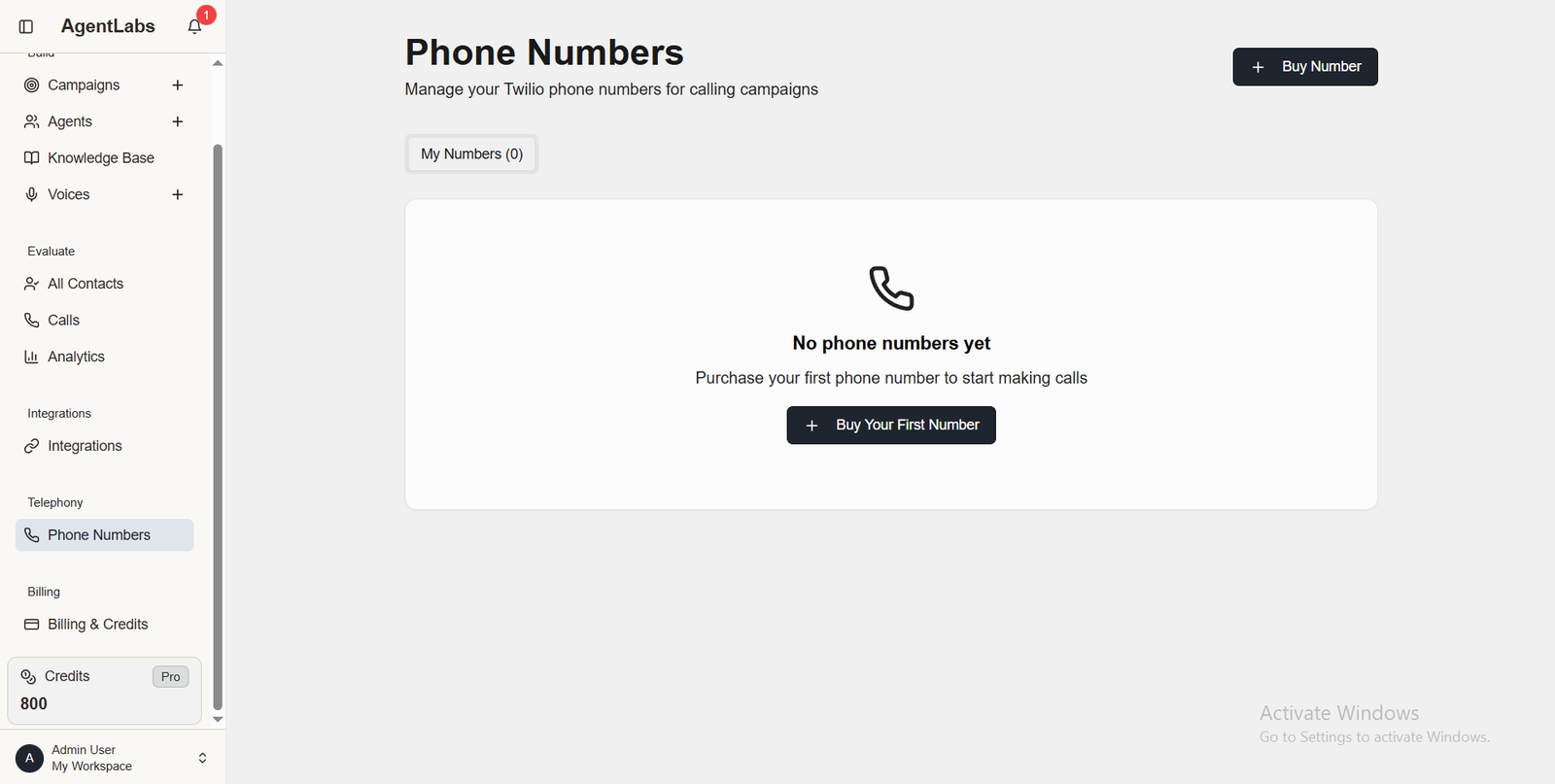
📋 Phone Numbers Overview
Phone Numbers List Features
- • My Numbers Tab: Shows "My Numbers (0)" - no purchased numbers
- • Buy Number Button: Top right to purchase new Twilio number
- • Empty State: "No phone numbers yet" with phone icon
- • Call to Action: "Purchase your first phone number to start making calls"
Buy Number Process
- • Search Numbers: Search by area code or country
- • Number Types: Local, toll-free, international options
- • Pricing: One-time purchase + monthly subscription cost
- • Assign Campaign: Link number to specific campaigns
After Purchasing Numbers
- ✓ View all purchased phone numbers in table format
- ✓ See number type (Local/Toll-free), status, and monthly cost
- ✓ Assign numbers to campaigns for caller ID
- ✓ Release unused numbers to save credits
- ✓ Monitor usage and call activity per number
- ✓ Credit balance shown in sidebar (800 credits available)
Billing & Subscription
Manage your subscription, credits, and billing


📋 Billing & Subscription Overview
Upgrade Your Plan Section
- • Free Plan (Current): 1 AI Agent, 1 Campaign, 5 Contacts, Credits as needed
- • Pro Plan (Recommended): $49/month or $490/year (save 17%)
- • Pro Features: Unlimited Agents, Campaigns, Contacts
- • Pro Benefits: 100 credits monthly + Priority support
- • Subscribe Buttons: Monthly or Yearly subscription options
Credits & Usage Section
- • Current Balance: 0 available credits display
- • Purchase Credits: Button to buy additional credits
- • Test Plan: $10 for 100 credits ($0.1000 per minute)
- • New Pack (Popular): $100 for 1,000 credits ($0.1000 per minute)
- • Transaction History: "No transactions yet" empty state
- • Notice: Active membership required to purchase credits
Plan Comparison
Free Plan
- ✓ 1 AI Agent
- ✓ 1 Active Campaign
- ✓ 5 Contacts per Campaign
- ✓ Purchase credits as needed
- ✗ No monthly credits included
Pro Plan ($49/mo)
- ✓ Unlimited AI Agents
- ✓ Unlimited Campaigns
- ✓ Unlimited Contacts
- ✓ 100 credits included monthly
- ✓ Priority support
Credit Packages Available
Test Plan - $10
100 credits • $0.1000/minute
New Pack - $100 (Popular)
1,000 credits • $0.1000/minute
👨💼 New Featers
Complete admin panel tools for managing campaigns, contacts, and calling operations
Agent System
Configure and manage AI agents with advanced customization options
🤖 Agent System Overview
Three Types of AI Agents
💬1. Natural Agents
Open-ended conversational AI powered by LLMs (GPT-4o, Claude, Gemini)
Key Features:
- • Free-form conversation
- • Context-aware responses
- • Knowledge base integration
- • Voice customization
- • Language detection
🔄2. Flow Agents
Scripted call flows with visual editor for predictable conversations
Key Features:
- • Drag-and-drop flow builder
- • Conditional branching
- • Form data collection
- • Appointment booking
- • Webhook integration
📞3. Incoming Agents
Handle inbound calls to your phone numbers
Key Features:
- • Automatic call routing
- • IVR-style menus
- • Language detection
- • Transfer to human
Natural Agent Configuration Example
{
  "name": "Sales Agent",
  "type": "natural",
  "systemPrompt": "You are a helpful sales representative...",
  "llmModel": "gpt-4o",
  "voice": "rachel",
  "language": "en",
  "firstMessage": "Hello! How can I help you today?"
}
Voice Configuration Settings
Agents use ElevenLabs voices with configurable settings:
| Setting | Range | Description |
|---|---|---|
| stability | 0-1 | Voice consistency (higher = more stable) |
| similarity_boost | 0-1 | Voice clarity (higher = clearer) |
| style | 0-1 | Expressiveness (higher = more expressive) |
| speed | 0.5-2.0 | Speaking rate |
Smart TTS Model Auto-Selection
The system automatically selects the appropriate ElevenLabs TTS model:
English
eleven_turbo_v2 (optimized for speed)
Other Languages
eleven_multilingual_v2 (supports 29 languages)
Advanced Agent Features
📚 Prompt Templates Library
Pre-built templates for common use cases:
- • Sales outreach
- • Customer support
- • Appointment setting
- • Survey collection
- • Lead qualification
Access via: Agents → Prompt Templates Library
🔄 Agent Versioning
Every agent change creates a version snapshot:
- • Rollback to previous versions
- • Compare configurations
- • Audit trail
8 Pre-configured Agent Presets
🔗 ElevenLabs Synchronization
Agents are automatically synchronized with ElevenLabs:
ElevenLabs Multi-Key Pool
Automatic load balancing and resource management across multiple API keys
🔑 Multi-Key Pool System
System Overview
The Multi-Key Pool system enables scaling across multiple ElevenLabs API keys with automatic load balancing, user-credential affinity, and seamless resource migration.
┌─────────────────────────────────────────────────────────────┐
│                    ElevenLabs Pool Manager                    │
├─────────────────────────────────────────────────────────────┤
│  Credential 1        Credential 2        Credential 3        │
│  ┌──────────┐       ┌──────────┐        ┌──────────┐        │
│  │ Users: 50│       │ Users: 45│        │ Users: 30│        │
│  │Agents:100│       │Agents: 90│        │Agents: 60│        │
│  │ Load: 85%│       │ Load: 75%│        │ Load: 50%│        │
│  └──────────┘       └──────────┘        └──────────┘        │
└─────────────────────────────────────────────────────────────┘
Core Features
👤User-Credential Affinity
Each user is permanently assigned to one ElevenLabs credential:
- • de class="bg-violet-100 px-1 rounded">users.elevenLabsCredentialId tracks assignment
- • All user resources stay on same credential
- • Prevents cross-credential resource issues
- • Maintains data consistency
📊Threshold-Based Distribution
New users assigned to credentials under de class="bg-violet-100 px-1 rounded">maxAgentsThreshold:
- • Default threshold: 100 agents
- • Round-robin when all reach threshold
- • Admin adjustable per credential
- • Automatic rebalancing
⚖️Atomic Load Balancing
Campaigns use atomic slot reservation:
UPDATE elevenlabs_credentials
SET current_load = current_load + 1
WHERE id = $1
  AND current_load < max_concurrency
RETURNING *
🏥Credential Health Monitoring
Automatic health checks:
- • API endpoint validation
- • Response time monitoring
- • Error rate tracking
- • Auto-disable on failures
Admin Pool Management API
Admin routes for comprehensive pool management:
List all credentials with stats
Add new credential to pool
Update threshold for credential
View users assigned to credential
🔄 Migration Engine
Located at de class="bg-violet-100 px-1 rounded">server/engines/elevenlabs-migration/
Automatic Migration
Triggers on credential mismatch detection
Phone Number Migration
Seamless transfer between ElevenLabs accounts
Agent Co-location
Enforces all user agents on same credential
Concurrency Protection
Distributed locks prevent conflicts
System Benefits
Scalability
Scale beyond single API key limits
Reliability
Automatic failover and health checks
Resource Isolation
User resources stay together
Webhook Integration
Receive and send event-based notifications with secure webhooks
🔔 Incoming Webhooks
ElevenLabs Webhooks
- • de class="bg-purple-50 px-1 rounded">conversation.completed – Call finished
- • de class="bg-purple-50 px-1 rounded">conversation.started – Call started
- • de class="bg-purple-50 px-1 rounded">agent.updated – Agent configuration changed
Twilio Webhooks
- • Call status changes
- • Recording ready
- • Billing events
Payment Webhooks
- • Subscription created/updated
- • Payment succeeded/failed
- • Invoice generated
📤 Outgoing Webhooks (User-Configured)
Users can configure webhooks for the following events:
🧾 Webhook Subscription Model
TypeScript interface used to store webhook subscriptions:
interface WebhookSubscription {
  id: string;
  userId: string;
  url: string;
  events: string[];
  secret: string; // For signature verification
  isActive: boolean;
}
🔐 Signature Verification
All outgoing webhooks include an HMAC-SHA256 signature generated with the webhook secret:
const signature = crypto
  .createHmac("sha256", webhookSecret)
  .update(JSON.stringify(payload))
  .digest("hex");

headers["X-Signature"] = signature;
Receivers should recompute this signature with the shared secret and compare it to the de class="bg-purple-50 px-1 rounded">X-Signature header to verify authenticity.
🔁 Retry Mechanism
Failed webhook deliveries are retried with backoff settings:
- • Configurable intervals (default: 1, 5, 15 minutes)
- • Maximum attempts (default: 3)
- • Exponential backoff
- • Delivery logs retained
📦 Webhook Payload Structure
Example payload for a de class="bg-purple-50 px-1 rounded">call.completed event:
{
  "event": "call.completed",
  "timestamp": "2025-01-15T10:30:00Z",
  "data": {
    "callId": "call_123",
    "agentId": "agent_456",
    "duration": 180,
    "transcript": [...],
    "collectedData": {...}
  }
}
Internationalization (i18n)
Multi-language support with RTL layout capabilities
Supported Languages
| Code | Language | Direction |
|---|---|---|
| de class="bg-indigo-50 px-1 rounded">en | English | LTR |
| de class="bg-indigo-50 px-1 rounded">ar | Arabic | RTL |
| de class="bg-indigo-50 px-1 rounded">de | German | LTR |
| de class="bg-indigo-50 px-1 rounded">es | Spanish | LTR |
| de class="bg-indigo-50 px-1 rounded">fr | French | LTR |
| de class="bg-indigo-50 px-1 rounded">hi | Hindi | LTR |
| de class="bg-indigo-50 px-1 rounded">it | Italian | LTR |
| de class="bg-indigo-50 px-1 rounded">ja | Japanese | LTR |
| de class="bg-indigo-50 px-1 rounded">pl | Polish | LTR |
| de class="bg-indigo-50 px-1 rounded">pt | Portuguese | LTR |
| de class="bg-indigo-50 px-1 rounded">sv | Swedish | LTR |
RTL Support (Arabic)
- • de class="bg-indigo-50 px-1 rounded">DirectionProvider for automatic direction switching
- • IBM Plex Sans Arabic font
- • CSS logical properties
- • Mirrored UI layouts
Note: Flow builder canvas remains LTR for visual consistency
Language Detection
Automatic detection priority:
- 1. User preference (localStorage)
- 2. Browser language setting
- 3. Default to English
Translation Files
Located at de class="bg-indigo-50 px-1 rounded">client/public/locales/{lang}/translation.json:
{
  "common": {
    "save": "Save",
    "cancel": "Cancel",
    "delete": "Delete"
  },
  "agents": {
    "create": "Create Agent",
    "edit": "Edit Agent"
  }
}
Adding New Languages
- 1. Create translation file: de class="bg-indigo-50 px-1 rounded">client/public/locales/{code}/translation.json
- 2. Add language to i18n config: de class="bg-indigo-50 px-1 rounded">client/src/i18n.ts
- 3. Add language option to UI
Database Schema
PostgreSQL database structure and relationships
Core Tables
Support Tables (14 tables)
🔗 Entity Relationships
users ─────────────── userSubscriptions ──── plans
  │
  ├── agents ────────────────────────────────┐
  │                                          │
  ├── campaigns ───── contacts               │
  │      │                │                  │
  │      └── calls ───────┘                  │
  │            │                             │
  │            └── (userId for direct ownership)
  │
  ├── phoneNumbers ── incomingConnections ───┘
  │
  └── elevenLabsCredentials (assigned via users.elevenLabsCredentialId)
Security Features
Core application security, isolation, and compliance controls
- In-memory rate limiting by IP
- Default: 100 requests/minute (configurable)
- Returns 429 Too Many Requests on limit
- Webhook paths can be whitelisted
AuditLog { userId, action, resource, details, ipAddress, userAgent, timestamp }
- User login / logout
- Agent CRUD operations
- Campaign lifecycle events
- Payment and billing transactions
- Admin and elevated actions
- Strict userId ownership on all resources
- Query-time filtering for every read/write
- No cross-tenant data access paths
- Configurable in Admin Panel
- Default expiry: 7 days via jwt_expiry_days
- JWT validated on every request
- HMAC-SHA256 / SHA512 signature validation
- Timestamp-based request freshness checks
- Replay attack prevention strategies
- bcrypt hashing with 10 rounds
- Minimum 6-character password policy
- Login attempts rate-limited via IP
- JWT-based stateless authentication
- No server-side session storage
- Token validation on every request
- Token expiry configurable via admin settings
PostgreSQL advisory locks used to coordinate critical operations:
- 1000–1999: phone migration
- 2000–2999: phone verification
- 3000–3999: bulk operations
- 4000–4999: load balancing
Request Correlation IDs
X-Correlation-ID header
└─ generated per request
   ├─ logged with all operations
   └─ propagated to external services
✅ Security Summary
- Defense-in-depth across transport, storage, and application layers
- Full traceability via audit logs and correlation IDs
- Multi-tenant isolation enforced at the data access layer
- Configurable authentication and rate limiting from the Admin Panel
Production Deployment
Environment, reverse proxy, process manager, and runtime safeguards
Production environment variables are configured via server-level .env:
NODE_ENV=production
PORT=5000
APP_URL=https://yourdomain.com

# Database
DATABASE_URL=postgresql://...

# All other variables from Installation section
- Configure DNS A/AAAA records to point to the server
- Issue SSL certificate (Let's Encrypt recommended)
- Configure Nginx as HTTPS reverse proxy
The application itself listens on http://localhost:5000, while Nginx terminates TLS on port 443.
HTTP traffic is redirected to HTTPS, and Nginx forwards requests to the Node.js application:
server {
    listen 80;
    server_name yourdomain.com;
    return 301 https://$server_name$request_uri;
}

server {
    listen 443 ssl http2;
    server_name yourdomain.com;

    ssl_certificate     /etc/letsencrypt/live/yourdomain.com/fullchain.pem;
    ssl_certificate_key /etc/letsencrypt/live/yourdomain.com/privkey.pem;

    location / {
        proxy_pass http://localhost:5000;
        proxy_http_version 1.1;
        proxy_set_header Upgrade           $http_upgrade;
        proxy_set_header Connection        'upgrade';
        proxy_set_header Host              $host;
        proxy_set_header X-Real-IP         $remote_addr;
        proxy_set_header X-Forwarded-For   $proxy_add_x_forwarded_for;
        proxy_set_header X-Forwarded-Proto $scheme;
    }
}
PM2 keeps the Node.js application running, restarts on crash, and bootstraps on server restart:
# Install PM2
npm install -g pm2

# Start application
pm2 start npm --name "agentlabs" -- start

# Configure auto-restart on boot
pm2 startup
pm2 save
Two health endpoints expose runtime status:
- /health – simple status check
- /health/detailed – integration and dependency status
These endpoints can be wired into uptime monitors or cloud load balancer health checks.
- Automatic memory checks every 30 seconds
- Admin-configurable restart thresholds and limits
- Memory usage metrics logged for analysis
Protects against slow memory leaks by triggering controlled restarts when limits are exceeded.
On SIGTERM / SIGINT, the application performs a controlled shutdown:
- Stop accepting new connections
- Allow in-flight requests to complete
- Close database and external service connections
- Exit the process cleanly
API Reference
Authenticated JSON API for managing agents, campaigns, calls, and billing
All non-public endpoints require a valid JWT access token in the Authorization header:
Authorization: Bearer <jwt_token>
Success
{
  "data": { ... },
  "message": "Success"
}
Error
{
  "message": "Error description",
  "correlationId": "abc123-..."
}
Authentication User identity & session lifecycle
| Endpoint | Method | Description |
|---|---|---|
| /api/auth/register | POST | Register new user |
| /api/auth/login | POST | Login user |
| /api/auth/logout | POST | Logout user |
| /api/auth/me | GET | Get current user |
| /api/auth/verify-otp | POST | Verify email OTP |
| /api/auth/forgot-password | POST | Request password reset |
| /api/auth/reset-password | POST | Reset password |
Agents Voice agents & versioning
| Endpoint | Method | Description |
|---|---|---|
| /api/agents | GET | List user's agents |
| /api/agents | POST | Create agent |
| /api/agents/:id | GET | Get agent details |
| /api/agents/:id | PATCH | Update agent |
| /api/agents/:id | DELETE | Delete agent |
| /api/agents/:id/versions | GET | List agent versions |
| /api/agents/:id/rollback/:versionId | POST | Rollback to version |
Campaigns Outbound calling campaigns
| Endpoint | Method | Description |
|---|---|---|
| /api/campaigns | GET | List campaigns |
| /api/campaigns | POST | Create campaign |
| /api/campaigns/:id | GET | Get campaign details |
| /api/campaigns/:id/start | POST | Start campaign |
| /api/campaigns/:id/pause | POST | Pause campaign |
| /api/campaigns/:id/resume | POST | Resume campaign |
| /api/campaigns/:id/stop | POST | Stop campaign |
Contacts Contact management & imports
| Endpoint | Method | Description |
|---|---|---|
| /api/contacts | GET | List contacts |
| /api/contacts | POST | Create contact |
| /api/contacts/upload | POST | Upload CSV |
| /api/contacts/deduplicated | GET | Get deduplicated contacts |
Phone Numbers Provisioning & routing
| Endpoint | Method | Description |
|---|---|---|
| /api/phone-numbers | GET | List phone numbers |
| /api/phone-numbers/available | GET | Search available numbers |
| /api/phone-numbers/purchase | POST | Purchase number |
| /api/phone-numbers/:id/connect | POST | Connect to agent |
| /api/phone-numbers/:id/disconnect | POST | Disconnect from agent |
Call Logs Call history, transcripts & recordings
| Endpoint | Method | Description |
|---|---|---|
| /api/calls | GET | List call logs |
| /api/calls/:id | GET | Get call details |
| /api/calls/:id/transcript | GET | Get transcript |
| /api/calls/:id/recording | GET | Get recording |
Dashboard Aggregate metrics
| Endpoint | Method | Description |
|---|---|---|
| /api/dashboard | GET | Get dashboard stats |
Billing Subscriptions, credits & invoices
| Endpoint | Method | Description |
|---|---|---|
| /api/billing/subscription | GET | Get subscription |
| /api/billing/credits/purchase | POST | Purchase credits |
| /api/billing/invoices | GET | List invoices |
Webhooks Inbound events from providers
| Endpoint | Method | Description |
|---|---|---|
| /api/webhooks/elevenlabs | POST | ElevenLabs webhooks |
| /api/webhooks/twilio/voice | POST | Twilio voice webhooks |
| /api/webhooks/stripe | POST | Stripe webhooks |
| /api/webhooks/razorpay | POST | Razorpay webhooks |
| /api/webhooks/paypal | POST | PayPal webhooks |
| /api/webhooks/paystack | POST | Paystack webhooks |
| /api/webhooks/mercadopago | POST | MercadoPago webhooks |
Admin (Admin only) Platform-level configuration
| Endpoint | Method | Description |
|---|---|---|
| /api/admin/users | GET | List all users |
| /api/admin/users/:id | GET | Get user details |
| /api/admin/users/:id | PATCH | Update user |
| /api/admin/settings | GET | Get settings |
| /api/admin/settings | PATCH | Update settings |
| /api/admin/elevenlabs-pool | GET | List credentials |
| /api/admin/elevenlabs-pool | POST | Add credential |
Marketplace Distribution
Licensing, branding, and distribution tooling for Envato/CodeCanyon
AgentLabs is distributed via Envato using Regular and Extended license models:
- Regular License: single end product, no charge to end users
- Extended License: single end product, allowed to charge end users
All distributed source files include a standardized Diploy copyright header:
/**
 * ============================================================
 * © 2025 Diploy — a brand of Bisht Technologies Private Limited
 * Original Author: BTPL Engineering Team
 * Website: https://diploy.in
 * Contact: cs@diploy.in
 * ============================================================
 */
On startup, AgentLabs prints a console signature indicating origin and distribution terms:
====================================
AgentLabs Initialized
©diploy
Unauthorized distribution prohibited
The root-level LICENSE.md file contains the full Envato licensing terms applicable to AgentLabs:
- Summarizes Regular vs Extended license usage
- Clarifies redistribution and resale restrictions
- Defines support, updates, and permitted usage scope
Distribution Scripts Build & packaging automation
Prepare for Distribution
Generates a clean ZIP archive suitable for Envato upload, stripping out environment-specific files.
./scripts/prepare-distribution.sh
Removes Replit-specific and non-essential development artifacts from the final bundle.
Add Copyright Headers
Ensures all distributed source files carry the Diploy copyright banner:
./scripts/add-copyright-headers.sh
Can be run before packaging or as part of a CI pipeline step prior to release.
Troubleshooting & FAQ
Fix common issues and find answers to frequently asked questions
Common Issues Most frequent errors & resolutions
Database Connection Failed
ECONNREFUSED 127.0.0.1:5432
- Verify PostgreSQL service is running
- Check the DATABASE_URL variable
- Ensure the database name exists
ElevenLabs API Error
Failed to create agent: 401 Unauthorized
- Ensure ELEVENLABS_API_KEY is valid
- Verify correct API permissions
- Check if the key is expired
Twilio Phone Purchase Failed
Unable to purchase phone number
- Check Twilio account balance
- Verify Twilio SID/Auth Token
- Confirm number availability in the region
Campaign Not Starting
Campaign stuck in 'pending' state
- Check ElevenLabs credential capacity
- Verify agent sync status
- Check for phone number conflicts
Webhook Not Received
Webhook deliveries failing
- Ensure webhook endpoint is reachable
- Check signature validation
- Review webhook delivery logs
Error Codes Standardized application-level errors
| Code | Description | Resolution |
|---|---|---|
| E1001 | Invalid credentials | Check API keys |
| E1002 | Rate limit exceeded | Wait and retry |
| E1003 | Resource not found | Verify ID exists |
| E1004 | Permission denied | Check user permissions |
| E1005 | Payment failed | Verify payment method |
| E1006 | ElevenLabs sync failed | Check agent configuration |
| E1007 | Phone conflict | Disconnect existing connection |
Debugging Tips Tools to identify and solve issues
- Request logs include correlation IDs
- Trace requests across services using correlation ID
- /health/detailed shows integration status
- Identifies failing external services
- Use admin panel to inspect records
- Review auditLogs for action history
- Verify agents exist in ElevenLabs
- Check conversation logs
Support Contact Get assistance
- Email: cs@diploy.in
- Website: https://diploy.in
- Documentation: This document
FAQ Frequently asked questions
Q: Can I customize the branding?
A: Yes, via Admin → Settings → Branding. Upload logo, change app name, and colors.
Q: How do I add a new payment gateway?
A: Payment gateways are built-in. Configure via environment variables.
Q: Can I use my own ElevenLabs account?
A: Yes, add your API key inside Admin → ElevenLabs Pool.
Q: How do I migrate from single to multi-key pool?
A: Add additional credentials via the Admin Panel. Users are automatically distributed.
Q: What happens when credits run out?
A: Campaigns pause, a warning email is sent, and the account is suspended after the grace period.
Q: Can I export my data?
A: Yes, use Settings → Privacy → Export Data or export campaign data as CSV.
📞 Support & Contact
📧 Getting Help
Ticket Support
Raise a ticketEmail Support
nb@diploy.in